
Category: Reviews

3 Comic Creators That Will Wow Your Students
Comics are a robust medium for sharing empathy and perspective in a story. It’s equally appropriate for fiction and nonfiction and does a solid job of reinforcing Common Core standards related to writing in a fun, agile way that appeals to students.
When your students write with comics, they’ll follow a few simple rules:
- Each panel includes detail to support the plot, characters, and setting.
- Each panel flows into the next, just as story paragraphs and scenes flow.
- Images, text, bubbles, and captions communicate ideas, story, and empathy.
Here are three great options for writing with comics:

Revision Assistant–the Most Comprehensive Virtual Writing Assistant Available for Students
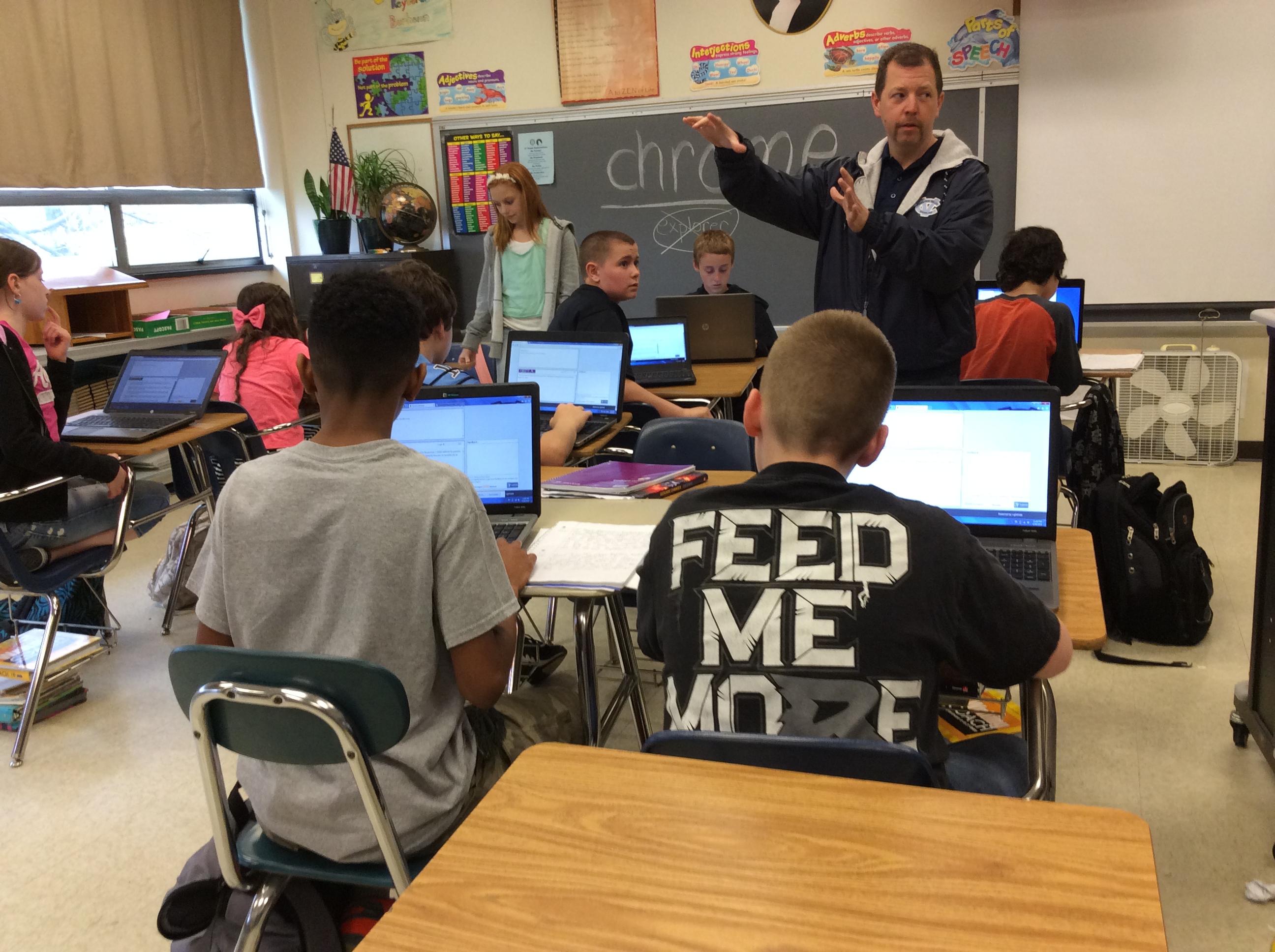 English teachers know the key to writing is rewriting, but getting students to do that has always been a challenge. That is, until I found Turnitin’s Revision Assistant. Revision Assistant makes rewriting easy to understand, self-directed, and believe it or not–more fun. In fact, it uses features from the gamified classroom to encourage students to maximize the strength of their writing ‘signals’ by revising and editing. Geared for grades 6-12, it builds writing skill with suggestions that are formative in nature, well-explained, and based on tips from actual students who completed the same exercise.
The learning curve is shallow for both teachers and students–easily accomplished with minimal guidance, though Turnitin offers a variety of instructional videos to cover salient points. The goal is to aid students in recognizing their weaknesses and build on their strengths.
Here’s how it works:
- The teacher sets up their class dashboard and invites students to join via a Join code.
- The teacher shares one of the many grade- and topic-specific prompts (divided into three categories: argumentative, narrative, and informative) with students, including any required resources and special instructions. These prompts are aligned with Common Core and/or a variety of state standards.
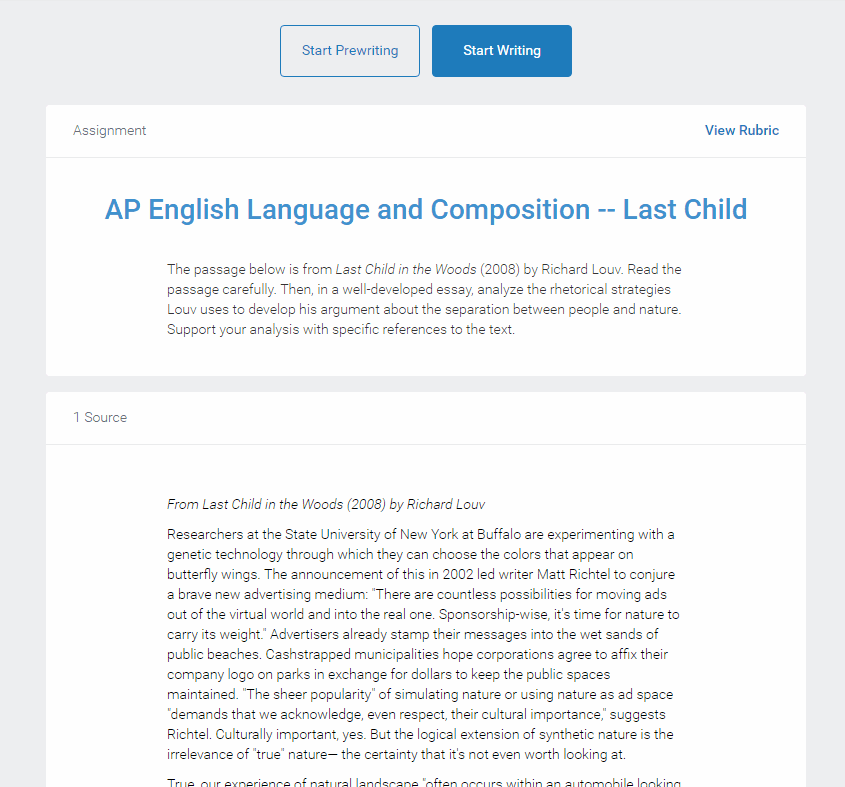
- The student signs in to their Revision Assistant dashboard and locates the required writing assignment. They can pre-write their response if desired before moving into the first draft. A rubric is provided so students are clear about expectations.
- When ready, students request a ‘signal check’ to see how they’re doing. This provides color-coded feedback on language, focus, organization, and evidence with suggestions on how to improve what they have written. Students can request as many signal checks as they wish during the rewrite process. Improvement is reflected in an increased signal strength from a low of one bar to a high of four bars in each category.
- When students have completed the assignment, they submit it to the teacher (with an optional comment) who then reviews and grades it as fits the class environment (Revision Assistant does not assign a grade).
- The teacher can track each student submittal and download a spreadsheet of area-specific progress for the class.
Revision Assistant has an intuitive interface, a clean non-cluttered canvas, easy-to-use dashboards for both teachers and students, and no advertising. It is also part of the Turnitin family, a trusted name in student writing.

3 Fresh Art and Music Apps for the Classroom
Fifty years ago, Albert Einstein warned ‘Imagination is more important than knowledge.’ The ability to solve problems by thinking creatively is more important than knowing how they were solved in the past. Now, in today’s connected classroom, creativity has become the newest transformative tool, the buzzword that indicates a curriculum is on the cutting edge, that teachers are delivering their best to students and differentiating for varied needs.
Art and music have long been considered the doorway to creative thinking. Here are three suggestions that will help you across that threshhold painlessly, even if you aren’t an artist.
 SmartMusic
I teach technology, so I asked Lawrence Auble, a musician friend I’ve known for years, what he uses for tutoring. His recommendation: Smart Music. It’s one of the 2014 category award winners by School and Band Orchestra magazine and the industry standard for teaching band, string, and vocal of all ages and all skill levels. The app gives subscribers unlimited access to SmartMusic’s extensive library of over 50 method books, nearly 50,000 skill building exercises, and 22,000+ solo and ensemble titles by major publishers.
Here’s how it works:
- Students sign into class and receive materials tailored to their needs by their teacher.
- As the music appears on the screen, students play or sing along with the background accompaniment.
- SmartMusic provides an immediate assessment.
- When satisfied, students send a recording to their teacher who can assess, score, and build a portfolio to track their progress over time.
It is available on PCs and Macs as well as iPads.

3 Favorite Classroom Apps
Here’s an excellent collection of great apps for your classroom — to cover writing, research, and assessment. You can even use all three on one project:
 Storyboard That
Free; fee for education accounts
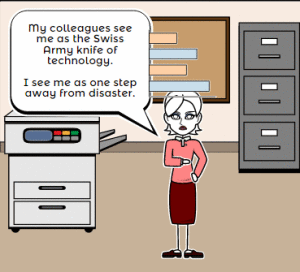
Storyboard That is a leader among online digital storytelling tools thanks to its comic-based themes, clean layout, vast collection of story pieces, varied strip layouts, and intuitive drag-and-drop interface. Students map out ideas using a huge library of backgrounds, characters, text boxes, shapes, and images (with over 325 characters, 225 scenes, and 45,000 images). With an education account, teachers also get teacher guides and lesson plans.
Here’s how it works: Log into your account and Storyboard That automatically adapts to your device (whether it’s a desktop, Chromebook, or iPad). Select the layout you’d like, then add a background, characters, one or more props, and speech bubbles from Storyboard That’s collections. Each element can be resized, rotated, and repositioned to exactly suit your needs. Characters can also be adjusted for appearance, emotion, and action. You can even upload images and record a voice overlay (premium only) to narrate the story. Once finished, storyboards can be saved as PDFs, PowerPoints, and/or emailed out.

Dear Otto: I need to convert from PDF to Doc–Does that work?

Dear Otto is an occasional column where I answer questions I get from readers about teaching tech. If you have a question, please contact me at askatechteacher at gmail dot com and I’ll answer it here. For your privacy, I use only first names.
Here’s a great question I got from a reader:
I have a lesson plan I created in MS Word and then converted to PDF so I could share with my grade level team (everyone doesn’t have Word). It took us a while to go through it–lots of changes–and when I tried to find the original document, it was nowhere to be found. I tried a few PDF converters, but they didn’t work well and I’d have to retype most of the lesson plan. Can you help?
This is an all-too-common problem for teachers. Much of our work is shared with others or updated year-to-year, but when we try to find that original document, it’s either misfiled, corrupted, or just plain lost. All we have left is the uneditable PDF which means a lot of retyping if we want to update it for the new school year. Converting from DOC to PDF format is easy and often native to the word processing program used so you’d think the reverse would be easy also, but that’s not true. Docs.Zone is a great solution for this problem. It’s intuitive, user-friendly, with a clean uncluttered interface and no download required. Their Optical Character Recognition programming will convert PDF to an OCR Word document quickly and effectively.
Here’s how it works:

3 Digital Tools To Keep Parents Up to Date
Keeping parents informed about classroom activities is a challenge. They are busy with work, their children, and whatever personal life they can eke out of the sixteen hours that make up their waking day. The best method to reach them is with a short, pithy message that’s informative and easy to access.
Here are three tools educators agree do exactly that:
 DialMyCalls

DialMyCalls is a quick, intuitive approach to sending messages to large (or small) groups in exactly the way they are comfortable getting them: on their phones. But rather than laboriously calling every number on your parent list–or entrusting an important communication to a phone tree–DialMyCalls sends out a recording you make via phone or text message. It can detect whether the call is answered by a live person, voicemail, or an answering machines. Once the message is sent, it follows up with an email for those who prefer that approach.
Here’s how it works: Record the message and then send it out to either your entire phone list or a segment you identify. When you’re done, generate a report that tells you exactly what happened with each call.
Pros
If you’ve ever emailed an emergency message to parents and had a large percentage not receive it, you lived the reality that many people don’t check their email. Sure, eventually they do, but not always in the timely manner required of an emergency. What they do check is their phone, for calls or text messages. Using DialMyCalls means every parent gets the message in the quickest way possible. If they don’t have internet at home, they get the phone call. If they don’t carry their phone around, they get the email.

Storyboard That–Digital Storyteller, Graphic Organizer, and more
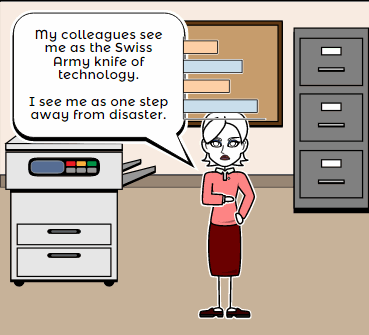 Storyboard That is a leader among online digital storytelling tools thanks to its comic-based themes, clean layout, vast collection of story pieces, varied strip options, and intuitive drag-and-drop interface. Students can map out ideas, write stories, or relay events in a comic format using Storyboard That’s huge library of backgrounds, characters, text boxes, shapes, and images. When you sign up as a teacher, you get a dashboard to manage students and support for Google sign-in. You also get teacher guides and lesson plans on subjects like English (Of Mice and Men), school social skills (like bullying), World History, US History, Special Education, and languages (like Teaching Spanish). Lesson plans include how-to steps, Common Core alignment, sample storyboard layouts, synopsis, and Essential Questions.
Here’s how it works: Log into your account from any device (laptop, desktop–Mac or Windows–Chromebook, iPad, or even a smartphone) and Storyboard That automatically adapts to your device using its HTML5 responsive web design. Students can join with an access key supplied by the teacher–no email required–or be bulk-added by the administrator. Select the frame layout you’d like with any number of scenes, then add a background, characters, one or more props, and speech bubbles from Storyboard That’s image banks (of over 325 characters, 225 scenes, and over 45,000 images). Each element can be resized, rotated, and repositioned. Characters can be posed with flexibility at all joints, and adjusted for appearance and emotion. You can even upload images to use in the strip, add photos from the millions available through Photos for Class (including citations), and record a voice overlay (premium only) to narrate the story. Once finished, storyboards can be saved as PDFs, storyboard cells, PowerPoint presentations, and/or emailed out.
Beyond the traditional strip layout, Storyboard That offers graphic organizers such as a T-chart, a Grid, a Frayer Model, a Spider Map and a Timeline (premium and education account).This is great for visual learners who thrive on color and images.

Tips For Selecting The Best And Most Efficient Web Hosting Provider
 Most prospective buyers start by going to the seller’s website before purchasing. An online presence has become a vital importance for not just business owners or service providing companies, but teacher-consultants who offer online classes, mentoring, and lesson plans to fellow educators. Thanks to a plethora of reliable and affordable web hosting companies, you no longer need ‘weebly’ or ‘wordpress’ appended to your online profile.
The problem is: There are too many web-hosting companies. How do you qualify them? Which one delivers great service at a reasonable price with reliable features that aren’t confusing to figure out? What you need is a web hosting review site (like the link above) that evaluates the critical services without relying on customer comments and their placement in a Google search.
Below are tips to help you evaluate services before you make your selection:

KidzType–the Keyboard Practice Site You’ve Been Waiting For
 One question I get urgently and often is how to teach students to keyboard. With so much of student performance based on their knowledge of using computers and keyboards, it’s become the tip of the sword in preparing students for learning. Teachers are struggling to find ways to teach keyboarding that transfers those skills to real-life situations (like testing). Online typing sites mean well, but can’t be used in a vacuum. Too often, they’re rolled out as the only tool in the typing kit. This means they try so hard to be entertaining, they lose their ability to teach. In fact, I’ve heard anecdotally from lots of teachers that while students perform well on speed and accuracy quizzes built into these keyboarding sites, it doesn’t translate to classwork. There, students still struggle to find keys and type fast enough that their brains can think while their fingers move.
KidzType fixed that. It offers not only drills, but games, exercises, and lessons. Plus–this is what really excited me when their email arrived at my computer: KidzType teaches keyboarding one row at a time–home row, QWERTY row, and lower row, followed by symbols and numbers. Most keyboarding sites teach a mixed-up collection of keys that might make sense to an academician, but not a child. KidzType recognizes that their customer is the grade 2-8 student, not the parent or teacher. Additionally–because kids can’t learn by drill alone–KidzType provides a great selection of games, including a focus on typing words (rather than letters), typing lessons, typing exercises (24+ graduated exercises to cover all keys in a skills-building approach), typing practice (which includes sentence and paragraph practice), and the fun DanceMat Typing games kids love. It has become a staple in my classes.

3 Apps to Build Solid Study Skills
It’s not enough to share information with students. Unless they have an eidetic memory, much of what they see/hear/taste/smell never reaches long term memory. For that, students require study. That includes note-taking and review in a variety of formats to touch the varied approaches to learning.
Here are three apps I find helpful with students. They are flexible, scalable, and as a group, address a variety of learning approaches students use. This includes traditional handwritten notes, collecting multimedia resources, and the ever-popular drill. Which is best for you?
 Papyrus
This is as close as you’ll get to pen-and-paper and be digital. No registration required and no ads. The start page is clear, uncluttered, with notes clearly listed. The menu bar is narrow and unobtrusive. Notes are taken on an infinite canvas as though it was a tablet of lined paper. You can add images, text, and audio files. Notes are saved in collections or singly which can then be exported as a PDF or an image.
Pros
Take notes with a finger, a stylus, or typed, even annotate PDFs (currently for an additional fee).





