
Category: Reviews

How Do You Backup Your Data
 Probably, of all computer functions, backing up data is the most critical and the most likely to make you tear your hair out. Hard drives crash, files get corrupted, your computer is lost or stolen, a virus and malware forces you to reformat (which can lose all of your data), what you thought you saved you didn’t–I could go on. There are dozens of reasons why you should–really–backup your data.
And as a teacher, it’s even more critical because it’s not just you who suffers if you can’t find student projects or report card comments. It’s parents, students, and your colleagues.
Despite that, backing up is a step too many of the educators I know skip. The top reasons:
- it takes too long
- I forget
- I’ve never had a problem
The only reason I hear from those who lost data because they didn’t back up:
“Because I’m an idiot!”
It’s as G. Silowash said while participating in his school’s disaster drill to a faculty question about forgotten report card files:
“Don’t worry, your data is securely burning inside with the rest of the building.”
Let me make it easy for you. Here are the top four ways I back-up data–and I do all of them:
Automatic back-up service
By far, the most reliable approach to backing up your data files is with an automatic cloud service. These are easy to access, safe, and quick. There are many options, but a new one I just met is Windows-based Cloud Backup Robot (when they responded to my donation request). Considered by some as one of the best data backup software, it’s easy to use, intuitive,, backs up everything from files to SQL databases, and can zip and/or encrypt files. You create an account, download a bit of software, configure the back-up schedule for automatic or manual, and then push the button to get started. You can back-up data to your computer, a network, or the cloud. One feature I particularly like is that you can store to any number of familiar clouds–Dropbox, Box, Google Drive, OneDrive and Amazon S3. Price varies between a highly-affordable lite edition to a fully-featured professional version. When you’re ready to sign up, pick the version best suited to your needs.

The Fun of IFTTT
Hour of Code, coming up this December 7-13th, is a one-hour introduction to computer science, designed to demystify code and show that anybody can learn the basics. Since it began, over 100 million students have participated worldwide in over forty languages (data from HourofCode.com). So far this year, almost 39,000 teachers are participating across the globe:
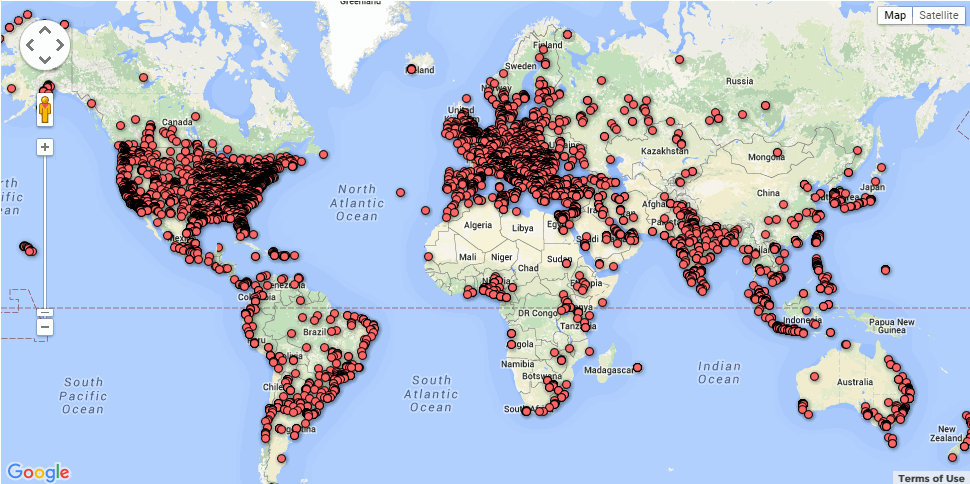
As I did last year, I’ll be giving you a complete selection of activities by grade-level with lots of innovative ideas on what will make coding both fun and easy to your students. Here’s a taste–something you can start in November to get students ready for more:
IFTTT (http://ifttt.com) Free
IFTTT allows users to create recipes to automate functions, such as receiving an email or text when the weather changes or being notified when you forget something at the house. It uses a simple statement that will turn all the social media mavens into engineers—IF THIS THEN THAT.

3 Organizational Apps to Start the School Year
Whether you teach science or PE, there are hundreds of apps to help you do it better. The response to this tidal wave of information has been confusion. As each teacher downloads their favorites, students spend as much time learning the app as applying it academically.
There’s a move afoot to pick five that are cross-curricular, train faculty, and then use them throughout the school year. This is the way it used to be when MS Office ruled the computer and everyone understood it. If this is your school, here are three apps to start the school year:
 GoodReader
When looking for an app to curate classroom reading, consider these requirements:
- works well with your current LMS
- includes a wide variety of reading formats
- displays books quickly, allowing you to open multiple books, add annotations, and take notes
- displays class textbooks
Lots of apps do the first three; none the last. Why? Many class texts use formats that only display on the publisher website. What became apparent as I researched was that GoodReader was one of several considered Best in Class because of its broad-based ability to read, manage, organize, access, and annotate a wide variety of file formats. Where it has long been considered a leader in reading and annotating PDFs, new releases accommodate almost any type of file including .docx, mp3, jpeg, ppt, xlx, audio, and videos. With its tabbed interface, users can open multiple documents and click through them as needed.

5 Image Apps for your Classroom
Any child knows that a picture communicates differently than text. It’s not just quicker, it shares more detail more effectively. In seconds, our brain grasps a wide selection of data from the picture’s color, layout, design and draws conclusions. To do that with text requires lots of words, re-reading, extreme concentration, and scratching the head.
It’s no surprise research indicates the majority of students learn better if they see information. This includes graphic organizers, diagrams, mind maps, outlines–even pictures and art work.
Here are five image apps. One (or more) of these will be perfect for your classroom:
Canva
Free
1.8 million users have created over 15 million designs using Canva’s one million+ design templates (including font schemes, stock photographs, backgrounds, and illustrations–some free/some fee) to create cards, fliers, posters, newsletters, infographics, and more. Drag and drop project parts to personalize the design (see my Canva-created poster below). Edit photos using preset filters or advanced photo editing tools like brightness, contrast, saturation, tint, and blur. Save as a high-quality image or a printable PDF. Canva provides lots of graphic design video tutorials for even the most basic skill level. These are great for mature elementary age, Middle School, and High School students, as well as teachers.
Canva for education features 17+ lesson plans from some of the leaders in tech-in-ed. You can even sign in through Google Apps for Education. Canva not only works on iPads, but desktops and laptops.


3 Lesson Plans to Teach Architecture in First Grade
 Here’s a great lesson plan with three activities well-suited to the discussion of architecture and design in 1st grade:
Review
Students complete three projects in two weeks to aid understanding of architecture, design, and three-dimensional thinking. They’ll experiment with spatially laying out a three-dimensional structure on a two-dimensional paper. When completed, they’ll discuss with neighbors while practicing good listening skills learned in class.
Start with a discussion of design. This includes size, shape, texture, proportion, scale, mass and color. We will apply these to rooms, buildings, and neighborhoods. Encourage students to think and analyze critically as they engage in learning.
In figures below, ask students which are two- or three-dimensions? How do they know?
[gallery ids="50170,50171,50172,50173,50164"]Design the Classroom
Visit Classroom Architect and demo how to design the classroom with drag-and-drop pieces (see figures below). Take suggestions from class on layout. Students must think about where tables and storage are relative to other items. This is an active learning lesson that encourages visual thinking. Develop a sample based on class input and show how to make corrections if necessary.

33 Great Research Websites for Kids

Here are quick, safe spots to send students for research (click for updates to this list):
- CoolKidFacts–kid-friendly videos, pictures, info, and quizzes–all 100% suitable for children
- Fact Monster–help with homework and facts
- Google Earth Timelapse–what changes to the planet over time
- Google Trends–what’s trending in searches
- History Channel–great speeches
- How Stuff Works–the gold standard in explaining stuff to kids
- Info Please–events cataloged year-by-year
- National Geographic for Kids
- Ngram Viewer–analyzes all words in all books on Google Books
- TagGalaxy–search using a cloud
- Wild Wordsmyth–picture dictionary for kids
- World Book–requires membership
Citing Resources
Kids Search Engines
How to Research
- A Google A Day
- How to Search on Google
- Power Searching (with Google)
- Internet Search and Research–a lesson plan for K-8
Lesson Plans
Resources/Research
- BrainPOP–Bring learning to your fingertips™ with the BrainPOP® Featured Movie app
- Kids Picture Dictionary
- Primary Source Documents
- SparkVue–collect and display live data from iPhone etc to the iPad
- Talk to Books–research your topic based on books
- TED app–TED’s official app presents talks from some of the world’s most fascinating people

Teach Financial Literacy with Banzai
 When kids read that America’s $18 trillion+ debt is accepted by many experts as ‘business as usual’, I wonder how that news will affect their own personal finance decisions. Do they understand the consequences of unbalanced budgets? The quandary of infinite wants vs. finite dollars? Or do they think money grows on some fiscal tree that always blooms? The good news is: Half of the nation’s schools require a financial literacy course. The bad new is: Only half require a financial literacy course.
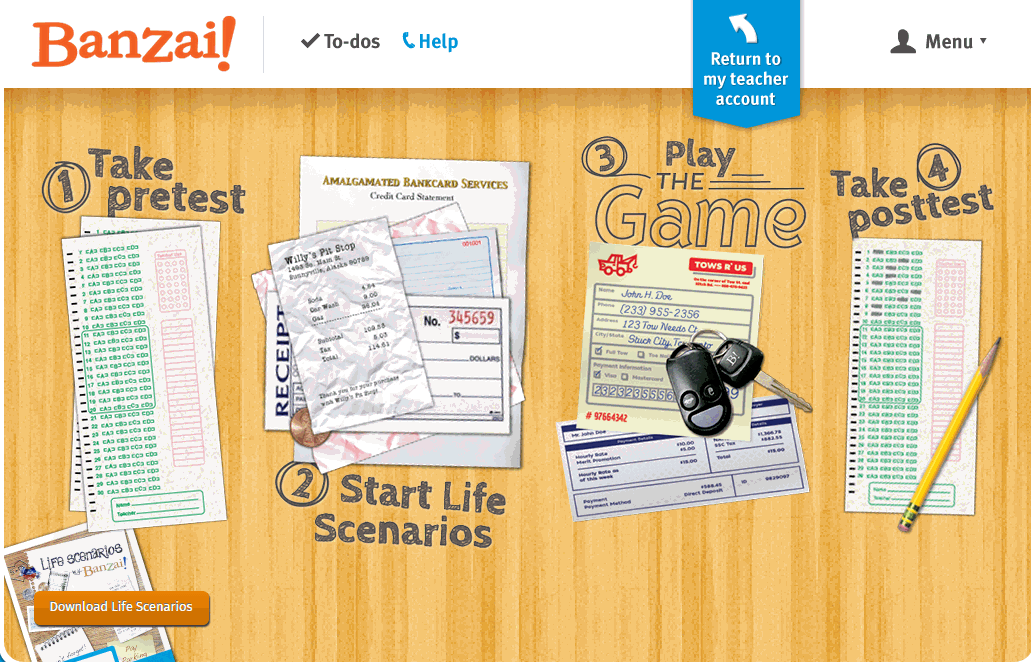
Banzai is a personal finance curriculum that teaches high school and middle school students how to prioritize spending decisions through real-life scenarios and choose-your-own adventure (kind of) role playing. Students start the course with a pre-test to determine a baseline for their financial literacy. They then engage in 32 life-based interactive scenarios covering everything from balancing a budget to adjusting for unexpected bills like car trouble or health problems. Once they’ve completed these exercises, they are dropped into a scenario where they have just graduated from high school, have a job, and must save $2,000 to start college. They are constantly tempted to mis-spend their income and then face the consequences of those actions, basing their decisions on what they learned in the 32 scenarios. Along the way, students learn to handle rent, gas, groceries, taxes, car payments, and life’s ever-present emergencies. When they finish, they take a post-test to measure improvement in their financial literacy.
Teachers register as many classes as necessary. Their dashboard lists all students in each class and a summary of which activities they have finished. Student work is graded by the website and updated on the teacher dashboard.

6 Sites + 12 + 6 About Coin Counting
Second graders (sometimes first graders) learn about money. The only way to really ‘get it’ is  repetition. Here’s a list of websites to provide redundancy for each type of learner:
For a longer list that includes concepts like ‘economics’, try these:
Coins and Counting Money
- Brain Pop Learn about Money
- Cashtivity
- Coin games—from US Mint
- Count Money
- Face on money
- Face on money–from Lunapic; lots of options
- Make change
- Money—counting
- Moneyville
- Money Flashcards–APlus Math
- Mr. Bouncy’s Money collection–lots of websites
- US Mint virtual tour (a slideshow)
Economics–for youngers
- Brain Pop Learn about Money
- Coffee Shop Game
- Rich Kid Smart Kid
- Spent–living at minimum wage: the game
- Three Jars–kids learn to use money wisely
- Tykoon Kid–earning with a purpose
Do you have any to add to this list? These are mostly for youngers–I’d love some for older age groups. (more…)

Otus–Exciting Free LMS You Want to Meet
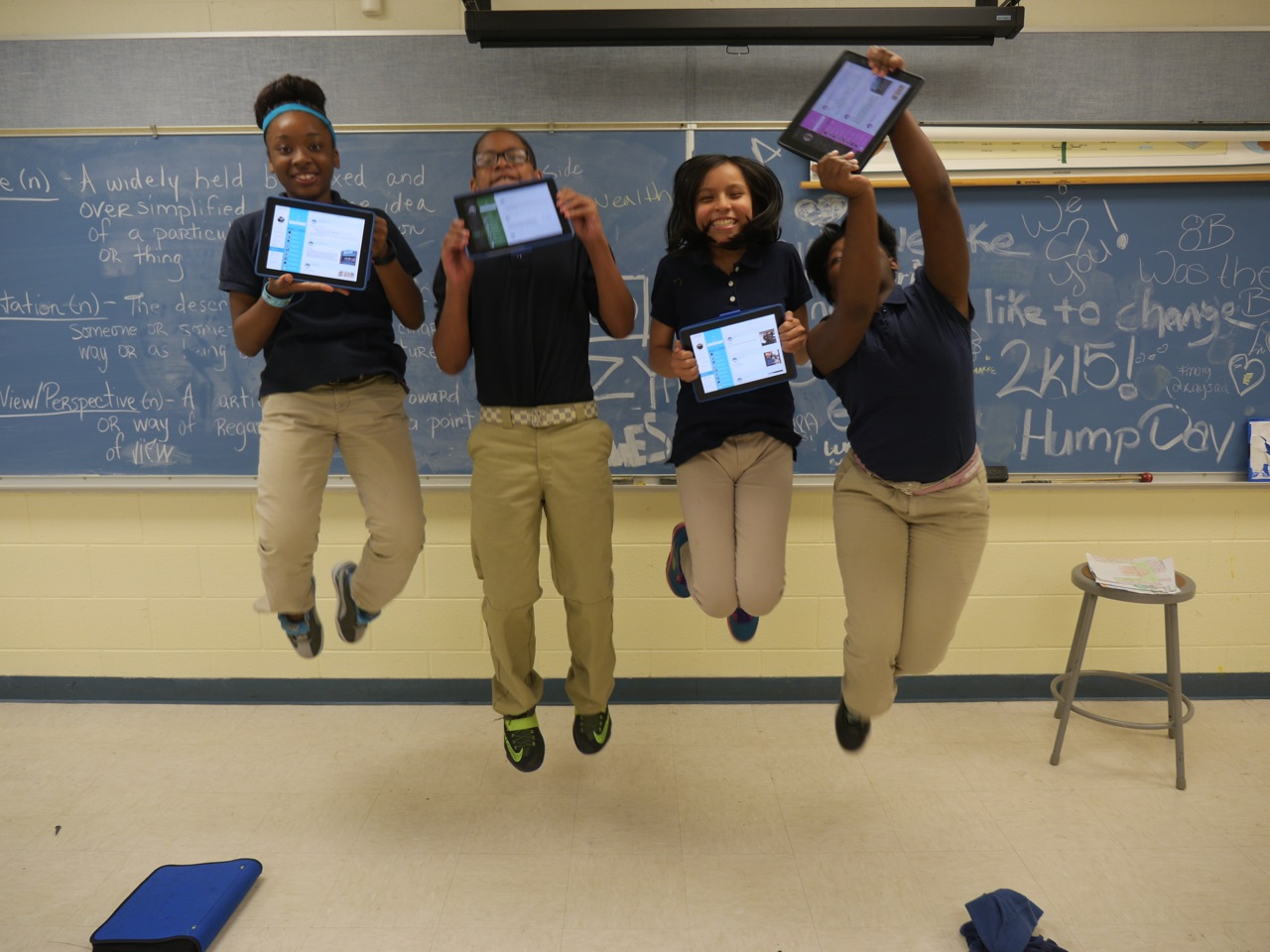 I’ve been on the hunt for a good–scratch that: excellent–Learning Management System for several months. There are a lot of options out there, but none had enough of the characteristics that most teachers I know look for with an LMS, namely:
- delivers content to students in a variety of formats
- tracks student progress on assigned activities
- assesses student learning (both formative and summative)
- provides for teacher-student and student-student communication
- intuitive to use for both teachers and students, to encourage daily access. It should be non-intimidating, non-threatening, even non-geeky, so stakeholders feel as comfortable as they would in a physical classroom
- works across all platforms–iPads, web, Chromebooks
- plays well with a wide variety of apps, such as Khan Academy
- easily monitors student progress, work, and learning
- includes reminders of activities
- communicates important announcements to students
- allows for co-teaching in a classroom (an arrangement that is growing in popularity)
- encourages parent involvement in the education journey
I know–sounds impossible. Then, an email from Otus showed up in my stream. It caught my attention because the conversation was straightforward, plain-speaking, and hit my high points. So I agreed to review it.

Review: Flipwrite iPad Keyboard
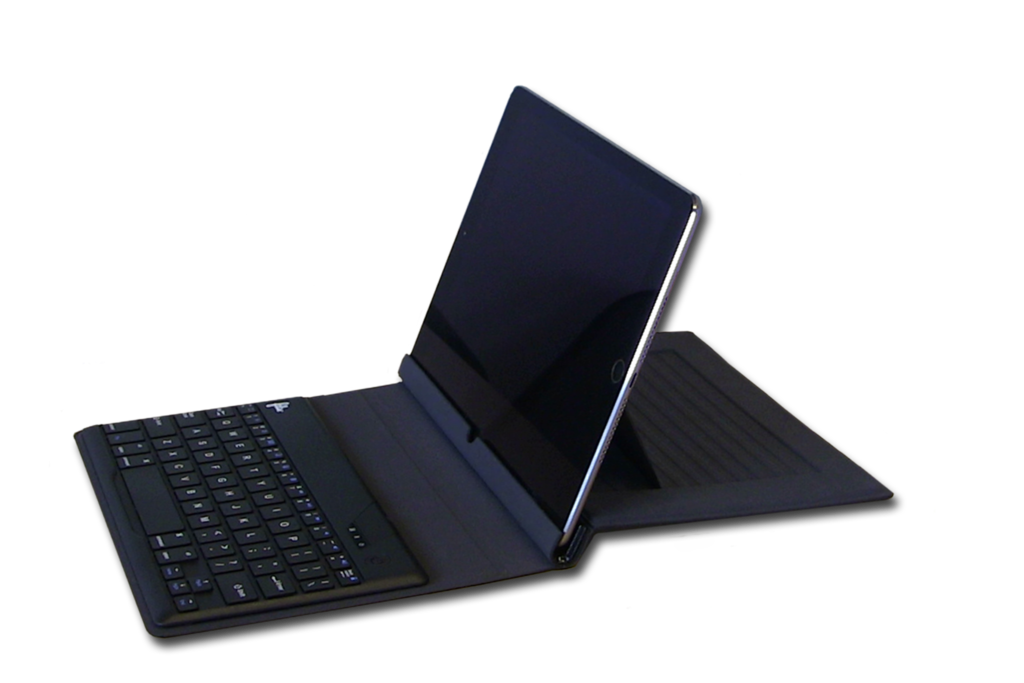 I’ve read several nonscientific studies that concluded students type equally well whether they use iPads or traditional keyboards (click here; scroll to ‘Keyboarding: iPad vs. Traditional’). These results are counter-intuitive to what common sense says is true: that the flat, non-tactile nature of the iPad onscreen keyboards make them less accurate and slower than standard keyboards. Until there is sufficient evidence to contradict this perception, schools continue to kit their iPads out with detachable keyboards. This they believe–and is probably true–makes them more versatile and responsive to student and teacher educational needs.
I’ve spent a lot of time reviewing these add-on keyboards and was thrilled when Felix offered me one of their versatile Bluetooth-enabled FlipWrite keyboards to test out for my classes.
Right up front, I liked what I received. It’s light weight and includes an iPad stand that enables me to place my iPad horizontally or vertically at a variety of adjustable angles, responsive to either viewing or typing. If I’m not using the keyboard, it can fold under the iPad out of the way, allowing me to use the iPad as a tablet. When I’m not using the iPad, I can store it in the Flipwrite folio case, which is barely larger than the device itself and only about twice as thick (less than an inch). The charge is supposed to last two+ months, a claim I haven’t yet tested, longer by far than any of my other digital devices.





