
Category: Reviews

C-STEM Studio — A Great Way to Blend Math and Robotics
C-STEM Studio is a California A-G approved curriculum and turn-key solution for teaching science, technology, engineering and mathematics through computing and robotics. This web-based scalable program is available for elementary through high school students and can last anywhere from four weeks to a year. As Professor Harry Cheng, Director of the UC Davis Center for Computing and STEM Education who offers this program, states simply: “Our goal is to get kids interested in math and robotics through hands-on computing and robotics.” In fact, the C-STEM Studio algebra curriculum is fully aligned with Common Core state standards in mathematics.
Programs that run through the Studio are: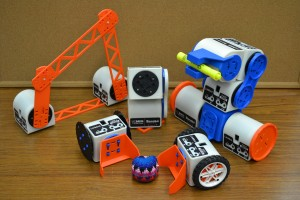
- Linkbot–students write a simple program to complete a function that is then uploaded to a robot–in this case, a Linkbot. One feature I found in this program which I rarely saw in others: It’ll point out syntax errors in programming. This is well-suited to younger students.
- RoboSim–students program a virtual robot of their choice (by picking from among Lego Mindstorm and others) in a virtual environment.
- RoboBlockly–a web-based robot simulation using a drag-and-drop interface to program virtual Linkbot and Lego robots. The RoboBlockly curriculum includes a student self-guided Hour of Code activity as well as teacher-led math activities that meet Common Core state standards for fourth to ninth grade.
- ChArduino–students use Ch programming (kind of a simplified, easier-to-learn C+) and an Arduino board.
To assist teachers, UC Davis offers professional development that lasts between two days and a week on how to roll out the lessons and/or curriculum in their classrooms as well as a C-STEM Conference to share ideas and stories with other educators. For students, there are CSTEM camps and competitions to showcase the robot wizardry of programmers from elementary through high school.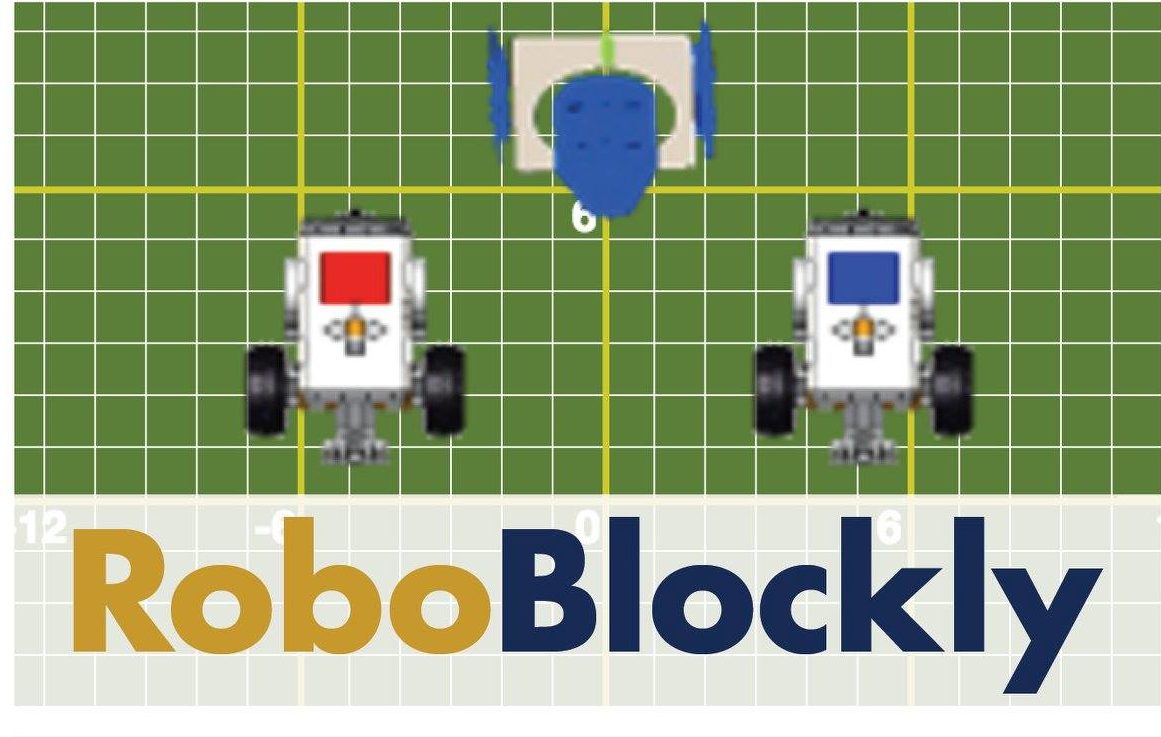
To evaluate C-STEM Studio, let’s look at three questions:
- so what
- who cares
- why bother
So What
One of the most pressing and timely issues facing the education community nationally is how we can address teaching math, science, and engineering concepts to the K-12 population. C-STEM Studio does that with a compelling and thorough software program which trains both students and teachers to use robotics as a superior vehicle for learning math.

What BloomBoard is and How it Energizes Professional Development
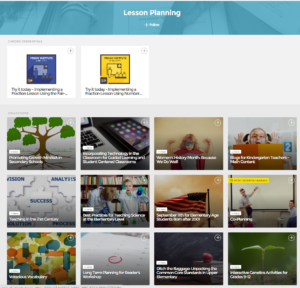
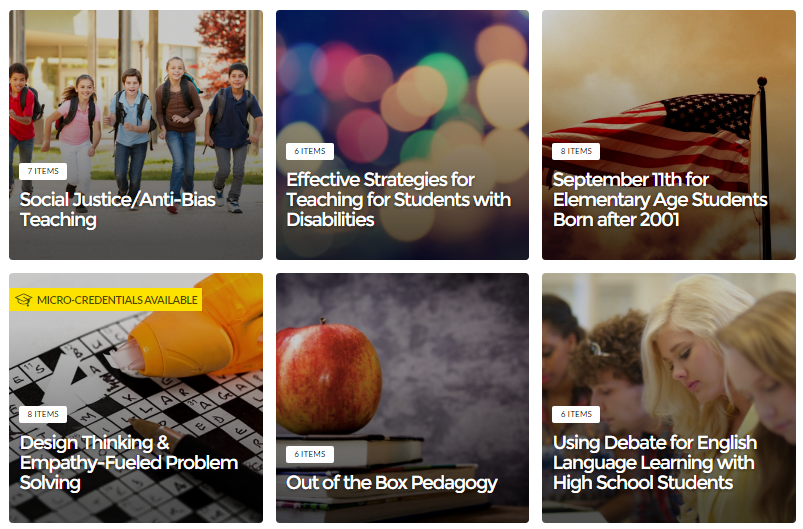 BloomBoard is a professional development website for teachers and administrators. On the teacher side, educators learn, share, and discuss teaching ideas. The resources–including over 10,000 articles, videos, lesson plans, and more–are clear, easy-to-navigate, and user-friendly, with opportunities to collaborate with other teachers. What truly makes this educator-oriented site unique is that teachers can earn topical micro-credentials that can be used by their school district or state credentialing agencies (depending upon the circumstance). To earn these, teachers view the required materials, answer a set of questions, and then submit evidence of impact on practice such as lesson plans, instructional materials, and videos.
On the administrator side, BloomBoard offers the ability to look at reports and recommend resources for professional development. Analytics provide insight into which professional development resources and topics are most popular.
Alongside BloomBoard’s free content are premium pieces such as tools to collaborate with colleagues, private spaces for virtual discussions and document sharing, a dashboard to monitor the most widely-used district-wide collections and micro-credentials, the ability to create unique micro-credentials, and dedicated support from BloomBoard instructional practitioners. Within a district hub, admins can also create programs around particular topics such as ELL and special education that enable them to set shared goals, resources, and opportunities for collaboration and conversation.
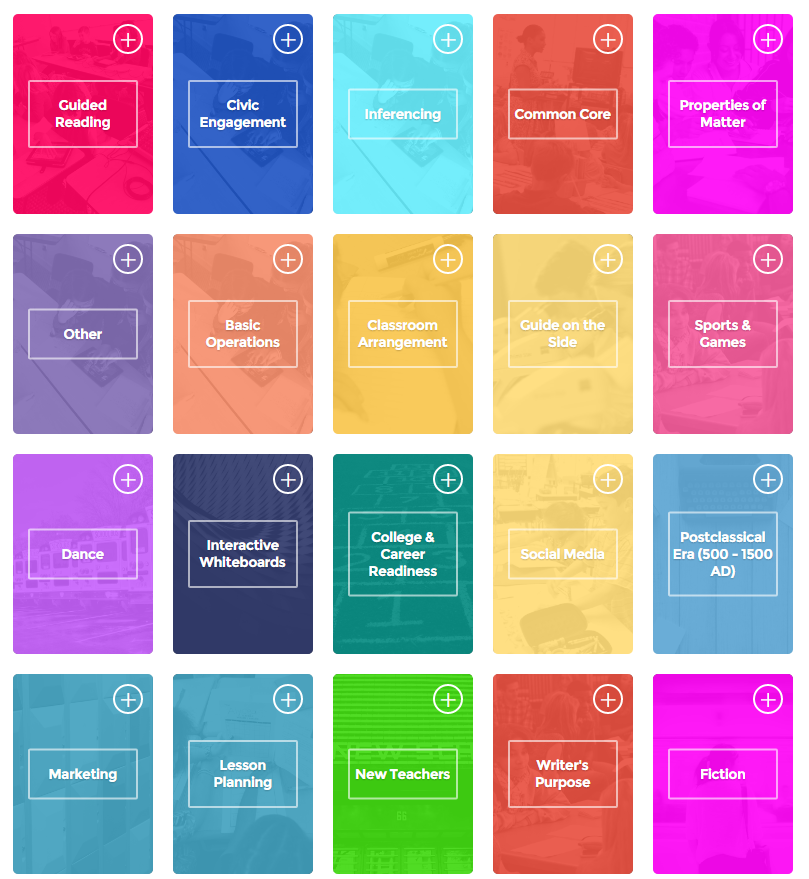 Here’s what you do:
- sign up for a free account
- fill out a profile with your interests and goals
- start reviewing recommended materials or browse the resources
Pros
- The problem often with professional development isn’t a lack of resources; it’s identifying the ones that fit specific needs. BloomBoard does this for educators.
- Resources are recommended that fit teacher grade level, subject area, and teaching interests.
- BloomBoard tracks the progress of each teacher’s professional development and chronicles how they hone their skills.
Cons
- One piece I always seek out on educator websites is an active forum where I can ask questions of colleagues and work through problems. While BloomBoard does offer this (a great plus), it’s too new to be robust. I look forward to what it will grow into over time.
- Another feature that really isn’t a con, simply on a wishlist: Teachers and administrators can curate collections, but not load their own material. On the plus side: The reason is that BloomBoard wants to review the material and ensure its quality before making it
 available.

Educational Uses
Here are six ways to integrate BloomBoard into your professional development:
- provide a curation of quality, tested resources organized by topic so teachers have a one-stop shop for informing themselves on topics of interest.
- track teacher professional learning for credentialing or recertification (or salary schedules).
- quickly find out who’s knowledgeable on a particular education subject (by reviewing earned micro-credentials).
- engage in group study of a topic to promote grade-level or school goals.
- extend learning using the BloomBoard recommendations, based on teacher profiles.
- stay up-to-date on education pedagogy with easy-to-access and reliable resources.

Padlet: A Versatile Classroom Tool
 One of the most popular, free tools used by thousands of schools is a virtual bulletin board called Padlet. It starts as a blank canvas (called a ‘wall’) to which users can add text, video, images, weblinks, and more. It can be accessed via a direct link that is posted or emailed, or an embed in any digital platform that accepts these HTML codes (such as a blog, website, or wiki). It can be managed from the website, a mobile device, or with a Chrome app or extension. Walls can also be emailed, printed, social shared, or saved as an image or PDF file. Individual accounts are free; education accounts are charged per teacher.
Here’s how it works:
- set up an account so that you can save and share your walls
- quickly and easily create your first wall with a customized background, title, and layout. Backgrounds include lined paper, blueprint, a chalkboard, and more.
- once the set-up is completed share the link or embed with students
- to participate, all students do is tap the screen and add their comment
Pros
If you have a Google account, you can use your Google account to sign on. No need to create a new account.
All walls are by default semi-private — accessed only through the direct link or the embed, but privacy options range from ‘private’ to ‘public’. You choose your level of transparency.
An unusual ‘save’ option is to export as a PDF. This creates a completed document that is platform-neutral.
Amazingly, the walls are ad-free whether you’re on the website or the embed. I don’t know how they manage this, but I’m thrilled — and hope it lasts!
Cons

Photos For Class–Robust, Student-safe with built in citations
A question I get a lot from readers is where to go for free, classroom-safe images. Photo sites are either too sparse or poorly vetted. And–while we’re on the subject of online images–it needs to be easier to add citations because otherwise, students will just skip that step.
Photos for Class, brought to you by the folks at Storyboard That (a premier digital storytelling site that quickly and easily enables students to mix avatars, backgrounds, and talk bubbles to tell a story) does all of these. It uses proprietary filters to search millions of Creative Commons-licensed photos from the Library of Congress, the British Royal Archives, and Flikr’s safe-search setting to curate a classroom-safe collection of topical photos in seconds. There is no log-in, no registration, no fee or premium plan, and a zero learning curve. All students need to know is how to use a search bar and a download button.
Here’s how it works: Go to the Photos for Class website (no registration or log-in required), search your topic:
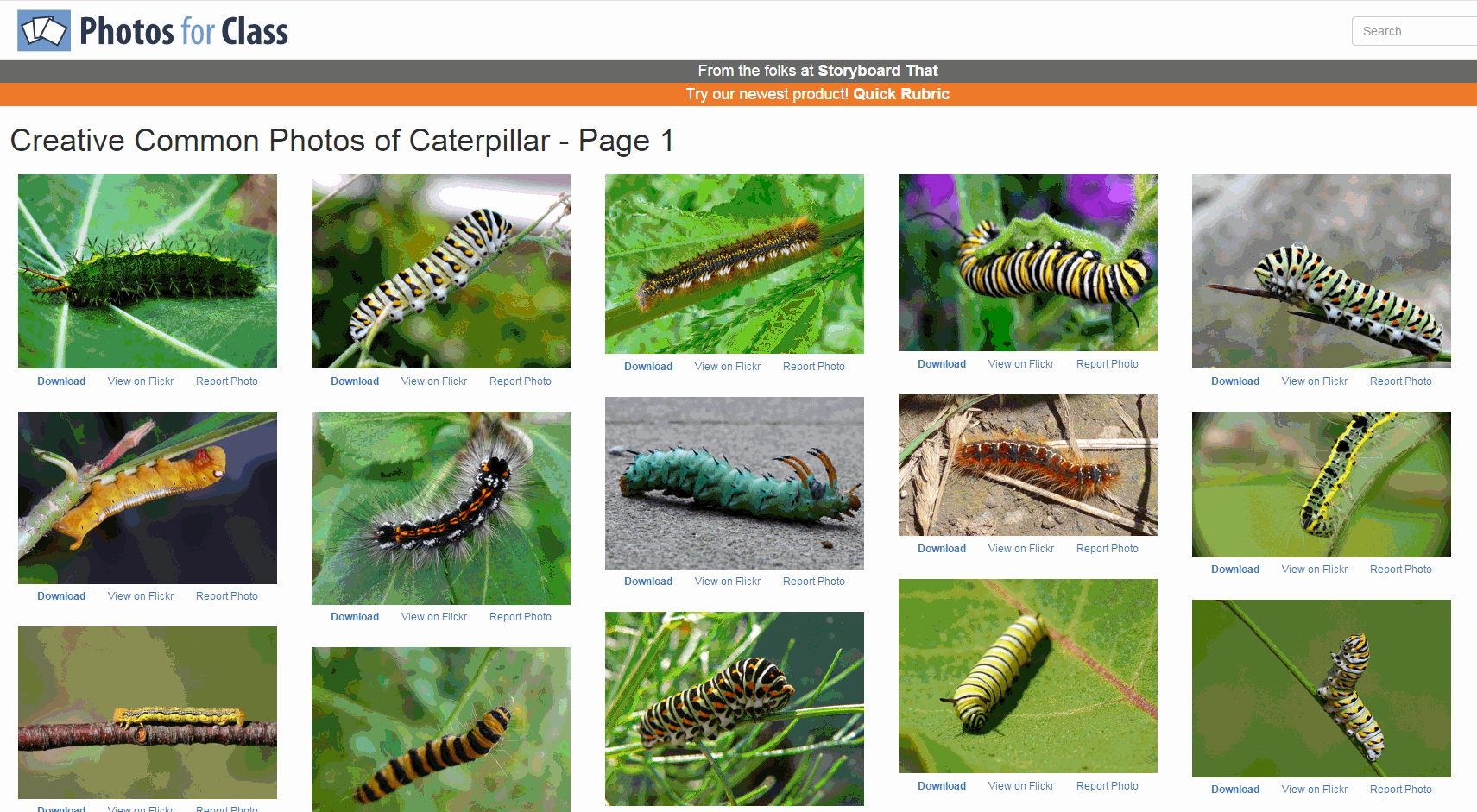
…and then download the selected photo. Each downloaded photo includes an attribution and license detail.

There is no charge, no delay, and lots of choices.
In addition to photos, the site offers suggestions on citing and filtering photos, and a list of the top 250 searches.

14 Ways to use Scribble Maps
 Map skills borrow concepts from many different disciplines, including Math, Art, Language and of course Geography. Map skills should be basic to student education early in their journey and then used often to measure distances, calculate routes, preview field trip locations, explore historic sites, and more.
For many of you, I’m not saying anything you don’t already know — but have you tried to personalize a map? Draw a spotlight exactly where you want students to look, or sketch the route to a field trip? With most maps, it’s difficult, time-consuming, and non-intuitive, but Scribble Maps make all of these chores possible and more by letting you first, select the map best suited to your purpose (for example, a topographic one for a hike — under ESRI-Topography), and second, write directly onto the maps with a freehand drawing tool or by typing, add placemarks, draw shapes, calculate distance and area, and add image overlays. You can even add video and audio files. Maps can be saved as images, PDFs, or native files, and shared via email, blogs, a direct link, or embedded into online locations. It’s intuitive, easily learned by doing for students who hate reading directions, and is compatible with desktops, laptops, Chromebooks, iPads, and Android tablets. Because it uses Google Maps as its foundation, it will instantly feel familiar. Plus, it requires no log-in, so no email address for students.

3 Online Keyboarding Programs Students Will Choose
Teaching kids keyboarding isn’t about finding the perfect online website or downloaded software and setting students lose on a year-long self-directed journey of progressive lessons hoping their speed and accuracy improves. That might work for adults, but it’s a prescription for boredom and failure with K-8 students. They require a mixture of activities, only one of which is drill. I’ve discussed my eclectic mixture in earlier posts.
When you select the varied keyboarding activities, pick sites students will have fun with and look forward to playing. After all, the goal is to teach good keyboarding habits which only happens if students are engaged, committed, and connected. Here are three of my favorites, one for each level of the student’s typing development:
 Big Brown Bear

Beginner typists
Big Brown Bear has two free parts:
- Learn to Type — focuses on typing skills
- the Keyboard Game — focuses on key placement and speed
Here, I’ll talk about the Keyboard Game. It is designed for pre-typists and includes no discussion of keyboarding habits or hand placement. The goal is for pre-keyboarders to learn where keys are in a fun, non-threatening, unintimidating way. The program starts with a big keyboard that fills the screen. Students type the key outlined in red as fast as possible while a timer in the lower right corner counts down from thirty seconds. When done, students see their score.
In my classes, I mention hands on the keyboard and elbows at their sides (mostly to get them used to thinking about these), but want their focus on key placement. I set a goal of ’22 in 30 seconds’. and let them move on to something else when they meet that goal. Every few minutes, I drop the goal–‘Now I’m looking for 15!’ They love this game approach.
This game prepares students to learn good keyboarding habits (like posture) and then practice their skills.

Best-in-Class Digital Storytelling Tools
 A digital story is a series of images connected with text and/or a narrated soundtrack — captured by a digital device such as an iPad or smartphone — that tell a story. It can be fiction, non-fiction, narrative, biographic, expository, or even poetry. Think of Ken Burns’ The Civil War, or Colin Low’s City of Gold. Because of its multimedia approach and appealing blend of text, color, movement, sound, and images, it has fast become one of the most popular writing exercises in schools.
According to Center for Digital Storytelling, there are seven elements critical to a good digital story:
- Point of View — What is the perspective of the author?
- Dramatic Question — A key question that keeps the viewer’s attention and will be answered by the end of the story.
- Emotional Content — Serious issues that come alive in a personal and powerful way and connects the audience to the story.
- Voice — personalize the story with the author’s unique writing style to help the audience understand the context.
- Soundtrack — Music or other sounds that support and embellish the story.
- Economy — Using just enough content to tell the story without overloading the viewer.
- Pacing — The rhythm of the story and how slowly or quickly it progresses.
These elements are the goal and may not be included in the first digital story written by a kindergartner, but by middle school, using the vast swath of multimedia tools available in digital storytelling, students will have no problem including all elements.
Writing a digital story includes five basic steps:
- Research the topic so you are clear on presentation.
- Write a script, a storyboard, or a timeline of activities.
- Collect the required multimedia parts — text, images, audio, video, oral selfies, and more.
- Combine everything into an exciting story.
- Share and reflect on the completed story.
These five steps are stepping stones for beginners and critical to experienced storytellers.
There are so many online options for digital storytelling, rarely is there a student who can’t find a webtool that fits their communication style. Here are nine of the most popular. Try them all and then let students pick the one that works best for them:

Bring Experts to Your Class Easily with Nepris
 Statistically, almost half of school dropouts do so because they don’t see the relevance. Teachers have long-known the positive effect industry experts have on students, but the complications of finding the speaker, arranging the event, and preparing the class have made this a daunting task. Nepris, a cloud-based platform that connects STEAM subject experts (science, technology, engineering, arts, and math) with teachers and classes, wants to turn that around. Its intuitive options, step-by-step guidance, and commitment to making the experience positive for both teachers and students helps to not only bridge the gap between classroom and career as students meet those who have applied school knowledge authentically to their jobs, it levels the education playing field across rural and urban landscapes, between schools with vast resource budgets and those who struggle to stay out of the red year-to-year.
Here’s how it works:

Zap Zap Math–Clever, Robust Math App for K-6
 Many of you are familiar with the award-winning free app called Zapzapmath. I first learned about it through an email about their newly updated platform–
…addictive math games..
kids fall in love with math..
free, higher order thinking games…
I have to admit, I was intrigued. Not a lot of math apps can fulfill these claims. Could Zapzapmath, with that zippy name, beautiful visual graphics, lively music, and the space theme, come through? I downloaded it and took it for a test drive. Here’s what I found: Fifty (at the date of this publication) free fast-paced K-6 interactive math games that are Common Core-aligned and suited for varied student learning styles, with activities that advance with student skills, and no internet connection required (though WiFi is required). Student activity is recorded to the teacher (or parent) dashboard, making it easy to focus on areas of difficulty. And parents are partners, having access to their child’s progress, right down to the minutiae of the skills they learned, like “knows the meaning of equal sign”.
Game categories include:

3 Free/Freemium Tools for Rubrics
Rubrics are a well-accepted, even transformative tool for assessing student knowledge over a breadth of criteria. Their deep granular detail enables students to quickly understand what is expected of them, teachers to receive critical feedback on student learning, and both sides to benefit from an agile yet objective tool for measuring workflow competency.
But they are not without their problems. The pre-online versions weren’t dynamic or flexible, couldn’t be re-used, and few teachers had the time or energy to build these summative, purpose-built assessments. That changed with online rubrics. These webtools offer standard topical text that can be quickly personalized, saved for re-use in the future, and easily updated year-to-year to reflect changes in the curriculum and desired learning outcomes.
There are many online rubric creators, each with a little different twist on the norm. Here are three that fill different needs. Decide which works the best for you:
 Rubistar
Free
Rubistar is the gold standard of online rubric creators. It lets teachers personalize categories and qualifications, save, and then edit for another class. You can use the site rubric templates or modify them to better serve your particular needs. Rubrics can be created in English or Spanish, in ten different subject areas, with ten or more skill categories (this varies depending upon the subject chosen).
Here’s how it works:
- Set up an account so you can save your rubrics, making them available to be re-used and edited for future needs. This is optional–rubrics can be created without registering.
- Pick the subject category you wish to create a rubric for.
- Start with a generic template or from scratch. Alternatively, search by keyword or topic for rubrics other Rubistar members have created and remix those.
- Pick a grading scale–either numeric or descriptive.
- Pick a category for each row from the drop-down list and the rubric automatically populates with language defining what the category would look like based on the rating.
- Edit criteria so it perfectly fits your needs or accept the well-considered defaults.
- When you’re done, submit.
- Once the rubric is rendered, you can print, download, or make it available online to your account.
Educational applications
Rubistar is invaluable in creating personalized, quick rubrics that are easily edited for varied needs. For registered users, there’s a vast library of rubrics created by members that can be used. Teachers can also use the rubric to evaluate student performance. For example, if a third of students scored poorly on ‘Diagrams’ in the math rubric, the teacher knows immediately this is an area that requires review.





