
Category: Reviews

Need to Learn Moodle? Start With VerveEd
 Moodle is an open source free cloud-based learning platform used by over 96 million people to create over 11 million courses. These can be a simple activity or a fully-featured course. The platform offers a plethora of tools to customize courses as pretty much whatever teachers need, including:
- Upload video, audio, and links
- Engage students in a discussion forum or a survey
- Create, conduct and grade quizzes
- Assign, collect, review and grade assignments
The problem with Moodle and what stops many educators from using it has nothing to do with its flexible and scalable platform. It’s just not intuitive enough. Australia-based VerveEd’s goal is to fix that. Using an experiential, self-paced environment, VerveEd walks teachers through all the steps needed to create and use the Moodle platform in a clear, organized fashion and then provides nine hands-on ‘challenges’ that users complete to assess their knowledge in a real-world (albeit sandbox) Moodle environment. Challenges include topics such as:

How to Use Google Drawings
 Google Drawings is a free, web-based drawing tool that allows users to collaborate and work together in real time to create flowcharts, organizational charts, website wireframes, mind maps, concept maps, drawings, and more. It is included in GAFE, Google Classroom, G Suite, and Google Drive (this may vary in managed domains, depending upon whether the administrator turns on access to this tool).
To use Google Drawing, here’s what you do:
- Open your Google Drive account; go to New and select Google Drawings.
- Insert shapes, lines, an image, or text with the editing tools.
- When finished, add this drawing to another Google Doc, slideshow, or spreadsheet, save it as a stand-alone file, and/or share it with others in a wide variety of methods.
There are a lot of drawing programs available — SumoPaint, KidPix, and TuxPaint to name a few. All wonderful in their own right. So why use Google Drawings instead of a tool you are already familiar with? Here are seven reasons:
- it’s collaborative
- projects are easily shared with teacher
- it can be used at home and school — and synced between the two locations
- it is minimalist — the project is easy to find in the student’s Google Drive (if they attend a Google school). No tracking it down and wondering, “What tool did I use to create this project?”
- changes or edits are easy to add — just open the project in Google Drive and edit
- project can be embedded into student digital portfolio or class gallery
- project can be downloaded as an image file, a vector graphic, or a PDF
Be aware: Each drawing program mentioned above may have some of these, but few have all. Except, of course, Google Drawings.
Here are eight projects that are perfect for Google Drawings:

What is Kiddom? Why is it right for you? And free resources to inform your teaching
The popularity of standards-based grading and instruction is growing. Why? It’s because the one-size-fits-all concept of a single grade representing the fullness of the students’ work is flawed. Today, teachers want to call out student strengths and weaknesses, accomplishments and areas of improvement, as aligned with the standards that their school mission is built on. That requires a detailed picture of what students have learned.
The problem is: This is time-consuming. Teachers must itemize tasks and work, attach them to relevant standards, monitor each student’s progress toward the goal of achieving the standards, and remediate when they need help. For many teachers, this is overwhelming. The ideal would be to have all assignments, assessment, and submittals for each student curated in one spot that automatically updates as the year progresses–and provides actionable reports.
Happily, there is such a program. It’s called Kiddom.
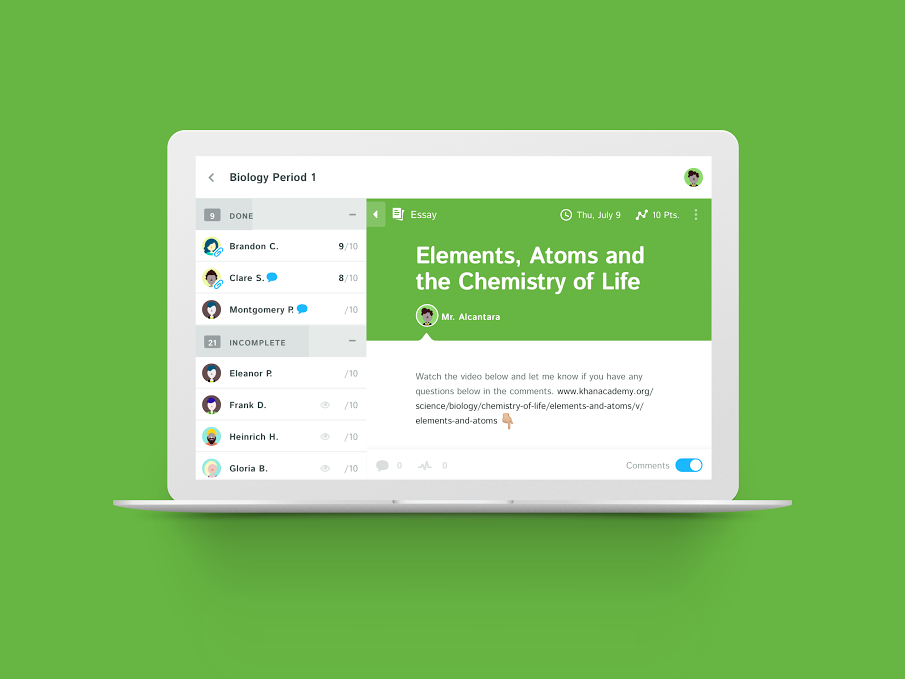
Kiddom is a free standards-based platform designed to help teachers curate individual learning experiences. Its pages are visual and easy-to-understand, enabling teachers to quickly determine how students are doing and where remediation is needed–all without spending a lot of time analyzing data. Many of the details are linked, allowing you to dig deeper on any subject from a variety of pages rather than one specific spot.
Here are details you’ll like:

Mindsnacks–Learning in Bite-sized Pieces
Mindsnacks is a series of education apps on topics like geography, vocabulary, languages, and SAT. With colorful graphics and cute characters, it’s a cross between flashcards and multiple choice with lots of visual thrown in. Though these are game-based learning, there’s no plot as you might find simulated games. Think Number Munchers rather than Minecraft. Each app includes personalized learning, an enhanced review mode, and additional challenges to keep students motivated.
To start, download the app and log in. If you have several Mindsnacks apps, you can log into a central profile and track your progress on all of them. Here are three of my favorites:
 U.S. Geography
Fee
Mindsnacks’ U.S. Geography includes eight games for beginner and intermediate students with over 40 hours of interactive content, more than 600 hand-drawn graphics, and 1,000-plus questions on borders, shapes, landmarks, history, state culture, flags, mottos, capitals, and major cities. Initially, only four of the eight games are available; users unlock others by successfully navigating a virtual road trip across the country. A tutorial is provided for each state so kids can review basic information prior to beginning play. To keep learning interactive, the app includes features such as a dart players use to mark the spot on the map where a certain U.S. landform or landmark exists. Post-quiz reports show how close users are to mastering each state’s information and what skills they developed during the game.

8 Essential Books Every Tech-Minded Teacher Should Read
I  love reading, but there are so many books out there, it’s challenging to pick the right one for my education needs. Ask a Tech Teacher contributor, Karen Dikson, came to the rescue. She curated a great list of essential tech-minded books for today’s teachers. Here are her suggestions:
***
We live in an extremely stimulating and dynamic era, and it’s hard to predict what is going to happen tomorrow, let alone in the next few years.
Modern teachers and educators need to adapt and keep up with the trends because that’s what their students are doing. In order to be able to reach them better, teachers not only have to be up to date with the latest strategies and teaching methodologies, but also with modern technology and new ways of connecting with their students and engaging them, both inside and outside the classroom.
Fortunately, there are plenty of resources they can turn to. I recommend the following eight books which were written with tech-minded teachers in mind.

169 Tips That Easily and Quickly Integrate Tech into Your Class
 A decade ago, in an effort to buttress technology prowess in my classes and with colleagues, I started tracking how often I got the same tech questions from students, teachers, and even parents. Turns out, 70% of the time, it was the same finite group of problems.
That was a relief because—as you probably know–using technology in the classroom can be frightening, whether you’re a grade-level teacher or in charge of the lab. What if there’s a problem you don’t know how to solve, or a question you can’t answer? What if the computers break? What if they all break at once? The truth that all of us who use tech in class know is: You only have to know the big stuff. The rest you can learn with students.
The result was my popular 98 Tech Tips and my weekly tech tip column from that book. I won’t share the link because I’ve retired that book.
Why? Here’s what’s happened to technology in education in the past decade. It’s no longer enough for teachers to know how to keep the hardware working. Now, they need to understand using tech as a tool, where and how to integrate it. Tech-in-ed has grown from a tool that substitutes technology for paper and pencil. Now, it’s about using tech to redesign and modify tasks. It has as much to do with the underlying pedagogy as the overarching skills.
Turns out–while that sounds complicated, it’s not. That’s what’s in 169 Tech Tips. In these tech-centric situations, you get an overview of pedagogy—the tech topics most important to your teaching—as well as practical strategies to address most classroom tech situations, how to scaffold these to learning, and where they provide the subtext to so many daily tech-infused education. For example: Often, the solution to a problem is either
… reboot, restart …
… close-reopen …
or
Google it!

Mysimpleshow–Online Video Creator for Educators
 I love hearing from colleagues about tools they discover that make a difference in their classroom. Last week, I got an email from new efriend, Dr. Robert Cleary, an adjunct instructor for various business courses at several universities. In addition, Dr. Cleary is a key member of the campus learning center at Keiser University, an active member of the Miami-Dade school system STEM advisory board, as well as a member of the Doral Chamber of Commerce. Here’s his feedback on a new presentation creator he found for the 2016-17 school year:
I think I may have stumbled upon one of the web’s best kept secrets for teachers and educators – it’s called mysimpleshow. This online video making tool is a great solution for incorporating mixed media into lessons as well as supporting the flipped classrooms ideology. mysimpleshow’s possibilities are endless, allowing teachers to enhance their presentations with relevant video content, explain common classroom procedures at the click of a button, assign more enjoyable homework and in-class activities, or communicate messages to parents and other staff. Below is an example video:
https://youtu.be/r2vHYJsQP_A
What really attracts me to mysimpleshow instead of other video creation tools is how quick and easy it is to use. Knowing the life of a teacher, extra preparation time is a luxury most of us don’t normally have. The tool provides clear guidelines in each of their many storyline templates, and the Explainer Engine technology automatically suggests images for the most important text, which are called keywords. Storyline templates for educators range in subject areas, so all teachers can utilize the tool. Below are just a few storyline templates:
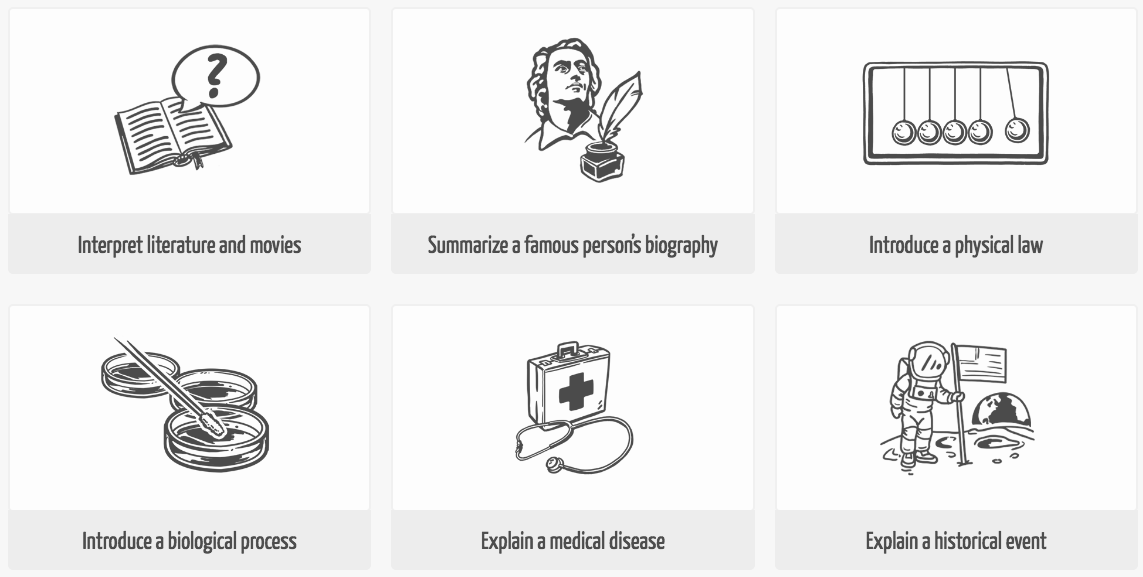

Use Unconventional Research Sites to Inspire Students

I read recently that 70% of millennials get their news from Facebook. Really? Isn’t Facebook a place to share personal information, stay in touch with friends and families, post pictures of weddings and birthdays? So why do students turn to it for news? And then, not two days later, I heard Twitter has reclassified their app as a news purveyor rather than a social media device. Once again: Who gets news from Twitter? Apparently a lot of adults. No surprise news shows are littered with references to listener’s tweets and presidential candidates break stories via their Twitter stream.
One more stat — which may explain the whole social-media-as-news-trend — and then I’ll connect these dots: 60% of people don’t trust traditional news sources. That’s newspapers, evening news, and anything considered ‘mainstream media’. They prefer blogs, Twitter, and Facebook.
So when it comes to research, are you still directing kids toward your grandmother’s resources — encyclopedias, reference books, and museums? No doubt, these are excellent sources, but if students aren’t motivated by them, they won’t get a lot out of them. I have a list of eight research sites that walk the line between stodgy (textbooks) and out-there (Twitter and Facebook), designed by their developers with an eye toward enticing students in and then keeping their interest. It’s notable that most are free, but include advertising. The exception is BrainPOP — there are no ads, but it requires a hefty annual fee:

Fun Videos from BoomWriter That You’ll Relate to
One of my new favorite online writing tools is BoomWriter. It is a free group writing website for teachers where their students can develop and enhance their writing, reading, vocabulary, and peer assessment skills through three collaborative tools. I won’t go into detail today–that’ll come later–but I did want to share this humorous video I got from them about the Pre-Conference–that meeting teachers have with the principal before he comes in to observe your class. Who hasn’t been in this situation?
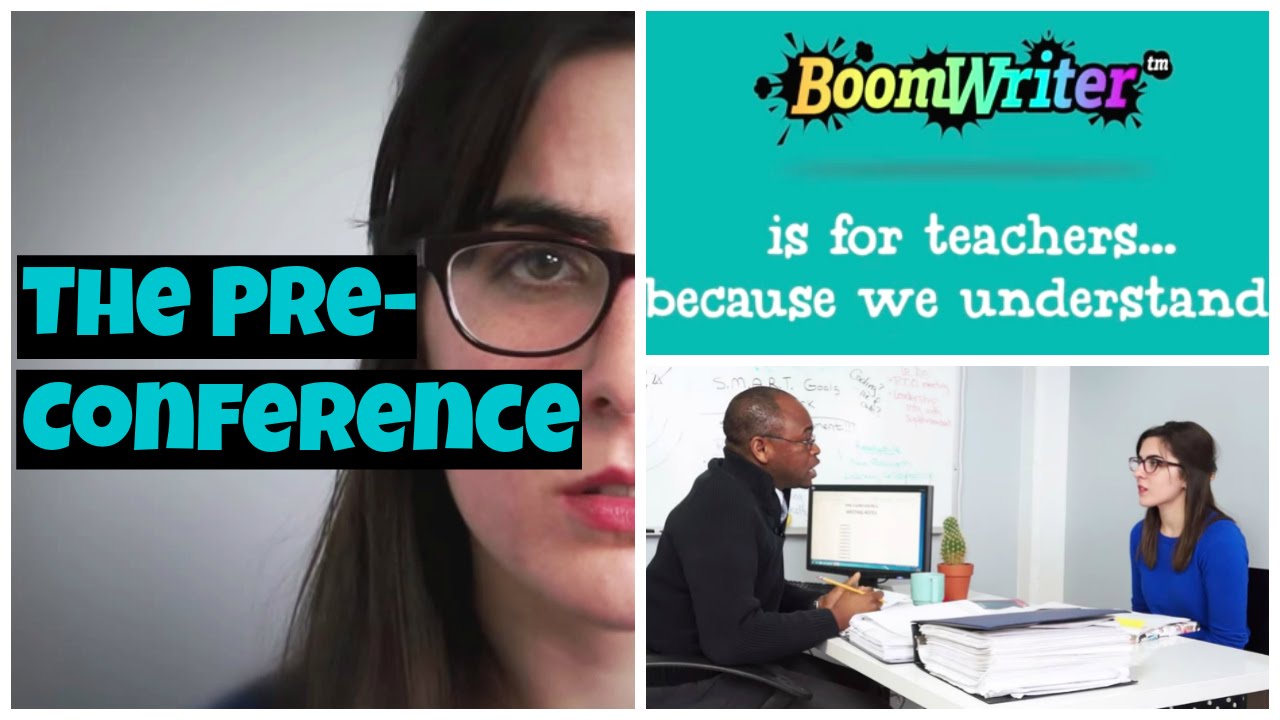
Now watch this one on laptop carts. I nodded my head through the entire thing (especially with the ending):

17 Sites About Coin Counting
Primary schoolers learn about money. The only way to really ‘get it’ is by repetition. Here’s a list of websites to provide redundancy for each type of learner:
- Brain Pop Learn about Money
- Cash Out
- Cashtivity
- Coin Counting
- Coin games—from US Mint
- Count Money
- Counting Money
- Face on money
- Face on money–from Lunapic; lots of options
- Make change
- Money—counting
- Moneyville
- Money Flashcards–APlus Math
- Mr. Bouncy’s Money collection–lots of websites
- US Mint virtual tour (a slideshow)
If you have iPads, here are two you’ll love:





