
Category: Tech tips

Tech Tip #105: Create Shortkeys for Windows Tools
 In these 169 tech-centric situations, you get an overview of pedagogy—the tech topics most important to your teaching—as well as practical strategies to address most classroom tech situations, how to scaffold these to learning, and where they provide the subtext to daily tech-infused education.
Today’s tip: Create Shortkeys for Windows Tools
Category: Keyboarding
Q: I love the Windows snipping tool, but it takes too long to activate. Is there a shortkey?
A: Oddly, there isn’t, which is why I didn’t use it for a long time. I want a screen capture that’s instantaneous. I discovered how to create a shortkey for Snipping Tool—or any Windows program:
- Right click on the program icon.
- Select ‘properties’.
- Select the ‘shortcut’ tab.
- In the ‘Shortcut key’ field, push the key combination you want to invoke this program. In my case, for the Snipping Tool, I used Ctrl+Alt+X.
- Click OK
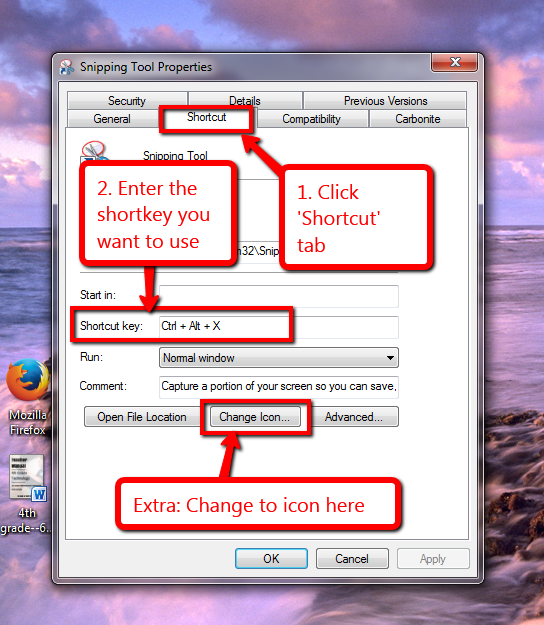
Here’s a video on how to create the shortkey. Now all I have to do is remember the shortkey!
Sign up for a new tip each week or buy the entire 169 Real-world Ways to Put Tech into Your Classroom.
–Comments are closed but feel free to contact me via Twitter (@askatechteacher).
Tech Tip #31: 10 Best Keyboarding Hints
In these 169 tech-centric situations, you get an overview of pedagogy—the tech topics most important to your teaching—as well as practical strategies to address most classroom tech situations, how to scaffold these to learning, and where they provide the subtext to daily tech-infused education.
Today’s tip: 10 Best Keyboarding Hints
Category: Keyboarding
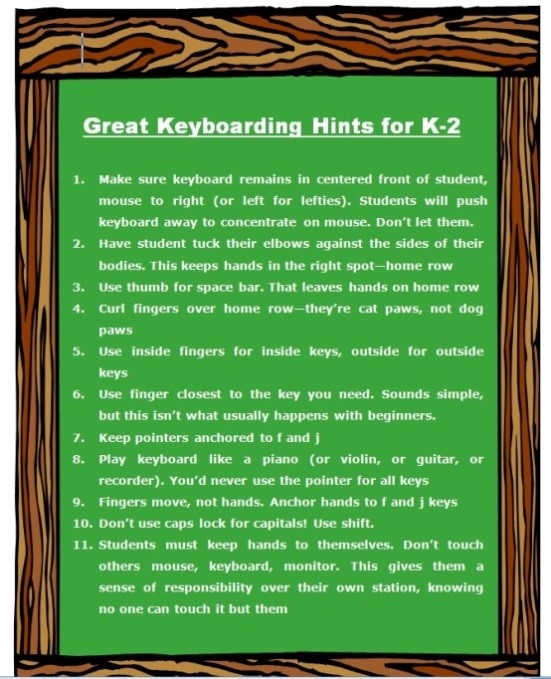
This poster has ten keyboarding hints that cover the most common mistakes students make that prevent them from excelling at keyboarding:
- Tuck your elbows against the sides of your body. This keeps your hands in the right spot—home row—at the right angle (parallel to the rows).
- Use your right thumb for the space bar. That leaves your hands ready, on home row.
- Curl fingers over home row—they’re cat paws, not dog paws.
- Use inside fingers for inside keys, outside fingers for outside keys. This is a great rule of thumb until students start touch typing.
- Use the finger closest to the key you need. Sounds simple, but this isn’t what usually happens with beginners.
- Keep your pointers anchored to f and j. Notice the tactile bump on those keys so you don’t have to look at the keyboard to find homerow.
- Play your keyboard like you do a piano (or violin, or guitar, or recorder). You’d never use your pointer for all keys. Don’t do it on a keyboard either.
- Fingers move, not your hands. Hands stay anchored to the f and j keys
- Add a barrier between the sides of the keyboards. I fashioned one from cover stock. That’ll remind students to stay on the correct side of the keyboard
- Don’t use caps lock for capitals! Use shift.
There’s an eleventh in the poster. Can you tell which one that is?
Buy the entire 169 Real-world Ways to Put Tech into Your Classroom.
Tech Tip #161: Ten Most Important Keyboard Keys
In these 169 tech-centric situations, you get an overview of pedagogy—the tech topics most important to your teaching—as well as practical strategies to address most classroom tech situations, how to scaffold these to learning, and where they provide the subtext to daily tech-infused education.
Today’s tip: 10 Most Important Keyboard Keys
Category: Keyboarding
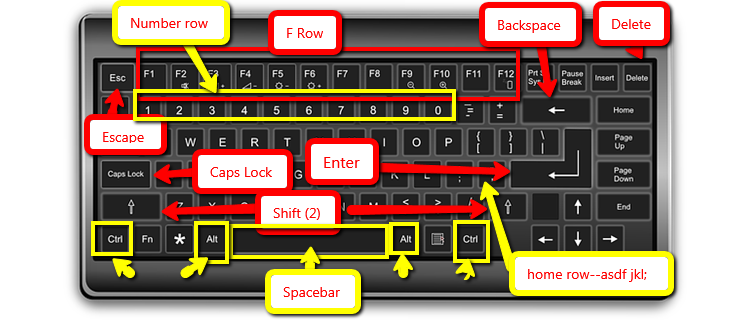
As you teach K-5 keyboarding, here are the ten most important keys you want them to learn—a few a year:
Buy the entire 169 Real-world Ways to Put Tech into Your Classroom.
–Comments are closed but feel free to contact me via Twitter (@askatechteacher).

What are the popular file extensions kids should learn about?
There is so much tech kids need to learn these days, it’s easy to forget the basics. Like file extensions. These help kids categorize websites, prioritize credibility, and streamline their browsing. Here are the most essential of these:
What are the popular file extensions kids should learn about?
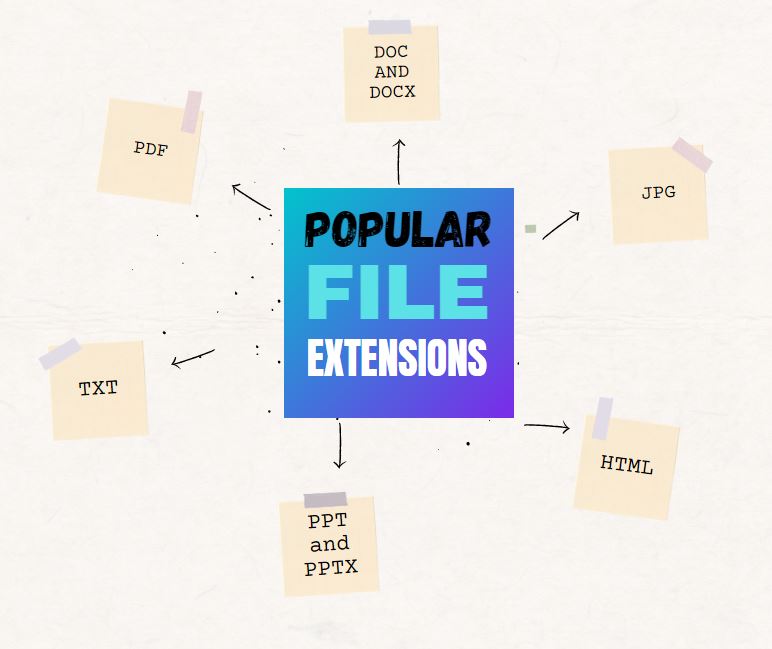 As kids work their way through the education system, they will use different types of documents for their projects. Therefore, it is important that children learn about the popular types of file extensions early on.
A file extension is the suffix used at the end of a file name to show what type of computer file is being used. The suffix also implies what program can be used to read the content of the file. Here are the most popular file extensions that kids should learn about.
DOC and DOCX
There is no actual difference between DOC and DOCX. Both are native formats of Microsoft Word, which is one of the most commonly used file types used for school projects and beyond. Whether DOC or DOCX is used is simply dependent on the version of Microsoft Office being used. DOC and DOCX files can contain text, images, tables, and other elements. The file type is perfect for writing essays and presenting graphics. Once a DOC or DOCX file has been saved, users can easily edit it in a Word program.
The PDF file extension is used for documents created in the PDF file format. PDFs are so popular because they maintain the formatting used to create the document. A PDF can contain text, images, tables, graphs, 3D drawings, and other elements. Due to the formatting being maintained, the elements of a PDF document appear richer and more presentable, making them ideal for school projects. PDFs have many benefits, but users can often not edit them directly unless they have a specific Adobe program. However, you can convert PDFs into other file types, such as DOC or JPG, by using an online tool. For instance, with PDF Simpli, you can convert a PDF into an editable JPG picture file in an instant.

10 Top Tips and Click-throughs in 2020
 Because AATT is a resource blog, we share lots of tips our group comes across in their daily teaching as well as materials shared by others we think you’d like. Some you agree with; others, not so much. Here’s a run-down on what you thought were the most valuable in 2020:
Top 10 Tech Tips
As a working technology teacher, I get hundreds of questions from parents about their home computers, how to do stuff, how to solve problems which I share with you. Here are the Top Ten tech tips from 2020. Between these ten, they had over 183,000 visitors during the year.
- Remote Learning: Tips for Thriving in This Ecosystem
- Tech Tip #60: How to Add Shortcuts to the Desktop
- 10 Tips for Teaching Remotely
- Tech Tip #34: My Program Froze
- 5 Tips to Avoid Plagiarism
- Find Public Domain Images
- Tech Tip #9–Quickly Hide Your Screen
- Tech Tip #118–Top 10 iPad Shortkeys
- Tech Tip #106–11 Great Typing Timesavers on iPads
- Back to School Tips

Tech 101 for Teachers

This week, I’ll post my updated suggestions for three holiday activities that will get your computers and technology ready for the blitz of teaching that starts after the New Year. Here’s what you’ll get (the links won’t be active until the post goes live):
For regular readers of Ask a Tech Teacher, these are yearly reminders. For new readers, these are like body armor in the tech battle. They allow you to jubilantly overcome rather than dramatically succumb. Your choice.
16 Ways to Speed up Your Computer
I post this every year and have included several great suggestions from readers. Here’s what you need to do:
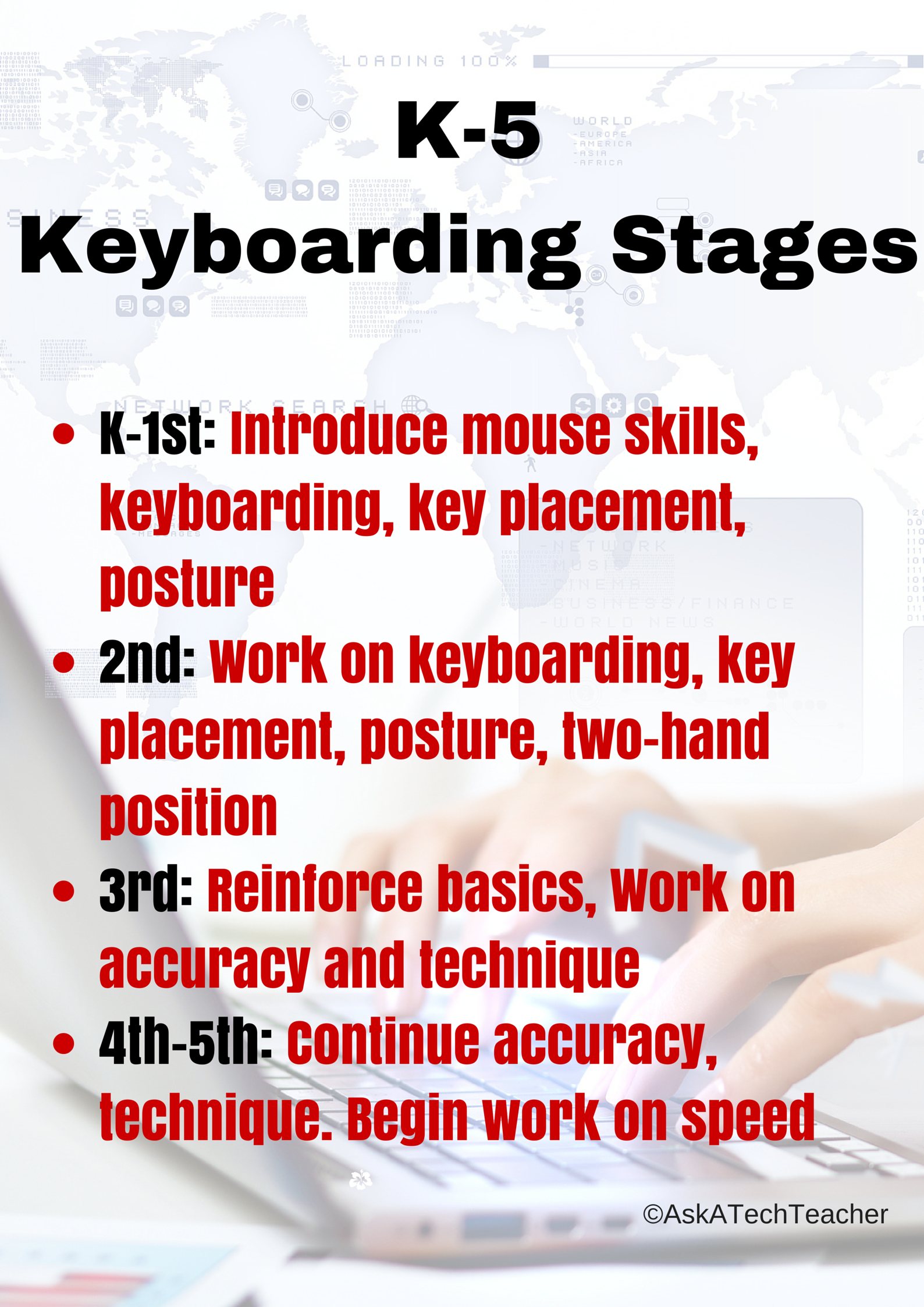
Tech Tip #11: Four Stages of Keyboarding Growth
In these 169 tech-centric situations, you get an overview of pedagogy—the tech topics most important to your teaching—as well as practical strategies to address most classroom tech situations, how to scaffold these to learning, and where they provide the subtext to daily tech-infused education.
Today’s tip: 4 Stages of Keyboarding Growth
Category: Keyboarding
Here’s a poster with the four stages you will follow as you teach students keyboarding. It starts with pre-keyboarding in K-1st and ends with touch typing in 4th/5th grade:
Sign up for a new tip each week or buy the entire 169 Real-world Ways to Put Tech into Your Classroom.
#keyboarding
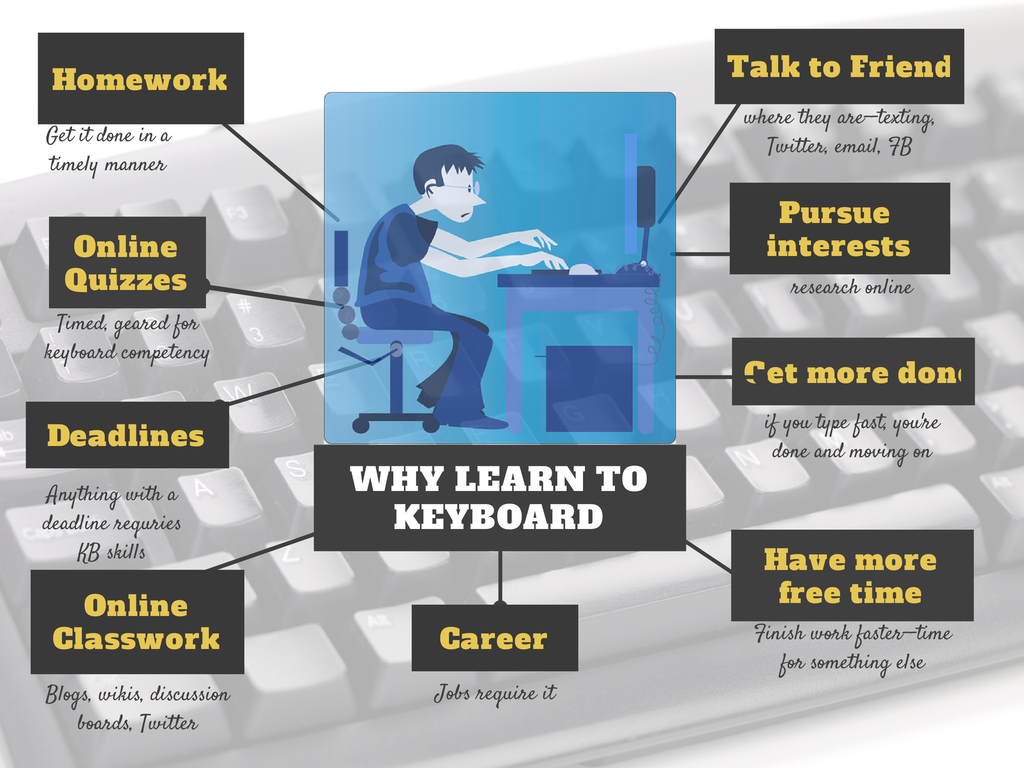
Tech Tip #158: Why Learn Keyboarding
In these 169 tech-centric situations, you get an overview of pedagogy—the tech topics most important to your teaching—as well as practical strategies to address most classroom tech situations, how to scaffold these to learning, and where they provide the subtext to daily tech-infused education.
Today’s tip: Why Learn Keyboarding?
Category: Keyboarding
Here’s a poster with the top nine reasons why students want to learn keyboarding:
Sign up for a new tip each week or buy the entire 169 Real-world Ways to Put Tech into Your Classroom.
Tech Tip #9–Quickly Hide Your Screen
In these 169 tech-centric situations, you get an overview of pedagogy—the tech topics most important to your teaching—as well as practical strategies to address most classroom tech situations, how to scaffold these to learning, and where they provide the subtext to daily tech-infused education.
Today’s tip:
Category: Keyboarding
Q: I’m updating grades at school. Students come in for help and I don’t want them to see what I’m doing. What’s the fastest way to hide the screen?
A: Press “Alt+Tab” on your keyboard (or Command-Tab on a Mac). It’ll hide the window on your screen by bringing up the one you last visited.
Use it as a verb as in, “I had to Alt+Tab when my student dropped by.”
Buy the entire 169 Real-world Ways to Put Tech into Your Classroom.
Tech Tip #2–The PrintScreen Key
In these 169 tech-centric situations, you get an overview of pedagogy—the tech topics most important to your teaching—as well as practical strategies to address most classroom tech situations, how to scaffold these to learning, and where they provide the subtext to daily tech-infused education.
Today’s tip:
Category: Keyboarding
Q: When I push ‘PrintScreen’ to take a screenshot, nothing happens. Why?
A: I have to teach this as a full lesson in class because it is so counter-intuitive; even adults don’t get it.
- When you push PrintScreen, it saves a copy of your screen to the clipboard. Then, you must tell the computer where to put it.
- For example, after pushing PrintScreen (and putting a screenshot onto your clipboard), open a new MS Word document. Paste (Ctrl+V or right click>paste or use the icon on the toolbar or Edit-paste) and a copy of your screen will appear as a picture.
It can be pasted into docs, emails, cards–wherever you’d like. Just don’t forget to paste!
Buy the entire 169 Real-world Ways to Put Tech into Your Classroom.





