
Category: Tech tips

Tech Tip #24: Open a New Word Doc without the Program
 In these 169 tech-centric situations, you get an overview of pedagogy—the tech topics most important to your teaching—as well as practical strategies to address most classroom tech situations, how to scaffold these to learning, and where they provide the subtext to daily tech-infused education.
Today’s tip: Open a New Word Doc without Program
Category: MS Office
 Q: I can’t find the icon that opens MS Word. What do I do?
A: These things happen and always at the worst time. You might have pinned it to the start menu (see Tech Tip #53: How to Pin Any Program to the Start Menu), but what if you didn’t?
No problem. Right click on the desktop and press New>Word Doc. That’s what it does–opens a new Word doc for you without opening the program first.
Sign up for a new tip each week or buy the entire 169 Real-world Ways to Put Tech into Your Classroom.
What’s your favorite tech tip in your classroom? Share it in the comments below.

Tech Tip #19: Best MS Word Tips
In these 169 tech-centric situations, you get an overview of pedagogy—the tech topics most important to your teaching—as well as practical strategies to address most classroom tech situations, how to scaffold these to learning, and where they provide the subtext to daily tech-infused education.
Today’s tip: Ten Best MS Word Tips
Category: MS Office, Problem-solving, Keyboarding
 Here are popular MS Word tips and links to articles:
- Turn an Address into a Link–push the space bar after pasting in an internet address–that activates it (or push enter)
- What’s Today’s Date–press Shift+Alt+D in MS Word. Or, as you start typing the date, Word will populate it for you.
- Menu command is grayed out–push escape four times (you’re probably in something you don’t know you are). This works 90% of the time
- How to Undelete–push Ctrl+Z
- #109: MS Word Skills Assessment for Grades 3-8
- Dear Otto: How do I set the default font on MS Word
- Tech Tip #37: My MS Word Toolbar Disappeared
- Tech Tip #20: How to Add an MS Word Link
- MS Word for Grades 2-5
- #45: How to Use MS Word to Teach Geography
- Easy Photo Editing in MS Word
- Tech Tip #98: Speed up MS Office with Quick Access Toolbar
- Tech Tip #24: How to Open A New Word Doc Without the Program
- Tech Tip #102: Doc Saved Over? Try This
Sign up for a new tip each week or buy the entire 169 Real-world Ways to Put Tech into Your Classroom.
What’s your favorite tech tip in your classroom? Share it in the comments below.
Tech Tip ##113: Backup Your Blog
In these 169 tech-centric situations, you get an overview of pedagogy—the tech topics most important to your teaching—as well as practical strategies to address most classroom tech situations, how to scaffold these to learning, and where they provide the subtext to daily tech-infused education.
Today’s tip: Backup Your Blog
Category: Maintenance, Social Media, Writing, Problem-solving
Q: I’m paranoid of losing my documents so I back them up to an external drive, a flash drive, and in the cloud. My blog–it’s become an important cog in my PLN. If it blew up, I’d be lost. What do I do about backing it up?
 A: If you use WordPress, it’s easy; they provide a native tool for that. Here’s what you do:
- Go to Tools>Export.
- Select the bubble for ‘all’.
- It’ll back document files up as an XML file (you don’t have to understand what that is. Just know it’s the file that will save you if Wordpress crashes).
- Save that backup file somewhere safe in case you need it. Preferably where your Cloud automatic backup will grab it (assuming you have one of those. If you use Carbonite, you do).
- Do this once a month–or a week if you’re active.
This will backup posts, pages, comments, categories, and tags. For the entirety of the blog–similar to an image where you can restore the entire website–you’ll need an external service. My Wordpress.org blog is hosted by GoDaddy. Part of that service is a backup of the blog. It’s worth it to me to pay a bit extra for that function.
World Backup Day just passed. Mark your calendar for next year, March 31st, and be sure to perform all backups–your blog and everything else–on that day.
Sign up for a new tip each week or buy the entire 169 Real-world Ways to Put Tech into Your Classroom.
What’s your favorite tech tip in your classroom? Share it in the comments below.
Tech Tip #103: 16 Spring Cleaning Steps for Computers
In these 169 tech-centric situations, you get an overview of pedagogy—the tech topics most important to your teaching—as well as practical strategies to address most classroom tech situations, how to scaffold these to learning, and where they provide the subtext to daily tech-infused education.
Today’s tip: 16 Spring Cleaning Steps for Computers
Category: Maintenance, Problem-solving
It’s easy to ignore basic computer maintenance. Heck—it’s as likely you’ll mess up your computer in a misguided effort to ‘clean things up’.  Here are sixteen painless tips to try whenever your computer just doesn’t seem to work right:
- Make sure your firewall is working.
- Run an antispyware program.
- Run a malware program.
- Keep your antivirus software
- Delete My Documents files you no longer need.
- Backup files to an external drive or cloud.
- Empty the trash folder.
- Delete programs you no longer use.
- Update any software that needs it.
- Clean the junk off of your desktop.
- Clean up your Start Button.
- Clean out your subscriptions.
- Make notifications weekly instead of daily.
- Change your browser to Chrome.
- Delete that program you never managed to learn.
- Slim down your start-up process.
For more detail, visit Ask a Tech Teacher and the article, “15 Ways to Speed up Computer Use”.
Sign up for a new tip each week or buy the entire 169 Real-world Ways to Put Tech into Your Classroom.
What’s your favorite tech tip in your classroom? Share it in the comments below.
Tech Tip #86: Image Your Computer Often
In these 169 tech-centric situations, you get an overview of pedagogy—the tech topics most important to your teaching—as well as practical strategies to address most classroom tech situations, how to scaffold these to learning, and where they provide the subtext to daily tech-infused education.
Today’s tip: Image Your Computer Often
Category: Maintenance, PCs, Chromebooks, Macs
Q: I hate reformatting. I lose the personalizations I added and the extra programs. Is there any way to make that process easier?
 A: Yes. Create an image–a picture of your hard drive including system files, drivers, software and program updates, software and downloaded programs, docs, files, and extras—and save it in a secure backup area. When you reformat, copy the image back to the computer. Mine is on a terabyte external drive. Even if my two internal drives explode, I’m good.
Here’s how to do this if you have a PC:
- Click the start button. Go to Control Panel. Select ‘Backup and Restore’
- On the left sidebar, select the option ‘create a system image’. Follow directions.
Mac owners: Use a cloud-based third-party service (like Carbonite).
Chromebook folks: Because no data or programs are stored to the device, rather than re-image, try a power wash to reset everything to factory settings. You’ll lose shortkeys and programs installed to the shelf, but that’s it. If that doesn’t work, there are more involved steps (still not too difficult, though) to re-image using third-party utilities.
Alternatively, you can use a cloud-based service like Carbonite. Be forewarned: If you have a lot of data, it takes a while. You can work on your computer while it’s backing up; it’ll just be slower.
Sign up for a new tip each week or buy the entire 169 Real-world Ways to Put Tech into Your Classroom.
What’s your favorite tech tip in your classroom? Share it in the comments below.
Tech Tip #85: Backup Your Computer Often
In these 169 tech-centric situations, you get an overview of pedagogy—the tech topics most important to your teaching—as well as practical strategies to address most classroom tech situations, how to scaffold these to learning, and where they provide the subtext to daily tech-infused education.
Today’s tip: Backup Your Computer Often
Category: Maintenance, Security, PCs, Macs, Chromebooks
Q: I’ve had some virus problems and it reminds me that I need to backup my computer. What’s the easiest way?
 A: For PC/Windows folks: Use Windows Backup. Here’s what you do:
- Click the start button.
- Go to Control Panel
- Select ‘Backup and Restore’
- Select ‘Backup Now’
From there, select a drive with sufficient space and start. Be forewarned: If you have a lot of data, it takes a while. You can work on your computer while it’s backing up; it’ll just be slower.
Mac: Use the Time Machine tool.
Chromebook: No need. Everything is saved to the cloud. Now if you want to backup your cloud, use a service like Backupify.
Sign up for a new tip each week or buy the entire 169 Real-world Ways to Put Tech into Your Classroom.
What’s your favorite tech tip in your classroom? Share it in the comments below.

World Backup Day–March 31st
 March 31st is called World Backup Day. At least once a year, backup your data files to an external drive (like a flash drive). This is one that isn’t connected to your local computer so can’t be compromised if you get a virus. It’s good to always backup data to cloud drives or a different drive on your computer but once a year, do the entire collection of data files to what is called an ‘air gap’ drive–one that is separated from any internet connection.
How to do this
There are various ways to back up your data. You can back up your data to an external device or you can back up your data to a cloud-based backup service, or back up your data to both an external device and a cloud backup service. You might even make more than one backup to external storage devices and keep the two copies in different places (providing protection and access to your data even if one of the backup devices is destroyed or inaccessible. Preserving your valuable documents and images for future access and use requires planning, as well as the use of automatic backup services.
Tech Tip #43: Backup Your Work Often
In these 169 tech-centric situations, you get an overview of pedagogy—the tech topics most important to your teaching—as well as practical strategies to address most classroom tech situations, how to scaffold these to learning, and where they provide the subtext to daily tech-infused education.
Today’s tip: Backup Your Work Often

Category: Maintenance, Security, Email
Q: How often should I backup my project? How about my whole hard drive?
A: I teach students to save early save often (Tech Tip #15), when working on a project. You decide what you can tolerate losing: ten minutes or ten hours. After all, if the computer loses your work, you’re the one who has to start over.
Me, I save each project I’m working on constantly and then save-as to a backup location when I’ve completed the document. A lot of people skip the backup process. Don’t!
More options for backing up:
- Email it to yourself. Then, save it to an email file called ‘backups’.

- For files too large to email, save it as an attachment to a message that’s stored in ‘Drafts’.
- Use an automated service like Carbonite that works in the background, daily. These may charge a fee (Carbonite is about $60 a year), but takes the guesswork out of whether you’ve saved a file as a backup.
- Rely on the program you’re using to back your files up. This is a good option for many internet-based programs (like Canva) and Google Apps, but sketchy for others.
As for the entire computer, once a week is good.
Sign up for a new tip each week or buy the entire 169 Real-world Ways to Put Tech into Your Classroom.
What’s your favorite tech tip in your classroom? Share it in the comments below.
Tech Tip #133: 10 Favorite Mac Shortkeys
In these 169 tech-centric situations, you get an overview of pedagogy—the tech topics most important to your teaching—as well as practical strategies to address most classroom tech situations, how to scaffold these to learning, and where they provide the subtext to daily tech-infused education.
Today’s tip: 10 Favorite Mac Shortkeys
Category: Macs, Keyboarding
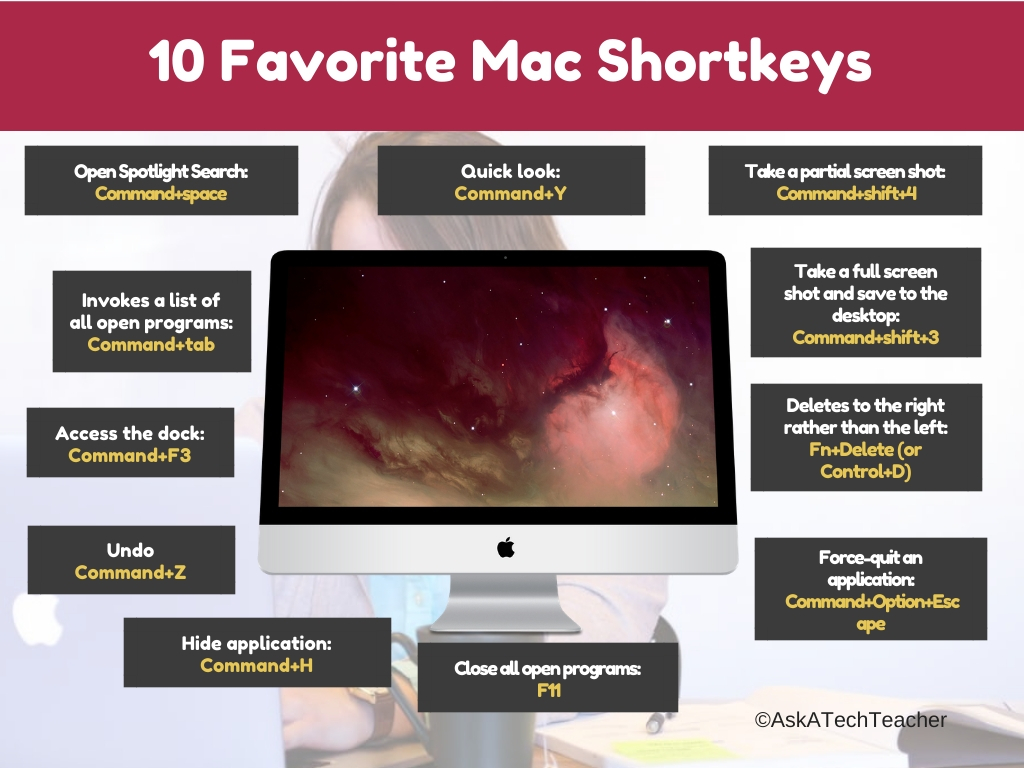
Here’s a poster with ten of the most popular Mac shortkeys among students:
Sign up for a new tip each week or buy the entire 169 Real-world Ways to Put Tech into Your Classroom.
What’s your favorite tech tip in your classroom? Share it in the comments below.
Jacqui Murray has been teaching K-18 technology for 30 years. She is the editor/author of over a hundred tech ed resources including a K-12 technology curriculum, K-8 keyboard curriculum, K-8 Digital Citizenship curriculum. She is an adjunct professor in tech ed, Master Teacher, webmaster for four blogs, an Amazon Vine Voice, CSTA presentation reviewer, freelance journalist on tech ed topics, contributor to NEA Today, and author of the tech thrillers, To Hunt a Sub and Twenty-four Days. You can find her resources at Structured Learning.
Tech Tip #66–How to Add Accents
In these 169 tech-centric situations, you get an overview of pedagogy—the tech topics most important to your teaching—as well as practical strategies to address most classroom tech situations, how to scaffold these to learning, and where they provide the subtext to daily tech-infused education.
Today’s tip: How to add accents
Category: Languages, Keyboarding, Writing
Q: I teach Spanish and need a quick way to add accents to words. Can you help?
A: You can go through the symbols library, but there’s an easier way. Use Ctrl + another key to add the accent. Here is a table.

More tech tips:
Create Shortkeys for Windows Tools
Jacqui Murray has been teaching K-18 technology for 30 years. She is the editor/author of over a hundred tech ed resources including a K-12 technology curriculum, K-8 keyboard curriculum, K-8 Digital Citizenship curriculum. She is an adjunct professor in tech ed, Master Teacher, webmaster for four blogs, an Amazon Vine Voice, CSTA presentation reviewer, freelance journalist on tech ed topics, contributor to NEA Today, and author of the tech thrillers, To Hunt a Sub and Twenty-four Days. You can find her resources at Structured Learning.





