Category: Teacher resources

Tech Ed Resources–Certificate/College Credit Classes and Coaching
 I get a lot of questions from readers about what tech ed resources I use in my classroom so I’m going to take a few days this summer to review them with you. Some are edited and/or written by members of the Ask a Tech Teacher crew. Others, by tech teachers who work with the same publisher I do. All of them, I’ve found well-suited to the task of scaling and differentiating tech skills for age groups, scaffolding learning year-to-year, taking into account the perspectives and norms of all stakeholders, with appropriate metrics to know learning is organic and granular.
Today: Classes
Ask a Tech Teacher offers a variety of classes throughout the year. These can be taught individually (through coaching or mentoring), in small groups (of at least five), or as school PD. All are online, hands-on, with an authentic use of tools you’ll want for your classroom.

Certificate
Group enrollment
The 21st Century teacher blends technology with teaching to build a collaborative, differentiated, and shared learning environment. In this course, you will use a suite of digital tools while addressing overarching concepts like digital citizenship, internet search and research, authentic assessment, digital publishing, and immersive keyboarding. You will actively collaborate, share knowledge, provide constructive feedback to classmates, publish digitally, and differentiate for unique needs. Classmates will become the core of your ongoing Personal Learning Network.
Assessment is project-based so be prepared to be fully-involved and an eager risk-taker.
Price includes course registration and all necessary materials.

Is Whole Brain Teaching Right for Me?
 If you have challenging students in your classes, there’s a good chance someone has suggested that you look into Whole Brain Teaching (WBT). Whole Brain Teaching is an active teaching method designed to maximize student engagement in lessons, positive interactions with classmates, and educational fun. Instruction includes vocal directions mixed with hand gestures, inflections, full body movement, head motions, and chants. Studies show that this multi-sensory approach is how the brain is intended to learn and will result in a much greater probability of reaching teaching goals.
Where it might have originally been intended for challenging classes — much like Orton-Gillingham started as a multi-sensory learning system for dyslexics — WBT has matured into a strategy that works for lots of learners, even the quiet ones. It uses “model and repeat” as ways to join the right and left sides of the brain (such as the hippocampus, the prefrontal cortex, and the motor cortex) in student learning with the idea that if the entire brain is engaged in learning, there is nothing left over for misbehavior or distraction. For many K-12 teachers, WBT has become their primary teaching strategy.
WBT is based on four core components (called Core Four — part of a longer list of techniques):

Moodle: The Unsung Hero of LMS Options
 A Learning Management System (what is often called an LMS) has become foundational to blending technology into education experiences. Without its one-stop curation of class management activities such as attendance, homework, grading, discussions, resources, and more, each with their own separate website, login, and password, technology use in education would be defined by chaos. There are many LMSs to choose from, but none as flexible, scalable, feature-rich, and affordable as the open source ecosystem of Moodle.
Moodle got its start years ago as a method to organize blended learning and online classes. Now, it provides over 90 million educators, administrators, and learners in over 200 countries with a single robust, secure and integrated system to create personalized learning environments. Besides thousands of K-12 schools, users include the State University of New York, Microsoft and the Open University, and the London School of Economics. Because it’s Open Source and platform-agnostic, it has few limitations, but this flexibility and scalability comes with a price. Setup and use are reputed to be more challenging than other LMSs. In fact, I can attest to that from experience.
There is help, though. Following “How to get started” (the next section), I’ll share an easy way to unpack Moodle in your school.
How to get started
With a reminder that Moodle is Open Source, which means the basic framework can be augmented with just about any addition conceivable (as you’ll see in the section, “23 Ways to use Moodle”), here’s how to start:

2017 Teachers Pay Teachers Conference: Notes from Sessions
 One of the largest online marketplace for teachers is Teachers Pay Teachers. If you haven’t heard of this store, you are either new to teaching or long since retired. This vibrant educator community hosts teacher-authors who wish to sell their original lessons and ideas to other teachers, homeschoolers, and unschoolers. Since its start in 2006 by a former teacher, it’s grown to over 3.4 million teachers buying or selling over 2.7 million education-oriented Pre-K through High School lesson plans, curricula, videos, classroom activities, assessments, books, bulletin board ideas, classroom decorations, interactive notebooks, task cards, Common Core resources, and more. Teacher-authors have earned more than $330 million since TpT opened its doors with about a dozen making over $1 million dollars and nearly 300 earning more than $100,000. There’s no set-up charge, no cost to join, and no annual fee unless you choose to become what’s called a Premium seller.
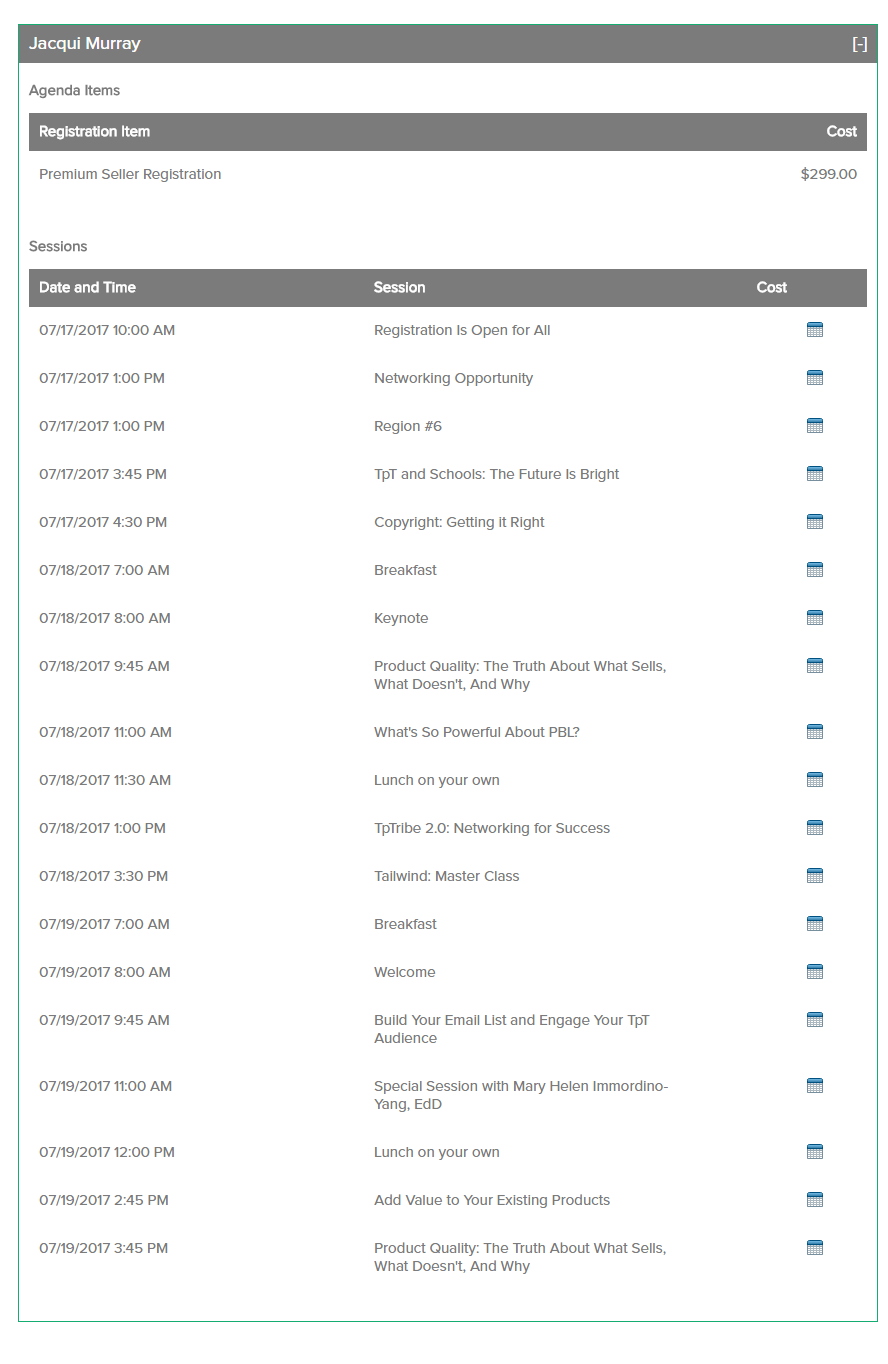
My general observations and To Do list from the conference can be found here (if the link doesn’t work, that means it’s not live yet. Check back later!). I didn’t want to overwhelm you-all by including my thoughts on the sessions I attended so I saved them for this post. I start with a schedule of seminars for the three days (only those I attended). Then, I post my notes and screenshots from the sessions. These aren’t exhaustive by any means, just an idea of what was included. For the real thing, you’ll have to attend next year’s event!
Copyrights
One of TpT’s attorneys talked about the importance of using only media that you have permission to use or created yourself.

Need Tech Next Year? Start Here
If you’re new to Ask a Tech Teacher, here’s what you do:
 Sign up for a newsletter

They’re (kinda) weekly and always free.
Check out our columns
They are numerous and varied, including:
- Weekly tech tips
- Weekly websites
- How-to’s–how to use web tools, software, hardware, more
- Dear Otto–questions from educators on tech questions
- Pedagogy that impacts tech in ed
- Reviews of books, apps, web tools, websites, tech ed products used in your classroom
- Common Core issues and advice
- Subscriber Specials–monthly discounts (or FREE) on tech ed products
- Holidays with technology
- Humorous life of a tech teacher
Read the most popular articles
Find favorite articles in one spot–the Ask a Tech Teacher Hall of Fame. These are the ones we heard about the most from you, were reposted and referenced, and had the biggest impact on your classrooms. It includes topics on classroom management, digital citizenship, the future of education, how technology blends into the classroom, and more.

Need a New Job? Here’s What You Do
 You’ve been teaching for five years and love what you’re doing. You consider yourself darn lucky to be working with colleagues that are friends and a boss who always puts your needs first. Most of the teachers at your school have been there years — even decades — and you have no doubt that, too, will be you. So, you don’t bother to keep your resume up-to-date or expand your teaching skills other than what is required for your position. In short, you found the square hole that fits your square peg.
Until the day that changes. There are dozens of reasons, from new bosses who want to shake things up to your husband gets a job in a different state. The only good news: Your boss told you already, giving you time to job hunt for the new school year. For many schools, if they’re going to make staffing changes, early Spring is when they start looking for the new people. For you as a job hunting educator, this becomes the best time of year to find a job.
Digital portfolio sites
Rather than a two-page printed document that can be lost and serves only one user, a digital portfolio posts your resume online, in an easy-to-understand format. This makes it more available, transparent, robust, and quickly updated. This is the modern resume, tells future bosses you can use technology as a tool, and can give you an edge in a competitive job market. It organizes your qualifications, evidence, and background in one easy-to-reach online location. Interested parties can check it without bothering you and decide if the fit is good. You do nothing — which can save the disappoint of sending out a resume and getting nothing but silence back.
Here are suggestions for digital portfolio sites:

15 Skills Teachers Can Learn this Summer and Use in Next Year’s Classroom
 It’s summer, that time of rest and rejuvenation, ice cream and bonhomie. Like the American plains or the African savannas, it stretches endlessly to a far horizon that is the Next School Year. It represents so much time, you can do anything, accomplish the impossible, and prepare yourself quintessentially for upcoming students.
So what are the absolute basics you should learn this summer that will make a difference in your class in the Fall? Here are fifteen ideas that will still leave you time to enjoy sunsets and hang out with friends:
Learn how to handle basic tech problems
You probably know the most common tech problems faced last year (like hooking digital devices to the school WiFi, this list you might face running a tech-infused lesson, or this one students might face using technology). These are collected from students when they tried to use tech for class projects, parents when their children couldn’t finish their homework because of tech issues, and members of your grade-level team who wanted to use tech for a lesson plan but Something Happened. Know how to solve all of them. If you need help, add a comment at the bottom. I’ll give you some ideas.

9 Must-have Tools for Ed Conferences
 It’s summer, time for teachers to recharge their cerebral batteries. That could mean reading, going on field trips, spending time with online PLNs, or taking calls from family members who usually end up at voice mail. For many, it means attending conferences like ISTE and NEA to learn how the heck to integrate technology into their lesson plans. If you aren’t a veteran conference attendee, you may wonder what you should bring. That’s a fair question considering learning is no longer done sitting in auditoriums nodding off to the wisdom of a guest speaker behind a podium. These days, you might be asked to scan a QR code and visit a website, access meeting documents online, interact digitally, or use a backchannel device to share your real-time thoughts with the presenter. Besides a toothbrush and aspirin, what should you take to your upcoming conference? Here are five tools that will make you look and act like the Diva of Digital:
Besides a toothbrush and aspirin, what should you take to your upcoming conference? Here are five tools that will make you look and act like the Diva of Digital:
Google Maps
Some conferences take multiple buildings spread out over several blocks, and depending upon the number of attendees, your hotel may not be around the corner from the Hall. Bring the latest version of Google Maps on your smartphone or iPad, complete with audio directions. All you do is tell it where you’re going, ask for directions, and Siri (the voice behind the iPhone) will lock into your GPS and hold your hand the entire way. If friends are looking for a Starbucks or Dunkin’ Donuts near the conference, Google Maps will find one. If you want Chinese, use an app like Yelp to find one patrons like (although I’m becoming a tad leery about Yelp. Anyone have a good alternative?)
Conference App
Most educational conferences have one. I find these more useful than the conference website. They are geared for people who are manipulating a digital device one-handed, half their attention on the phone and the rest on traffic, meaning: they’re simple and straightforward. Test drive it so you know where the buttons are, then use it to find meeting rooms, changes in schedules, and updates.

19 Ways Students Keep Learning Fresh Over the Summer
 Teachers have known for decades that ‘summer learning loss’ is a reality. Studies vary on how much knowledge students lose during the summer months–some say up to two months of reading and math skills–and results are heavily-dependent upon demographics, but the loss is real.
To prevent this, teachers try approaches such as summer book reports, but students complain they intrude on their summer time. When teachers make it optional, many don’t participate. The disconnect they’re seeing is that students consider these activities as ‘school’ rather than ‘life’. They haven’t bought into the reality that they are life-long learners, that learning is not something to be turned on in the schoolhouse and off on the playyard.
This summer, show students how learning is fun, worthy, and part of their world whether they’re at a friend’s house or the water park. Here are nineteen suggestions students will enjoy:
Math
- Youngers: Take a picture of making change at the store. Share it in a teacher-provided summer activity folder (this should be quick to use, maybe through Google Drive if students have access to that). Kids will love having a valid reason to use Mom’s smartphone camera.
- Any age: Take a picture of tessellations found in nature (like a beehive or a pineapple). Kids will be amazed at how many they find and will enjoy using the camera phone. Once kids have collected several, upload them to a program like Shadow Puppets where they can record audio notes over the picture and share with friends.
- Any age: Pit your math and technology skills against your child’s in an online math-based car race game like Grand Prix Multiplication. They’ll know more about using the program and will probably win–even if you do the math faster. You might even have siblings compete.
- Grades 2-5: Set up a summer lemonade stand. Kids learn to measure ingredients, make change, listen to potential customers, and problem-solve. If you can’t put one up on your street, use a virtual lemonade stand.
- Any age: If your child wants to go somewhere, have them find the location, the best route, participation details, and other relevant information. Use free online resources like Google Maps and learn skills that will be relevant to class field trips they’ll take next year.

3 Book Reviews about Anthropomorphized Computers
I know a lot of bloggers who are both geeks and authors. Often, their books including those techie topics I love to read (and ended up critical to my recently-published novel, Twenty-four Days). Here are a few I think you might like:
- Digital Dick — an AI takes it upon himself to solve the murder of his creator
- Little Computer People — an AI takes an interesting turn as she attains sentience
- Hyperion Web — Jack Crockett and an AI named Moses fight for what may be the soul of America.