Learn to Blend Tech into Your Class; Get College Credit
 Starting January 18th, I’ll be teaching a class on blending technology into your classroom:
- the Tech-Infused Teacher— January 18th-February 21st
Click the link and scroll down to MTI 562 to sign up.
Here are the basics:
Course Description
The 21st Century lesson blends technology with teaching to build a collaborative, differentiated, and shared learning environment. In this course, teachers will use a suite of digital tools to make that possible while addressing overarching concepts like digital citizenship, internet search and research, authentic assessment, critical thinking, and immersive keyboarding. Teachers will actively collaborate, share knowledge, provide constructive feedback to classmates, and publish digitally. Classmates will become the core of the teacher’s ongoing Personal Learning Network. Assessment is project-based so participants should be prepared to be fully-involved and eager risk-takers.
Course Objectives
At the completion of this course, the teacher will be able to:
- Use blogs, wikis, Twitter, and Google Hangouts to collaborate and share.
- Guide students to safely and effectively search and research on the internet.
- Use technology to support teaching and achieve Common Core Standards.
- Blend keyboarding skills into classroom activities and prepare for yearly assessments.
- Assess student technology use organically.
- Use digital portfolios to store, share, and curate classwork.
- Rely on a Personal Learning Network.
- Solve common tech problems that arise in the classroom.


What do students say?
At the beginning of the class, I had to contact Jacqui several times because I was so confused. I had no idea what a digital portfolio was, or how I was expected to create one. Throughout the course of the five weeks, I was able to take the knowledge that she instilled in me, and begin importing different assignment on my own into my digital portfolio using widgets (I did not even know what these were before this class!) and links. I was able to participate in the “tweet-up” with my classmates and several Google Hang Outs with Jacqui. I completed daily and weekly goals by reading the assigned articles and lesson plans, as well as watching the videos that accompanied each topic. Reading all of the valuable information, creating a blog and a wiki, exploring different websites, creating projects, and creating a digital portfolio, will greatly benefit my students this year and in the years that follow.
LOVING all I’m learning!!
To say I have learned a lot in the past five weeks of my online class is an understatement. I have attended Google Hangouts, learned about wikis, back channels, created a blog, and even tweeted!
I would like to close by saying how much I enjoyed this class. I truly learned so much. As a technology teacher I was not sure what to expect from this course. I found that much of what I currently do in the classroom has been validated. However and more importantly, I learned many new instruction and assessment strategies (along with some new tech tools) that I can now use and apply to improve the learning in my classroom. Thanks everyone!
As a technology teacher I wasn’t sure what to expect from this course. While this course validated much of what I already do in the classroom the The 21st Century Digitally-infused Teacher course also showed me ways in which I can improve and modify my instruction. I enjoyed the course format and feel the instructor was not only very knowledgeable but provided great resources as well. Thank you!
I loved this class! Jacqui was very knowledgeable and helpful whenever I was stuck.
“MTI 562 really opened my eyes and made me think about how to put technology into my lessons. Jacqui Murray encouraged me to be a tech-infused teacher! I can not wait to try these newly learned skills in August”
Click here for 15 take-aways from the last class.
[gallery type="slideshow" ids="48904,48905,48907,48877,48906,48908,47556,48909,48910,46514"]
Listen to Ask a Tech Teacher on EduTalk Radio
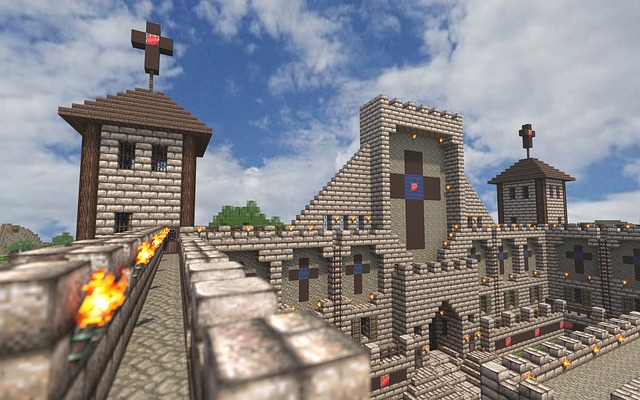
Many thanks to Larry Jacobs for inviting me to join him on EduTalk Radio, to talk about my recent Editor’s Choice Award from SmartBrief Education. We had a great time talking about technology in education, blending games like Minecraft into curriculum, and using technology to meet students where they want to learn.
Here’s the link:
http://www.blogtalkradio.com/edutalk/2015/12/22/the-power-of-minecraft-ed-tech-with-your-students
…and here’s a summary of some of the conversation:
 Minecraft
Kids are baptized in technology. To move education to the next level, we need to meet them where they’re ready to learn.
But, like any food that tastes good must be bad for you—same with MC. If kids love it, it must be a waste of time. But it isn’t.
- Minecraft can be used for any topic
- Kids inspire it. Teachers probably wouldn’t even be aware of Minecraft if not for student interest. That makes it authentic.
- Minecraft teaches critical thinking, problem solving , collaboration, many of the 8 Habits of Mind—authentically (persist, remain open to continuous learning), writing (pre-post game writing), history (build an ancient city and have kids explore)
Preparing students for end-of-year testing?

Happy Holiday!
 I’ll be taking a week (or so) off–until after the New Year–to edit/format my website, work on writing projects with a deadline, prioritize life, and wish my two adult military children could come home to visit. I may drop in on you-all as you enjoy your holidays, but mostly I’ll be regenerating.
I wish you a wonderful season, safe and filled with family.
See you shortly!

Have Santa Call Your Kids
 DialMyCalls (an AATT sponsor) has a special Christmas offer for kids who want to hear from Santa:
Send Free Santa Calls To Your Family This Christmas
This Christmas we have a great gift for everyone! Whether you’re an existing DialMyCalls user or not, you can take advantage of our completely free phone call from Santa. Imagine the look on your child’s face when they receive a personalized phone call from Santa with his or her name on it!
- Simply select your child’s name and the message from Santa you want sent.
- Pick the time, date and phone number you want the call sent to.
- We create a personalized message and send the call when you want it sent!
- Each household can send up to 3 free calls from Santa Claus.
- Additional Santa Calls may be purchased for a small fee.
What an amazing gift to any child for Christmas!

10 Bits of Wisdom I Learned From a Computer
 Life is hard, but help is all around us. The trick is to take your learning where you find it. In my case, as a technology teacher, it‘s from computers. A while ago I posted four lessons I learned from computers:
- Know when your RAM is full
- You Can‘t Go Faster Than Your Processor Speed
- Take Shortcuts When You Can
- Be Patient When You‘re Hourglassing
I got a flood of advice from readers about the geeky lessons they got from computers. See which you relate to:
 #5: Go offline for a while

We are all getting used to–even addicted to–that online hive mind where other voices with thoughts and opinions are only a click away. Who among us hasn’t wasted hours on Facebook, Twitter, blogs–chatting with strangers or virtual friends ready to commiserate and offer advice. It’s like having a best friend who’s always available.
But while your back is turned, the real world is changing. Once in a while, disconnect from your Facebook, Twitter, Instagram–even your blogmates. Re-acquaint yourself with the joys of facial expressions, body language, and that tone of voice that makes the comment, “Yes, I’d be happy to help” sincere or snarky. Engage your brain in a more intimate and viscerally satisfying world.

Where’d Christmas Come From?
Watch this video and come away educated:
[youtube=http://www.youtube.com/watch?v=RbUVKXdu4lQ&w=560&h=315]
5 Great Holiday Websites
 Here are five great holiday websites that will put the seasonal spirit into your teaching. They are education-infused, lively, and appeal to varied learning styles. If you’re a tech teacher, you’ll want to use all of them. If you’re a classroom teacher, click through and find the ones right for your age group:
12 Days of Christmas
Middle School and High School

A Shout Out for My Donate Button
 Ask a Tech Teacher is a small group of tech-ed teachers with a big goal: provide free and affordable resources to anyone, anywhere that integrate technology into education. It’s an ambitious goal and we rely on donations from readers like you to make that happen.
About this time of each year, when several of our larger bills come due, we give a shout out for help. This year, we thought we’d share some of the costs of running Ask a Tech Teacher:
- Site hosting–we use WPEngine–an excellent company that keeps the site up and running over 99% of the time.
- Domain name hosting--for that, we use GoDaddy. They always take my calls, walk us through how to fix problems in terms we understand. we’re teachers, not network geeks, but they don’t hold that against us.
- Legal images–to avoid problems with illegal images, we buy ours through a service called Kozzi. They have a wonderful, vast collection of all sorts of tech and education pictures.
- Constant and chronic techie problems–such as IPNs and plug-in updates and so much more. Again, we’re teachers. This double geek stuff makes our heads hurt.
- The geeky tools and programs that deliver content–like the apps we review and the programs we use for webinars.
We could sell ads, but we don’t want to clutter the pages. That’s distracting as you search out resources for your classroom. We rely on donations. Any amount you can contribute–$5… $10… using the PayPal Donate button below or in the sidebar, would be appreciated.
Here’s the one-time donation button, or you can find it in the sidebar:
Here’s the button for a monthly donation–the price of a cup of coffee and a donut:
| Comment |
BTW, we’re always open to sponsors, too. We love sponsors! If you’re an edtech company interested in helping spread Ask a Tech Teacher resources to everyone, contact us at askatechteacher@gmail.com. We can add you to the sidebar, review your product, or another sponsor sort of activity.


20 Holiday Websites For Your Students
 Need a few websites to fill in sponge time? Here are Holiday websites that will keep students busy while teaching them:
- 12 Days of Christmas
- Christmas—history—fun video
- Gift Hunt–updated version of 12 Days of Christmas–just as much fun
- Holiday collection
- Holiday Crossword
- Holiday Elf Games
- Holiday hangman
- Holiday Hangman II
- Holiday music
- Holiday music II–sing along with the music–the site provides the words
- Holiday—Design Gingerbread House
- Holiday—find the word
- Holiday—match game
- Holiday—Math Facts
- Holiday—North Pole Academy
- Holidays–various
- NORAD Santa
- Penguin Show
- Reindeer Orchestra
- Santa Tracker

End-of-year Tech Tips: Image and Back-up Computer
 This week, I’m providing tips for end-of-year technology maintenance. These are activities that could (or should) be done once a month if you’re active on your computer, but AT LEAST do them yearly.
Like today.
Two critical maintenance tasks that lots of people skip are:
- image your computer
- back up your documents
Image your computer
Every computer must be reformatted eventually. Every time you download from a website or open an email attachment or update one of your online tools or software, you collect digital dust and grunge that affects the speed and efficiency of your computer. Performing the clean up items suggested in 18 Steps to a Speedier Computer helps, but eventually not enough. The only way to return your computer to its original zippy youthful self is by reformatting.
I hate reformatting my computer. I lose all the extras I’ve added (like Jing, cookies, Printkey 2000 which is out of production). I forget which software I have (sure, I remember MS Office, but what about Google Earth and Celestia?) And then there are all the personalizations I’ve added that get lost with the reformat. It takes me hours–days?–to return my computer to its prior user-friendly state. As a result, I resist reformatting for as long as I can. Usually, until a virus has made my computer unusable. Then, I have no choice.
Then I discovered imaging. When you image your computer, you take a picture of what your hard drive looks like, including all the programs and extras, and save in a secure back-up area. When you reformat, all you have to do is copy the image back to the computer. Mine is on a terabyte external drive. Even if my two internal drives explode, I’m good.
Here’s what you do:
- Click the start button.
- Go to Control Panel
- Select ‘Backup and Restore’
- On the left sidebar, you’ll see an option for ‘create a system image’. Select that.
- Follow directions (it’ll ask which drive to use for the image–stuff like that)