
Category: Tech tips

10 Top Tips and Click-throughs in 2019
 Because AATT is a resource blog, we share lots of tips our group comes across in their daily teaching as well as materials shared by others we think you’d like. Some you agree with; others, not so much. Here’s a run-down on what you thought were the most valuable in 2019:
Top 10 Tech Tips
As a working technology teacher, I get hundreds of questions from parents about their home computers, how to do stuff, how to solve problems which I share with you. Here are the Top Ten tech tips from 2019. Between these ten, they had over 174,000 visitors during the year.
- 16 Great Research Websites for Kids
- 22 Websites and 4 Posters to Teach Mouse Skills
- 11 Projects to Teach Digital Citizenship
- Unplugged Activities
- How to Create a Curriculum Map
- 22 Digital Tools You Must Have in Your Classroom
- 9 Good Collections of Videos for Education
- 28 Unique Ideas for Publishing Student Work
- How to Teach Mouse Skills to Pre-Keyboarders
- Tech Tip #60: How to Add Shortcuts to the Desktop

End-of-year Maintenance: Image and Back-up Devices

This week, I’ll post my updated suggestions for three holiday activities that will get your computers and technology ready for the blitz of teaching that starts after the New Year. Here’s what you’ll get (the links won’t be active until the post goes live):
- 11 Ways to Update Your Online Presence
- 16 Ways to Speed Up Your Computer
- Backup and Image your computer
For regular readers of Ask a Tech Teacher, these are yearly reminders. For new readers, these are like body armor in the tech battle. They allow you to jubilantly overcome rather than dramatically succumb. Your choice.
Today: Image and Backup Your Computer
xx
Two critical maintenance tasks that lots of people skip are:
- image your computer
- back up your documents
Image your computer
End-of-Year Maintenance: 16 Steps To A Speedier Computer
This week, I’ll post my updated suggestions for three holiday activities that will get your computers and technology ready for the blitz of teaching that starts after the New Year. Here’s what you’ll get (the links won’t be active until the post goes live):
- 11 Ways to Update Your Online Presence
- 16 Ways to Speed Up Your Computer
- Backup and Image your computer
For regular readers of Ask a Tech Teacher, these are yearly reminders. For new readers, these are like body armor in the tech battle. They allow you to jubilantly overcome rather than dramatically succumb. Your choice.
Today: 16 Ways to Speed up Your Computer
xx
There are two ‘speed’ problems that arise when using computers:
- the computer is slow, for lots of reasons
- you are slow–meaning: You have too much to do. We’ll deal with this later…
I post this every year and have included several great suggestions from readers. Here’s what you need to do:

169 Tech Tip #100 Top Ten Internet Shortkeys
 In these 169 tech-centric situations, you get an overview of pedagogy—the tech topics most important to your teaching—as well as practical strategies to address most classroom tech situations, how to scaffold these to learning, and where they provide the subtext to daily tech-infused education.
Today’s tip: Top Ten Internet Shortkeys
Category: Internet
Sub-category: Keyboarding
Here’s a poster with ten favorite shortkeys students will love when using the internet:

Sign up for a new tip each week or buy the entire 169 Real-world Ways to Put Tech into Your Classroom.
169 Tech Tip #65 Zoom In/Out of Websites
In these 169 tech-centric situations, you get an overview of pedagogy—the tech topics most important to your teaching—as well as practical strategies to address most classroom tech situations, how to scaffold these to learning, and where they provide the subtext to daily tech-infused education.
Today’s tip: Zoom In/Out of Websites
Category: Internet
Sub-category: Problem-solving
Q: I can’t read the internet page. How do I zoom in?
A: There are a few ways, but here’s the simplest: Hold down “Ctrl” key and move your “mouse scroll wheel”. One direction zooms in; the other zooms out.
There are two other ways:
- Ctrl+ (the plus sign next to backspace) will zoom in; Ctrl- will zoom out.
- Go to the menu bar. Select ‘View’, ‘Zoom’ and either ‘Zoom in’ or ‘Zoom out’.
To return to the original setting, hold down Ctrl and hit the number zero.
Take a moment while I get a cup of coffee and try it… OK–how’d it go?
Sign up for a new tip each week or buy the entire 169 Real-world Ways to Put Tech into Your Classroom.
169 Tech Tip #37 — Basics of Internet Safety
In these 169 tech-centric situations, you get an overview of pedagogy—the tech topics most important to your teaching—as well as practical strategies to address most classroom tech situations, how to scaffold these to learning, and where they provide the subtext to daily tech-infused education.
Today’s tip: Basics of Internet Safety
Category: Internet
Sub-category: Security
Here are two posters to share with students about the basics of Internet safety:
[gallery type="slideshow" ids="61301,61302"]Here’s a lesson plan on Internet Search/Research.
Sign up for a new tip each week or buy the entire 169 Real-world Ways to Put Tech into Your Classroom.
169 Tech Tip #18 How to Activate a Link
In these 169 tech-centric situations, you get an overview of pedagogy—the tech topics most important to your teaching—as well as practical strategies to address most classroom tech situations, how to scaffold these to learning, and where they provide the subtext to daily tech-infused education.
Today’s tip: How to Activate a Link
Category: Internet
Sub-category: MS Office, Keyboarding
Q: I see an underlined blue phrase on my word processing document. That’s a link to a website but how do I make it work?
A: Activating a link is simple, but varies depending upon where you find it:
- MS Word: Hover over the word or phrase and Ctrl+click to activate.
- Google Docs: Click the phrase; a link appears below it; click.
- Internet: Click the phrase.
Sign up for a new tip each week or buy the entire 169 Real-world Ways to Put Tech into Your Classroom.
169 Tech Tip #4 My Webpage Froze
In these 169 tech-centric situations, you get an overview of pedagogy—the tech topics most important to your teaching—as well as practical strategies to address most classroom tech situations, how to scaffold these to learning, and where they provide the subtext to daily tech-infused education.
Today’s tip: My Webpage Froze
Category: Internet
Sub-category: Keyboarding
Q: My webpage is stuck. It won’t update and I can’t move around it to links or even scroll. What do I do?
A: Refresh the page with F5. If that doesn’t work, you might have to “force refresh” with Ctrl+F5. That will send the browser to re-check with the web server for the latest copy of the web page you are viewing. If you are using a Mac, push Apple + R or Cmd + R.
Sign up for a new tip each week or buy the entire 169 Real-world Ways to Put Tech into Your Classroom.
169 Tech Tip #71 How to Move Pics Around in Docs
In these 169 tech-centric situations, you get an overview of pedagogy—the tech topics most important to your teaching—as well as practical strategies to address most classroom tech situations, how to scaffold these to learning, and where they provide the subtext to daily tech-infused education.
Today’s tip: How to Move Pics Around in Docs
Category: Images
Sub-category: MS Office, Google Apps
Q: I added an image to my Word document, but I can’t move it around the page. How do I fix that?
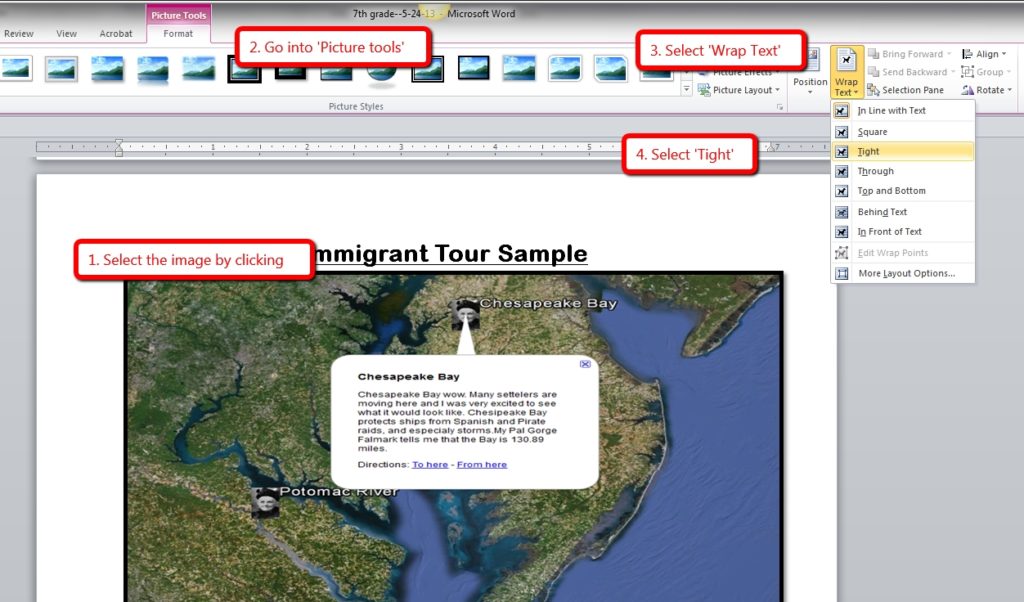
A: Word’s default for inserting a picture on a page is ‘inline’–it treats it as text. Like words on a document, it can’t be easily moved. Here’s how to fix that:
- Click on the picture; select ‘Picture Tools’ at the top center of the screen.
- Select ‘wrap text’ from the ribbon.
- Select ‘tight’ to have words wrap around it.
Now drag and drop it anywhere you’d like.
For detail, and how to do this in Google Apps, visit Tech Tip #12.
Sign up for a new tip each week or buy the entire 169 Real-world Ways to Put Tech into Your Classroom.
169 Tech Tip #49 The 15-second Slideshow
In these 169 tech-centric situations, you get an overview of practical strategies to address most classroom tech situations, how to scaffold these to learning, and where they provide the subtext to daily tech-infused education.
Today’s tip: #49–The 15-second Slideshow
Category: Images
Sub-category: PCs, Macs, Chromebooks, iPads
Q: What’s an easy way Kindergartners and first graders can share a slideshow of their work?
A: If you have PCs:
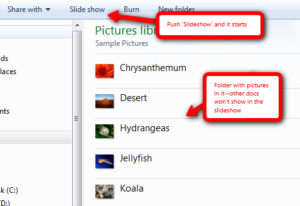
- Go to the Start button; select Computer in the right column.
- Select the folder with the pictures you want displayed as a slideshow.
- Select Slideshow from the toolbar; push play at the bottom.
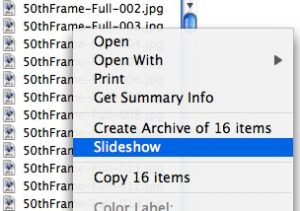
Here’s how you do it in Macs:
For Chromebooks:
- select Files
- select the folder that includes student images
- select the image
- click Openat the bottom of the screen
- hover over the bottom right toolbar and select the video icon for slideshow





