
Category: 1st

How to Kidproof the Internet

How to keep children safe online is the most popular question parents ask at my school. They want to know about firewalls, filters, kidsafe desktops, nannycams, cyberbullying, internet privacy, and everything in between. Should they keep their children away from computers or just off the internet? Do they have to sit with them while they work? Is there an age when it’s OK to let them on their own?
No. No. and No. Parents must teach children to take care of themselves while visiting the vast, anonymous, addictive neighborhood called ‘the internet’. Just as they stay at your side in large busy stores, don’t talk to strangers, and don’t open the door to people they don’t know, they will learn to be safe in the digital world. Because it’s part of our genome–to do what keeps us safe.
While they’re getting to that epiphany, here are ideas you can employ to support them on the way:
- Teach your children to use the internet. They are digital citizens which includes rights and responsibilities they probably aren’t aware of. Just as in their neighborhood, they must learn them. Don’t hope school teaches them. They may, or might teach them wrong. Teach your kids to avoid ads, that anonymous isn’t innocent, and online relationships aren’t always friendly. Tell them again and again. Sooner than you think, they will own it. Just as they don’t cross the street without looking both ways, they won’t cross the ‘digital street’ unless it’s safe.
- Discuss what they can and cannot do online. Discuss why so they understand. You want them able to take care of themselves which means not putting themselves in harm’s way.
- Use a parental control filter. Block everything you worry about–chicks, Minecraft, girls, Facebook, xxx, murder. It’s easy to unblock if your child needs a site that won’t come up. More importantly, it leads to a conversation with your child about what they’re researching and why a particular site is relevant. You want your child comfortable with you involved in their lives–not as an arbiter of right and wrong, but an interested loving party.
- Do not assume parental controls are perfect. In fact, assume they aren’t. Stay vigilant. Be aware when your child is too quiet or too noisy at the computer. Ask questions. Pop in unexpectedly.
- Enforce rules. Don’t decide you’re too tired one night to go check a website your child tells you they need to visit. Always always always follow your own rules.
- Check ‘history’ on your child’s computer. Do it with them so they understand this is part of the plan to keep them safe.
- Know what their school does to keep your child safe online. Follow the same rules, or follow your own. Do explain the differences to your child. Children are flexible. They will be fine with varied rules.

Online Sites to Teach Mouse Skills
It sounds easy, but to a five or six year old, holding the mouse, clicking that left button, dragging and dropping while holding a finger down is darn difficult. Here’s a list (click for updates):

How to Teach Digital Citizenship in Kindergarten and 1st Grade
Understanding how to use the internet has become a cornerstone issue for students. No longer do they complete their research on projects solely in the library. Now, there is a varied landscape of resources available on the internet.
But with wealth of options comes responsibility to use resources properly. As soon as children begin to visit the online world, they need the knowledge to do that safely, securely, responsibly. There are several great programs available to guide students through this process (Common Sense’s Digital Passport, Carnegie CyberAcademy, K-8 Digital Citizenship). I’ve collected a long list of resources here:
K-HS Digital Citizenship Resources
Today, we focus on Kindergarten–1st Grade.
Overview/Big Ideas
Students learn how to live in the digital world of internet websites, copy-righted images, and virtual friends who may be something different.
Essential Questions
- What is a ‘digital citizen’?
- How is being a citizen of the internet the same/different than my home town?
- What are the implications of digital citizenship in today’s world?

Objectives and Steps
The objectives of this lesson are (use the lines in front of each item to check them off as completed):

13 Websites with Online Stories

Here are popular resources teachers are using to share stories:
- Aesop Fables—no ads
- Aesop’s Fables
- Audio stories
- Childhood Stories
- Classic Fairy Tales
- Fairy Tales and Fables
- Listen/read–Free non-fic audio books
- Owl Eyes (classics)
- Starfall
- Stories read by actors
- Stories to read for youngsters
- Storyline
- Unite for Literacy
Click for more online story resources (or to update this list)

11 Online Resources About Puzzles

Here are popular puzzles resources teachers are using to teach mouse skills, critical thinking, and more. There are a few for the upcoming St. Patrick’s Day:
- Digipuzzles–great puzzles for geography, nature, and holidays
- I’m a Puzzle–create your own puzzles
- Jigsaw Explorer
 –make your own
 - Jigsaw Planet–create your own picture jigsaw
- Jigsaw puzzles
- Jigzone–puzzles
- Jigsaw Puzzles–JS
- Kindergarten puzzles
- Puzzle—St. Pat’s Puzzle
- Puzzle—drag-and-drop puzzle
- Puzzle—St. Pat’s slide puzzle
Copyright ©2023 usna.wordpress.com – All rights reserved.
Jacqui Murray has been teaching K-18 technology for 30 years. She is the editor/author of over a hundred tech ed resources including a K-12 technology curriculum, K-8 keyboard curriculum, K-8 Digital Citizenship curriculum. She is an adjunct professor in tech ed, Master Teacher, webmaster for four blogs, an Amazon Vine Voice, CSTA presentation reviewer, freelance journalist on tech ed topics, contributor to NEA Today, and author of the tech thrillers, To Hunt a Sub and Twenty-four Days. You can find her resources at Structured Learning.

3 Projects to Teach 1st Grade Architecture
Many Fridays, I report on a wonderful website or project my classes and parents love. This one is teaching architecture to youngers:
Lesson Plan:
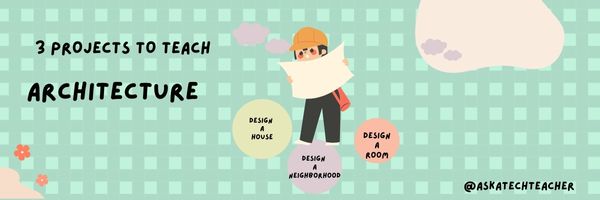
Three projects over six weeks and your students will learn about blueprints, room layout, dimensions, and more. Plus, they’ll understand how to think about a three-dimensional object and then spatially lay it out on paper. This is challenging, but fun for first graders.
Spend two weeks on each projects. Incorporate a discussion of spaces, neighborhoods, communities one week. Practice the drawing, then do the final project which students can save and print. Kids will love this unit.
- First, draw a picture in your drawing program of the child’s home. If you don’t already have a class favorite, check this list. Many have architecture tools so show students how to find them. Have kids think about their house, walk through it. They’ll have to think in three dimensions and will soon realize they can’t draw a two-story house. In that case, allow them to pick which rooms they wish to include and concentrate on what’s in the room.
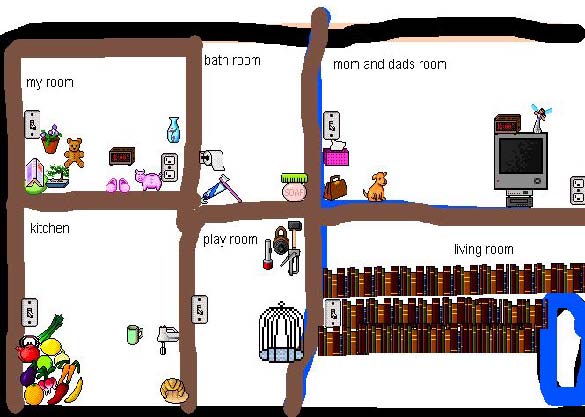 Classroom layout–through the eyes of a First Grader[/caption]

14 Online Resources about Farms
Here are a few of the popular resources teachers are using to teach about lots of different types of farms:
- Agriculture in the Classroom
- Alligator farm–video
- Dairy Farm tour-video
- Egg farm–video
- Farm Games
- Farm Games–Boowa and Kwala
- Find a dog
- Fish Farm–video
- Harvest of History–bit older
- Llama farm—video
- Organic Farm–video
- Virtual Farm–4H
- Wind Farm–video
- Wind turbine farm–video
–image credit Deposit Photos

7 Online Resources to Teach About Vehicles

Do your first graders love vehicles? Here are a few of the popular resources teachers are using to teach about them:
- Build a car–abcya Design your very own vehicle with ABCya’s Create a Car! Choose from cars, trucks, buses, and even construction vehicles. Customize your vehicle with different wheels, engines, and more. Enjoy the ride!
- Vehicle Puzzle–click and drag puzzle pieces into place for this picture
- Freight Train Cars–video about all the cars in the freight train from Railway Vehicles
- Patterns in Vehicles–learn about patterns in this video by recognizing them in a video
- Transportation matching–mix and match vehicle parts to make your own unique vehicle
- Transportation Sequence Games–a lesson plan about transportation (but it does require a BrainPop Jr subscription)
- Vehicles–a wide collection of coloring pages for many different vehicles
Do you have any I can add to the list?
–image credit Deposit Photos

Know Computer Hardware

Learning computers starts in kindergarten with understanding hardware. This lesson plan (#103 in the lesson plan book noted below) includes three pages. Introduce less with K, more each year until by sixth grade, students are good hardware problem solvers because they understand the basics.
Page 2 is an assessment you can either print out and have students fill in or push out to students to be completed online.

15 Online Coloring Apps

Good websites and apps, some for kids, some for adults. Beware: Many have in-app purchases and advertising





