
Year: 2021

Teacher Appreciation Week–Gifts for the Tech Teacher
Teacher Appreciation Week: The First Full Week of May
 There’s always been something mystically cerebral about people in technical professions like engineering, science, and mathematics. They talk animatedly about plate tectonics, debate the structure of atoms, even smile at the mention of calculus. The teaching profession has our own version of these nerdy individuals, called technology teachers. In your district, you may refer to them as IT specialists, Coordinators for Instructional Technology, Technology Facilitators, Curriculum Specialists, or something else that infers big brains, quick minds, and the ability to talk to digital devices. School lore probably says they can drop a pin through a straw without touching the sides.
When I started teaching K-8 technology, people like me were stuffed into a corner of the building where all other teachers could avoid us unless they had a computer emergency, pretending that what we did was for “some other educator in an alternate dimension”. Simply talking to us often made a colleague feel like a rock, only dumber. When my fellow teachers did seek me out — always to ask for help and rarely to request training — they’d come to my room, laptop in hand, and follow the noise of my fingers flying across the keyboard. It always amazed them I could make eye contact and say “Hi!” without stopping or slowing my typing.
That reticence to ask for help or request training changed about a decade ago when technology swept across the academic landscape like a firestorm:

Subscriber Special: May

Every month, subscribers to our newsletter get a free/discounted resource to help their tech teaching.
May
Jacqui Murray has been teaching K-18 technology for 30 years. She is the editor/author of over a hundred tech ed resources including a K-12 technology curriculum, K-8 keyboard curriculum, K-8 Digital Citizenship curriculum. She is an adjunct professor in tech ed, Master Teacher, webmaster for four blogs, an Amazon Vine Voice, CSTA presentation reviewer, freelance journalist on tech ed topics, contributor to NEA Today, and author of the tech thrillers, To Hunt a Sub and Twenty-four Days. You can find her resources at Structured Learning.

Whiteboard Apps You’ll Love
Whiteboards have long been a de rigeur staple in classrooms, occupying pride-of-place at the front of the room. Despite the popularity of hi-tech Smartscreens, the simple whiteboard remains the favored method of sharing information during class time.
But one change has revolutionized their use: They can now be projected from your iPad. Before introducing three amazing must-have whiteboard apps, let me note that there are dozens of options, all with varied traits and prices. I selected these three because they are intuitive, multi-functional, and work as a classroom tool rather than just another new widget teachers must learn.
 AirSketch
Free to try
AirSketch is a basic, uncomplicated whiteboard that lets you do anything you’d normally do on a whiteboard. It’s similar to web-based options like Miro with two dramatic differences: It works through a iPad and can be mirrored to a computer (and from there, the class screen). This untethers teachers from their desk. All that’s needed is an iPad, AirSketch, a class computer, and a class screen.
 SyncSpace
Free to try
SyncSpace is a sharable, zoomable, collaborative whiteboard for iPads, mobile devices, laptops, and computers. Students work together on a drawing (using a finger or stylus), math problem, how-to, or a mindmap by adding illustrations, text, and/or pictures.
 ShowMe
Free
ShowMe is an interactive whiteboard app that allows drawing, handwriting, text, and voice-over. Users construct a series of linked slides, save them as a video, and then share with others either publicly or privately. The learning curve is shallow and intuitive for anyone who has used iPad apps in the past.
Need more options? Check this out (click here for updated list):

Here’s a Preview of May

Here’s a preview of what’s coming up on Ask a Tech Teacher in May:
- Whiteboard Apps You’ll Love
- Teacher Appreciation Week
- Kids’ Computer Posture Explained
- World Password Day
- Tech Tips
- 12 Tech Tasks to End the School Year
- Digital Books for Summer Reading
- Digital Platforms to Teach Remotely
- Free Posters

JotForm Approvals–Great Way to Manage Workflow
 You may know JotForm as one of the most popular tools in the form builder category, recognized for its simplicity and sophistication in what could otherwise be the complicated process of collecting and analyzing data. It works on all platforms, can be shared via a link or embed (as well as other options), and supports multiple languages. Over the past several years, JotForm has released many features designed to simplify and automate teaching’s more mundane tasks (Smart PDF Forms, a PDF Editor, JotForm Cards, Tables, and JotForm Reports–click for my reviews). Their latest is called JotForm Approvals.
JotForm Approvals is a quick, customizable way to automate the rote responses in a form. It enables you to specify what actions follow once a form is received like alerting involved parties, forwarding the form when required, and notifying respondees of results. With JotForm’s trademark drag-and-drop interface, teacher and administrative teams can easily add approvers, multiple emails, conditional responses, and other elements so that certain steps in the approval process happen instantaneously. Responses never get lost in an email box or become delayed by a weekend or holiday vacation. Approvals is always on and always working.
Best of all, Approvals is free with any JotForm account.
How does it work
Every JotForm Approvals process starts with a form you already have in your JotForm account. Here’s an example of a form I use to approve additional training teachers request to deal with the complexities of remote learning: (more…)

Tech Tip #103: 16 Spring Cleaning Steps for Computers
 In these 169 tech-centric situations, you get an overview of pedagogy—the tech topics most important to your teaching—as well as practical strategies to address most classroom tech situations, how to scaffold these to learning, and where they provide the subtext to daily tech-infused education.
Today’s tip: 16 Spring Cleaning Steps for Computers
Category: Maintenance, Problem-solving
It’s easy to ignore basic computer maintenance. Heck—it’s as likely you’ll mess up your computer in a misguided effort to ‘clean things up’.  Here are sixteen painless tips to try whenever your computer just doesn’t seem to work right:
- Make sure your firewall is working.
- Run an antispyware program.
- Run a malware program.
- Keep your antivirus software
- Delete My Documents files you no longer need.
- Backup files to an external drive or cloud.
- Empty the trash folder.
- Delete programs you no longer use.
- Update any software that needs it.
- Clean the junk off of your desktop.
- Clean up your Start Button.
- Clean out your subscriptions.
- Make notifications weekly instead of daily.
- Change your browser to Chrome.
- Delete that program you never managed to learn.
- Slim down your start-up process.
For more detail, visit Ask a Tech Teacher and the article, “15 Ways to Speed up Computer Use”.
Sign up for a new tip each week or buy the entire 169 Real-world Ways to Put Tech into Your Classroom.
What’s your favorite tech tip in your classroom? Share it in the comments below.

5 Websites for 4th Grade Word Study
 Here are a few of the popular resources teachers are using to reinforce and teach word study:
- Grammar games–a collection of easy-to-use games that cover grammar, vocabulary, parts of speech, and more
- Vocabulary-Spelling City–the ever-favorite word study program that lets you enter your class word lists and the site will turn them into engaging games.
- Visuwords–a visual tool to see what words and concepts are related to specific words
- Vocabulary Fun–use games to learn affixes, syllables, synonyms, idioms, and more
- Word Central—from Merriam Webster–not only reinforces learning with games but allows students to build their own dictionary; also has a tab for educators.
Click here for more Word Study websites.
Click here for updates to this list.

What Do You Think is the Hardest Tech Problem?
In the grad school classes I teach and my coaching sessions, the biggest problem facing teachers is not the 3R’s or equity or differentiation. It’s technology. In an education environment that is taught remotely as much as in person, this has become a big deal. I’d like your feedback on issues you face. It’s an easy poll, shouldn’t take more than a few minutes. You’ll see results right away but I’ll post them also in a few months, let you know what I found out:
[polldaddy poll=10806155]
If you’d like to see the earlier poll (from over ten years ago), here it is. It’s interesting to see what has changed!
[polldaddy poll=1754921]
Jacqui Murray has been teaching K-18 technology for 30 years. She is the editor/author of over a hundred tech ed resources including a K-12 technology curriculum, K-8 keyboard curriculum, K-8 Digital Citizenship curriculum. She is an adjunct professor in tech ed, Master Teacher, webmaster for four blogs, an Amazon Vine Voice, CSTA presentation reviewer, freelance journalist on tech ed topics, contributor to NEA Today, and author of the tech thrillers, To Hunt a Sub and Twenty-four Days. You can find her resources at Structured Learning.

5 (free) Security Posters for Tech Ed

Every month, we’ll share five themed posters that you can share on your website (with attribution), post on your walls, or simply be inspired.
This month: Security
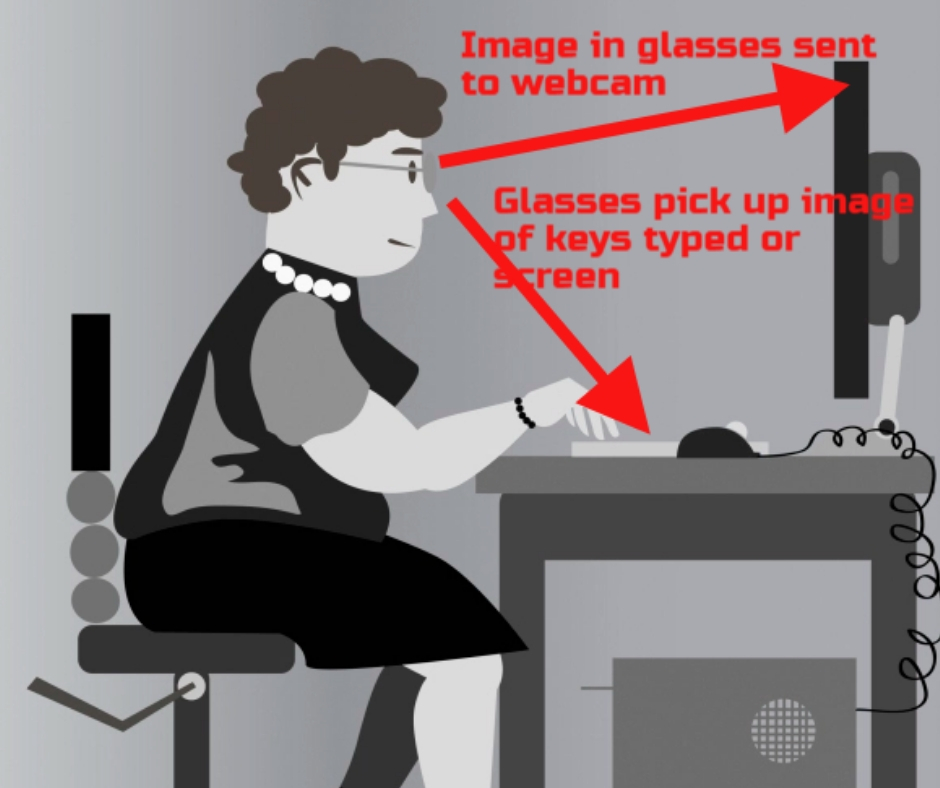




–for the entire collection of 65 posters, click here
Jacqui Murray has been teaching K-18 technology for 30 years. She is the editor/author of over a hundred tech ed resources including a K-12 technology curriculum, K-8 keyboard curriculum, K-8 Digital Citizenship curriculum. She is an adjunct professor in tech ed, Master Teacher, webmaster for four blogs, an Amazon Vine Voice, CSTA presentation reviewer, freelance journalist on tech ed topics, contributor to NEA Today, and author of the tech thrillers, To Hunt a Sub and Twenty-four Days. You can find her resources at Structured Learning.
Tech Tip #86: Image Your Computer Often
In these 169 tech-centric situations, you get an overview of pedagogy—the tech topics most important to your teaching—as well as practical strategies to address most classroom tech situations, how to scaffold these to learning, and where they provide the subtext to daily tech-infused education.
Today’s tip: Image Your Computer Often
Category: Maintenance, PCs, Chromebooks, Macs
Q: I hate reformatting. I lose the personalizations I added and the extra programs. Is there any way to make that process easier?
 A: Yes. Create an image–a picture of your hard drive including system files, drivers, software and program updates, software and downloaded programs, docs, files, and extras—and save it in a secure backup area. When you reformat, copy the image back to the computer. Mine is on a terabyte external drive. Even if my two internal drives explode, I’m good.
Here’s how to do this if you have a PC:
- Click the start button. Go to Control Panel. Select ‘Backup and Restore’
- On the left sidebar, select the option ‘create a system image’. Follow directions.
Mac owners: Use a cloud-based third-party service (like Carbonite).
Chromebook folks: Because no data or programs are stored to the device, rather than re-image, try a power wash to reset everything to factory settings. You’ll lose shortkeys and programs installed to the shelf, but that’s it. If that doesn’t work, there are more involved steps (still not too difficult, though) to re-image using third-party utilities.
Alternatively, you can use a cloud-based service like Carbonite. Be forewarned: If you have a lot of data, it takes a while. You can work on your computer while it’s backing up; it’ll just be slower.
Sign up for a new tip each week or buy the entire 169 Real-world Ways to Put Tech into Your Classroom.
What’s your favorite tech tip in your classroom? Share it in the comments below.





