


Tag: 169 tech tips

Tech Tip #134: 8 Tips to Become Tomorrow’s Teacher
 In these 169 tech-centric situations, you get an overview of pedagogy—the tech topics most important to your teaching—as well as practical strategies to address most classroom tech situations, how to scaffold these to learning, and where they provide the subtext to daily tech-infused education.
Today’s tip: 8 Tips to Become Tomorrow’s Teacher
Category: Pedagogy
Today’s teachers have little resemblance to your mother’s teachers—lecturing from the front of the classroom, silent children, and rote drills to reinforce skills. Today, teachers are expected to nurture inquiry, critical thinking, and independent thought, often assessed by projects or anecdotal observation.
Here’s a poster with eight tips on how to become tomorrow’s teacher today:
For more on tomorrow’s teacher, check out these articles on Ask a Tech Teacher:
- Let’s Talk About Habits of Mind
- What is the 21st Century Lesson Plan
- What’s Tomorrow’s Digital Student Look Like
- Set up Your Digital Classroom
Sign up for a new tip each week or buy the entire 169 Real-world Ways to Put Tech into Your Classroom.
What’s your favorite tech tip in your classroom? Share it in the comments below.

Tech Tip #6: 16 Habits of Mind
In these 169 tech-centric situations, you get an overview of pedagogy—the tech topics most important to your teaching—as well as practical strategies to address most classroom tech situations, how to scaffold these to learning, and where they provide the subtext to daily tech-infused education.
Today’s tip: Habits of Mind
Category: Pedagogy
Habits of Mind are learning skills that address the most granular problem-solving and critical thinking abilities required to prepare a student for college or career. They concentrate on the practical strategies of ‘analysis, evaluation, synthesis. Here’s a poster with all sixteen:
For more on Habits of Mind, visit “Let’s Talk about Habits of Mind” on Ask a Tech Teacher.
Sign up for a new tip each week or buy the entire 169 Real-world Ways to Put Tech into Your Classroom.
What’s your favorite tech tip in your classroom? Share it in the comments below.

Tech Tip #40: Where Did Windows Explorer Go?
In these 169 tech-centric situations, you get an overview of pedagogy—the tech topics most important to your teaching—as well as practical strategies to address most classroom tech situations, how to scaffold these to learning, and where they provide the subtext to daily tech-infused education.
Today’s tip: Where did Windows Explorer go?
Category: PCs
Q: I can’t find Explorer. Where did it go?
A: Right click on the start button and select ‘File Explorer’.
If you’re looking for DOS, type ‘command prompt’ into the search field and it’ll pop up. I still miss DOS…
Sign up for a new tip each week or buy the entire 169 Real-world Ways to Put Tech into Your Classroom.
What’s your favorite tech tip in your classroom? Share it in the comments below.
Tech Tip #129: Top Ten PC Shortkeys
In these 169 tech-centric situations, you get an overview of pedagogy—the tech topics most important to your teaching—as well as practical strategies to address most classroom tech situations, how to scaffold these to learning, and where they provide the subtext to daily tech-infused education.
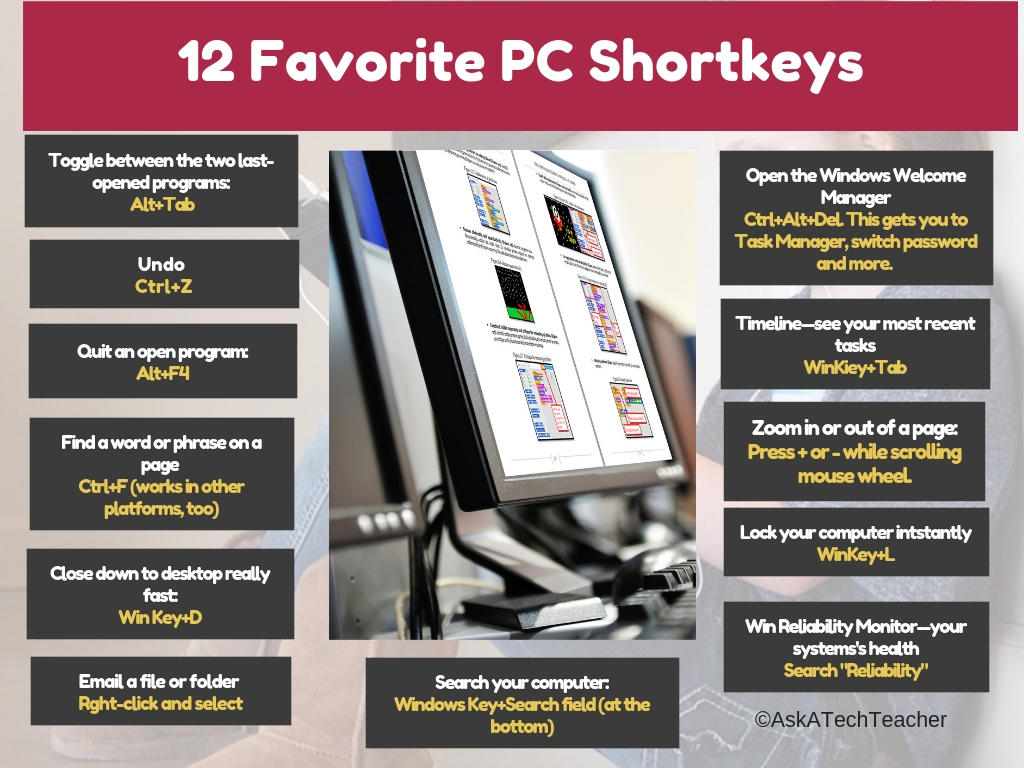
Today’s tip: Poster–Top 10 PC shortkeys
Category: PC, keyboarding
Here’s a poster with the ten most-popular PC shortkeys in my colleague’s classes:
Sign up for a new tip each week or buy the entire 169 Real-world Ways to Put Tech into Your Classroom.
What’s your favorite tech tip in your classroom? Share it in the comments below.
Jacqui Murray has been teaching K-18 technology for 30 years. She is the editor/author of over a hundred tech ed resources including a K-12 technology curriculum, K-8 keyboard curriculum, K-8 Digital Citizenship curriculum. She is an adjunct professor in tech ed, Master Teacher, webmaster for four blogs, an Amazon Vine Voice, CSTA presentation reviewer, freelance journalist on tech ed topics, contributor to NEA Today, and author of the tech thrillers, To Hunt a Sub and Twenty-four Days. You can find her resources at Structured Learning.
Tech Tip #68: Make Desktop Icons Big or Little
In these 169 tech-centric situations, you get an overview of pedagogy—the tech topics most important to your teaching—as well as practical strategies to address most classroom tech situations, how to scaffold these to learning, and where they provide the subtext to daily tech-infused education.
Today’s tip: Make Desktop Icons Big or Little
Category: Problem-solving
Q: The desktop icons are tiny on my desktop. I don’t know how it happened, so I don’t know how to undo it. Please help!
A: This solution I learned in self-defense, like many other tips I share, when my students figured it out and made my desktop icons HUGE or tiny. Here’s how to fix that:
- Highlight all desktop icons by clicking and dragging a box around them.
- Push Ctrl and roll the mouse wheel. It enlarges or delarges them.
That’s it. How wonderful. I no longer have to squint at icons too small for my eyes.
Sign up for a new tip each week or buy the entire 169 Real-world Ways to Put Tech into Your Classroom.
What’s your favorite tech tip in your classroom? Share it in the comments below.
Jacqui Murray has been teaching K-18 technology for 30 years. She is the editor/author of over a hundred tech ed resources including a K-12 technology curriculum, K-8 keyboard curriculum, K-8 Digital Citizenship curriculum. She is an adjunct professor in tech ed, Master Teacher, webmaster for four blogs, an Amazon Vine Voice, CSTA presentation reviewer, freelance journalist on tech ed topics, and author of the tech thrillers, To Hunt a Sub and Twenty-four Days. You can find her resources at Structured Learning.
Tech Tip #16: What’s Today’s Date?
In these 169 tech-centric situations, you get an overview of pedagogy—the tech topics most important to your teaching—as well as practical strategies to address most classroom tech situations, how to scaffold these to learning, and where they provide the subtext to daily tech-infused education.
Today’s tip: What’s Today’s Date?
Category: PC, MSO, Keyboarding
Q: I never remember the date. Is there a shortcut for people like me?
A: Push Shift+Alt+D. That puts the current date into any Word document (use Ctrl+; in Excel and Google Sheets).
Be aware: This inserted date will update every time you open the document. If you want the date to memorialize the document, skip the shortkey.
Other ways:
- Hover over the clock and it tells you the date.
- Start typing the date in a Word doc and Word finishes it for you.
Sign up for a new tip each week or buy the entire 169 Real-world Ways to Put Tech into Your Classroom.
What’s your favorite tech tip in your classroom? Share it in the comments below.
Jacqui Murray has been teaching K-18 technology for 30 years. She is the editor/author of over a hundred tech ed resources including a K-12 technology curriculum, K-8 keyboard curriculum, K-8 Digital Citizenship curriculum. She is an adjunct professor in tech ed, Master Teacher, webmaster for four blogs, an Amazon Vine Voice, CSTA presentation reviewer, freelance journalist on tech ed topics, and author of the tech thrillers, To Hunt a Sub and Twenty-four Days. You can find her resources at Structured Learning.
Tech Tip #91: Rollback Windows Updates
In these 169 tech-centric situations, you get an overview of pedagogy—the tech topics most important to your teaching—as well as practical strategies to address most classroom tech situations, how to scaffold these to learning, and where they provide the subtext to daily tech-infused education.
Today’s tip: Rollback Windows Updates
Category: PCs, Problem-solving
Q: Windows automatically updated and now one of my programs freezes. What do I do?
A: Go into the Updates list and uninstall the one addressing your problem program. Here’s how you do it:
- Go to Start button>All programs>Windows Updates; select ‘view updates’. Or, search ‘Windows Updates’.
- Select ‘View update history’
- Select ‘Uninstall updates’.
- That takes you to a screen with all of the updates. It will instruct you:
To uninstall an update, select it from the list and click Uninstall or Change’
If things don’t return to normal, see Tech Tip #41 to restore to an earlier date that worked.
Jacqui Murray has been teaching K-18 technology for 30 years. She is the editor/author of over a hundred tech ed resources including a K-12 technology curriculum, K-8 keyboard curriculum, K-8 Digital Citizenship curriculum. She is an adjunct professor in tech ed, Master Teacher, webmaster for four blogs, an Amazon Vine Voice, CSTA presentation reviewer, freelance journalist on tech ed topics, and author of the tech thrillers, To Hunt a Sub and Twenty-four Days. You can find her resources at Structured Learning.
Tech Tip #75: Laptop Frozen? Here’s What You Do
In these 169 tech-centric situations, you get an overview of pedagogy—the tech topics most important to your teaching—as well as practical strategies to address most classroom tech situations, how to scaffold these to learning, and where they provide the subtext to daily tech-infused education.
Today’s tip: Laptop frozen? Do this.
Category: Security, Problem-solving
Q: My laptop is frozen. I can’t even turn it off. What do I do?
A: Do a hard reboot. Hold the power button until the laptop turns off for ten seconds and reboot. If that doesn’t work, remove the battery, wait ten seconds, put it back, and start up. Usually, that’ll fix it.
Sign up for a new tip each week or buy the entire 169 Real-world Ways to Put Tech into Your Classroom.
What’s your favorite tech tip in your classroom? Share it in the comments below.
Tech Tip #27: Does MS Word Have ‘Research’?
In these 169 tech-centric situations, you get an overview of pedagogy—the tech topics most important to your teaching—as well as practical strategies to address most classroom tech situations, how to scaffold these to learning, and where they provide the subtext to daily tech-infused education.
Today’s tip: Does MS Word Have ‘Research’?
Category: Google Apps, Keyboarding
Q: Is there a quick way to research on a PC, like we can do in Google Docs?
A: Sure. Use the ‘Reference‘ tab on the menu bar. It used to be Shift+F7 but that is now ‘Thesaurus’. That brings up the ‘Researcher’ sidebar (on the right side of the document).
In Google Apps, use Ctrl+Alt+Shift+I to Explore
Sign up for a new tip each week or buy the entire 169 Real-world Ways to Put Tech into Your Classroom.
What’s your favorite tech tip in your classroom? Share it in the comments below.
Tech Tip #147: 5 Ways to Involve Parents
In these 169 tech-centric situations, you get an overview of pedagogy—the tech topics most important to your teaching—as well as practical strategies to address most classroom tech situations, how to scaffold these to learning, and where they provide the subtext to daily tech-infused education.
Today’s tip: 5 Tips to Involve Parents
Category: Parents, Classroom Management
Here are five ways to involve parents in the classroom:
- have an open door policy
- create a family-friendly environment
- offer parent technology classes
- communicate often with parents
- solicit help in/out of the classroom
For more detail on these, visit “5 Ways to Involve Parents in Your Class”.
Sign up for a new tip each week or buy the entire 169 Real-world Ways to Put Tech into Your Classroom.
What’s your favorite tech tip in your classroom? Share it in the comments below.





