

Tag: 169 tech tips

Tech Tip #159: Create a Macro
 In these 169 tech-centric situations, you get an overview of pedagogy—the tech topics most important to your teaching—as well as practical strategies to address most classroom tech situations, how to scaffold these to learning, and where they provide the subtext to daily tech-infused education.
Today’s tip: Create a Macro
Category: MSO, Problem-solving, Keyboarding
Here are basic steps for MS Word:
- Click View – Macros – Record Macros.
- Specify a name for the macro.
- Choose whether it should be a keyboard shortcut or a button.
- Once you click OK, your mouse becomes a cassette tape. Click all elements you would like to be part of your macro.
- Stop recording by clicking View – Stop Recording.
Here’s a video on how to create a macro in MS Word.
If you use Chromebooks, you can adjust what some keys do (such as the Search key can become the Caps Lock) through Settings. Additionally, there are several add-ons like iMacro that will help you create macros.
Google Apps call them ‘scripts’ and they’re popular. Alice Keeler has a starter-project you can find on her website.
Mac calls them ‘substitutions’. Use the System Preferences.
Sign up for a new tip each week or buy the entire 169 Real-world Ways to Put Tech into Your Classroom.
What’s your favorite tech tip in your classroom? Share it in the comments below.
Tech Tip #53: How to Make a Program Easy to Find
In these 169 tech-centric situations, you get an overview of pedagogy—the tech topics most important to your teaching—as well as practical strategies to address most classroom tech situations, how to scaffold these to learning, and where they provide the subtext to daily tech-infused education.
Today’s tip: How to Make a Program Easy to Find
Category: Problem-solving
Q: There’s a program I use a lot, but it’s not on my desktop. I have to click Start>All-Programs and then try to find it. Is there an easier way?
A: Absolutely. In fact, there are three ways if you have a PC:
- Add it to the Start button: Right click on the icon that opens the program and select ‘pin to start menu’ from the drop down menu. This will attach it to your Start button.
- Add it to the PC’s Taskbar: Right click on the program icon and select ‘pin to task bar’ from the drop down menu.
- Search for the program from the PC’s Start>Search (this is how most Middle Schoolers find programs).
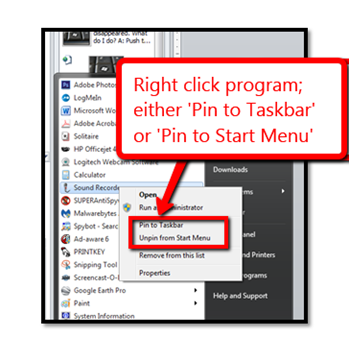
For Chromebooks: Add it to the Chromebook’s Shelf by going to the webpage’s Menu Icon>More Tools>Add to Shelf.
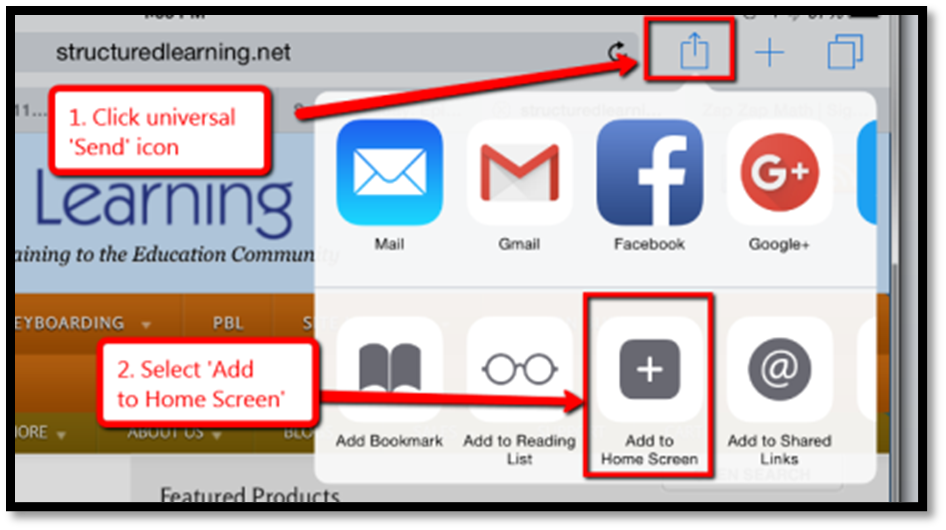
For iPads: To save a website to the home button, use the universal ‘Send’ icon and ‘add to Homepage’.
Sign up for a new tip each week or buy the entire 169 Real-world Ways to Put Tech into Your Classroom.
What’s your favorite tech tip in your classroom? Share it in the comments below.
Tech Tip #33: My Desktop Icons are Messed Up
In these 169 tech-centric situations, you get an overview of pedagogy—the tech topics most important to your teaching—as well as practical strategies to address most classroom tech situations, how to scaffold these to learning, and where they provide the subtext to daily tech-infused education.
Today’s tip: My Desktop Icons are Messed Up
Category: PC, Problem-solving
Q: I have several students who share a computer. Kids being kids, they love moving icons around on the desktop. What’s the best way to handle this?
A: I’ve tried everything. Refusing to allow them to play doesn’t work and asking them to undo their play at the end of their time doesn’t either. The best solution is to teach them to organize their desktop:
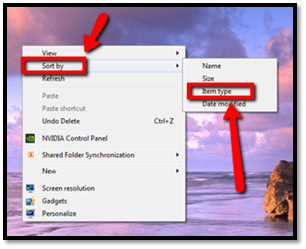
- right click on the desktop
- select Sort by>Item type
This can be part of their start-up maintenance when they arrive at class.
Sign up for a new tip each week or buy the entire 169 Real-world Ways to Put Tech into Your Classroom.
What’s your favorite tech tip in your classroom? Share it in the comments below.
Tech Tip #14: Desktop Icons Disappeared
In these 169 tech-centric situations, you get an overview of pedagogy—the tech topics most important to your teaching—as well as practical strategies to address most classroom tech situations, how to scaffold these to learning, and where they provide the subtext to daily tech-infused education.
Today’s tip: Desktop Icons Disappeared
Category: PC
Q: My desktop icons disappeared for no known reason. What do I do?
A: This is a question I get often. One moment, shortcuts are lined up like little soldiers. The next, not. Try:
- Right click on the desktop.
- Select
- Make sure ‘Show Desktop Icons’ is checked.

Desktop icons reappear.
Sign up for a new tip each week or buy the entire 169 Real-world Ways to Put Tech into Your Classroom.
What’s your favorite tech tip in your classroom? Share it in the comments below.
Tech Tip #172: Translate Webpages In a Second
 This is not part of the 169 tech tips for your class book but it will be when I update the ebook:
Tech Tip #172: Translate Webpages in a Second
Over the years, I get more and more views on this blog from non-English-speaking nations. I always drop in to visit and no surprise, their blogs are in their native language (as mine is). Sometimes they have the Translate feature, but not always. That stymied me for a long time. I had to copy the text into another webpage to translate it.
Then I discovered this.
To translate a webpage:
Right click on the page
Select ‘Translate’
A box pops up and you select your language.

Here’s a before and after:

It works with comments, too.
Ever since, I’ve gotten even more international visitors. I’m thrilled with that. (Note: This is in Chrome. It may not work the same in Firefox or Edge).
Tech Tip #97: Speed up MSO with Quick Access Toolbar
In these 169 tech-centric situations, you get an overview of pedagogy—the tech topics most important to your teaching—as well as practical strategies to address most classroom tech situations, how to scaffold these to learning, and where they provide the subtext to daily tech-infused education.
Today’s tip: Speed up MSO with Quick Access Toolbar
Category: MS Office
Q: I tend to do the same actions over and over in MS Office. How do I make that easier?
A: This one will improve the quality of your life immediately.
First, you need Office 2007 or later. Earlier versions don’t include the Quick Access toolbar. Click the drop down arrow (see inset) for the most popular actions–new, open, save, print, etc. Select those you want on the Quick Access toolbar. Toward the bottom is a choice to have the QA toolbar above or below the ribbon. I choose below.
You can also customize it: If there are tools not included that you use frequently (for example, I use strike through a lot), select ‘customize’ and go find it in the endless list.
[gallery type="slideshow" size="large" ids="65303,65305,65304"]
Tech Tip #72: Alt+??? Brings up which Command?
In these 169 tech-centric situations, you get an overview of pedagogy—the tech topics most important to your teaching—as well as practical strategies to address most classroom tech situations, how to scaffold these to learning, and where they provide the subtext to daily tech-infused education.
Today’s tip: Alt+??? Brings up which Command?
Category: MS Office, Keyboarding
Q: I always forget the Alt keys for MS Word menu commands. Do you have a list?
A: I’ll do one better. In MS Office, push the Alt key and it tells you what number or letter is associated with which menu command.
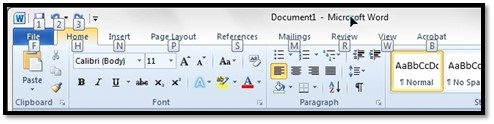
To activate the shortcut, push Alt+ exposed letter or number. For example, for Redo, push Alt+3. That’s it.
Sign up for a new tip each week or buy the entire 169 Real-world Ways to Put Tech into Your Classroom.
What’s your favorite tech tip in your classroom? Share it in the comments below.
Tech Tip #3: Turn an Address into a Link
In these 169 tech-centric situations, you get an overview of pedagogy—the tech topics most important to your teaching—as well as practical strategies to address most classroom tech situations, how to scaffold these to learning, and where they provide the subtext to daily tech-infused education.
Today’s tip: Turn an Address into a Link
Category: MS Office, Google Apps, internet, Edit/Format
Q: I get documents from friends with links to websites. How do they do that?
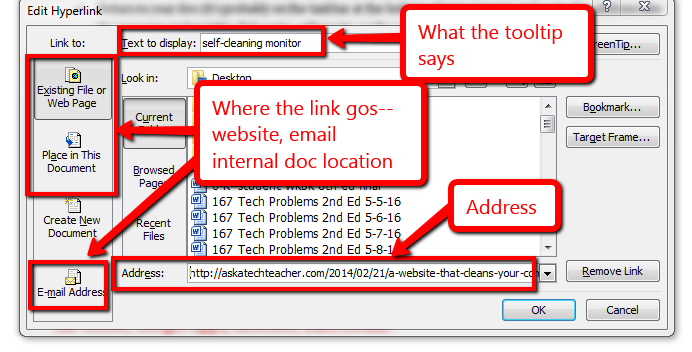 A: When you want to send a website address to people, here’s what you do:
- Copy the address located at the top of the screen (right click on it and select copy).
- Return to your doc (it’s probably on the taskbar at the bottom of your screen) and paste the address into the message (using right-click>paste, edit>paste, or the paste tool on the top toolbar).
- Push the space bar once or push enter after the address. That activates the link. You’ll know you succeeded because it turns blue with an underline.
If you want to paste a link behind words:
- Highlight the text you want the website linked to
- Ctrl+K to bring up the link dialogue box
- Ctrl+V to paste your link
- Push enter for ‘OK’
This works in MS Office, Google Apps, and lots of online webtools.
Sign up for a new tip each week or buy the entire 169 Real-world Ways to Put Tech into Your Classroom.
What’s your favorite tech tip in your classroom? Share it in the comments below.

Tech Tip #96: How to Add Zip to a Slow Computer
In these 169 tech-centric situations, you get an overview of pedagogy—the tech topics most important to your teaching—as well as practical strategies to address most classroom tech situations, how to scaffold these to learning, and where they provide the subtext to daily tech-infused education.
Today’s tip: How to Add Zip to a Slow Computer
Category: Maintenance, Security
Q: I have a netbook (or a PC, a desktop, or a laptop—pretty much any computer except for a Chromebook) that starts incredibly slowly. What can I do to speed it up?
 A: Here are ten suggestions:
- Run malware programs.
- Uninstall unnecessary programs.
- Uninstall unnecessary fonts.
- Get rid of documents you don’t need anymore.
- Empty the trash.
- Clean the junk off your desktop.
- Clean up your Start Button.
- Clean out your subscriptions.
- Slim down your start-up process.
- Add more RAM.
Sign up for a new tip each week or buy the entire 169 Real-world Ways to Put Tech into Your Classroom.
What’s your favorite tech tip in your classroom? Share it in the comments below.
Tech Tip #159: Create a Macro
In these 169 tech-centric situations, you get an overview of pedagogy—the tech topics most important to your teaching—as well as practical strategies to address most classroom tech situations, how to scaffold these to learning, and where they provide the subtext to daily tech-infused education.
Today’s tip: Create a Macro
Category: MS Office, Problem-solving, Keyboarding
Here are basic steps for MS Word:
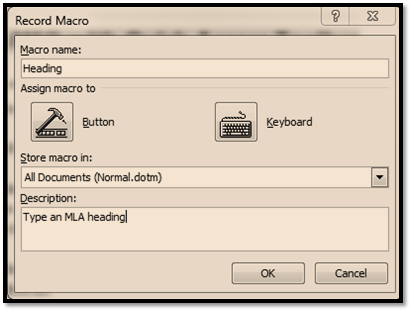
- Click View – Macros – Record Macros.
- Specify a name for the macro.
- Choose whether it should be a keyboard shortcut or a button.
- Once you click OK, your mouse becomes a cassette tape. Click all elements you would like to be part of your macro.
- Stop recording by clicking View – Stop Recording.
Here’s a video on how to create a macro in MS Word:
If you use Chromebooks, you can adjust what some keys do (such as the Search key can become the Caps Lock) through Settings. Additionally, there are several add-ons like iMacro that will help you create macros.
Google Apps call Macros ‘scripts’ and they’re popular. Alice Keeler has a starter-project you can find on her website.
Mac calls them ‘substitutions’. Use the System Preferences.
Sign up for a new tip each week or buy the entire 169 Real-world Ways to Put Tech into Your Classroom.
What’s your favorite tech tip in your classroom? Share it in the comments below.





