
Category: Tech tips

Tech Tip #98: Speed up MS Office with Quick Access Toolbar
As a working technology teacher, I get hundreds of questions from parents about their home computers, how to do stuff, how to solve problems. Each Tuesday, I’ll share one of those with you. They’re always brief and always focused. Enjoy!
Q: I tend to do the same actions over and over on my MS Office software. How do I create a customized tool bar with my favorite tools?
A: This one is going to improve the quality of your life immediately. It’s so simple, you’ll wish you’d known it months ago.
First, you need Office 2007 or later because earlier versions don’t include the Quick Access toolbar. It looks like this:


Tech Tip #22: Quick Exit from 97% of Programs
 As a working technology teacher, I get hundreds of questions from parents about their home computers, how to do stuff, how to solve problems. Each Tuesday, I’ll share one of those with you. They’re always brief and always focused. Enjoy!
Q: My child has a program on the computer and I can’t figure out how to get out of it. There’s no File-exit, no menu. What do I do?
A: Try the old standby from Windows’ earliest days–Alt+F4. It works on almost all programs. I use it on the kindergarten programs in my lab all the time.
More tips on Windows:
Tech Tip #69:Change Size of Desktop Icons
Tech Tip #96: Open a Program Maximized
As a working technology teacher, I get hundreds of questions from parents about their home computers, how to do stuff, how to solve problems. Each Tuesday, I’ll share one of those with you. They’re always brief and always focused. Enjoy!
Q: How do I open the internet maximized on my screen. For the younger students, clicking that tiny square in the upper right corner is often one step too many–not to mention that fine motor skills are still developing in the youngers.
A: I got this question from a reader. Here’s how you open the internet–or most programs–program maximized rather than that annoying smaller size that often makes it difficult for students to maneuver:
- Right click on the program icon
- Select Properties>Shortcuts
- Select the dropdown menu by Run and choose Normal window
Tech Tip #95: Quickly Find Programs You Use
As a working technology teacher, I get hundreds of questions from parents about their home computers, how to do stuff, how to solve problems. Each Tuesday, I’ll share one of those with you. They’re always brief and always focused. Enjoy!
Q:I can’t always find the program I want. They seem to move around on the desktop or get lost in the clutter. I don’t like putting them on the taskbar because then that gets too busy. What’s a better way to organize the programs I use all the time?
A: Pin them to the Start Menu.
- Find the icon for the program.
- Right click and you get a drop-down list of favorite choices.
- Select “Pin to Start Menu”. That puts it above the line on the Start Menu (when you push the Start button). The programs below the line are the ones you’ve used recently.

Tech Tip #94: Shortkey for Find
As a working technology teacher, I get hundreds of questions from parents about their home computers, how to do stuff, how to solve problems. Each week, I’ll share one of those with you. They’re always brief and always focused. Enjoy!
Q: Isn’t there a shortkey for searching a website?
A: There is. It’s Ctrl+F. It’s been around for, well, forever, but I’d forgotten about it until my efriend Sandy reminded me. As she posted on her blog, EdTechSandy, If you didn’t know about CTRL+F, don’t feel bad. …90% of folks don’t know about it.

Tech Tip #93: Auto-fill for Internet Addresses
As a working technology teacher, I get hundreds of questions from parents about their home computers, how to do stuff, how to solve problems. Each Tuesday, I’ll share one of those with you. They’re always brief and always focused. Enjoy!
..
Q: Is there a faster way to type internet addresses? All that h-t-t-p stuff–I keep making typos.
A. In fact, there is. Get the main part of the address in, say ‘google’ or ‘spellingcity’, then press Ctrl+enter and the browser will auto-fill the rest. What a time saver!
Tech Tip #92: Roll Back Windows Update
As a working technology teacher, I get hundreds of questions from parents about their home computers, how to do stuff, how to solve problems. Each Tuesday, I’ll share one of those with you. They’re always brief and always focused. Enjoy!
Q:Windows installed automatic updates and now my Outlook keeps freezing. What do I do?
A: I used to turn off the automatic updates, but then I missed some critical ones. Now, if I have a problem (like the above), I go into the updates list and uninstall the ones that have to do with whatever I’m having problems with.
Here’s how you do it:

14 Action Items, 5 Take-aways and 3 Tidbits from the TpT Conference
 1.6 million teachers buy from Teachers Pay Teachers. Over 90,000,000 people visit the website monthly. If you’re a teacher, why wouldn’t you set up a free seller account (they take a percent of revenue, like Amazon does) and see if all those brainy ed ideas caroming through your brilliant brain will fund your weekly Starbucks bill (or in the case of Deanna Jumper and a growing group of teachers like her, bring in over $1 million dollars to pay a lot more than bills)?
I have a TpT store (Ask a Tech Teacher) so decided to attend the first-ever premium seller’s conference on how to TpT better, smarter, more effectively, while having more fun. I went with a girlfriend–a fellow teacher. Together we made the desert drive from Orange County, California to Las Vegas Nevada, prepared to learn how to make our online stores the best they could be. From beginning to end, every seminar I attended was packed:


18 Take-aways from ISTE–Observations, Tips and Great Digital Tools
ISTE was everything I expected–energizing, motivating, collegial and crowded. Very very crowded. Lots of events were packed–if you didn’t get there early, you weren’t getting in. There were surprisingly many that charged a fee or required a ticket. Sure, in a perfect world, I’d have been organized enough to request tickets a week before, but perfection has never inhabited my world so I didn’t. There were so many events, I had no trouble finding alternatives.
I have lots of observations, tips, notes, and takeaways to share with you, so let me get started:
Observations
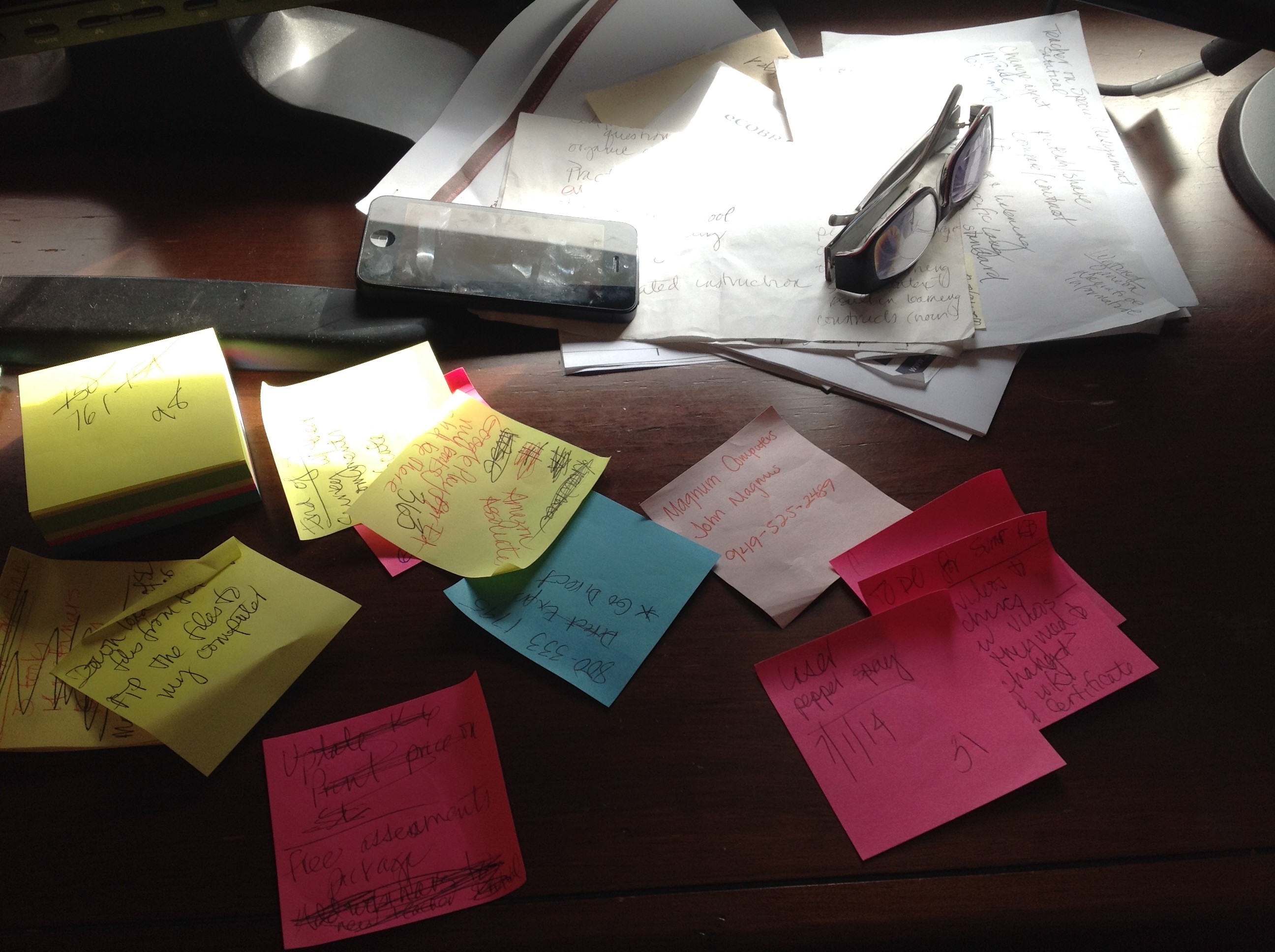
- ISTE was extremely well-organized. There were lots of people to ehlp attendees find their way, understand materials, figure problems out. Me, I tried to be prepared, but it ended up a losing effort:
Tech Tip #91: Internet Problem? Switch Browsers
As a working technology teacher, I get hundreds of questions from parents about their home computers, how to do stuff, how to solve problems. Each Tuesday, I’ll share one of those with you. They’re always brief and always focused. Enjoy!
I’ve been having more than usual problems with my browser, Firefox. Often, I can fix things by switching to Chrome. Sometimes, it’s the reverse, so I wanted to repost this tip as a reminder at the start of our new school year:
Q: I’m trying to use a website and it keeps telling me Flash isn’t installed. I know it is. I even re-installed it and it wouldn’t work. What do I do?
A: Change browsers. I have this problem more often with Firefox than Chrome in my lab. When students try to use one of the websites on our internet start page and find it won’t run correctly, the first thing I check is which browser they’re in. If it’s Firefox, I switch to Chrome or IE. That often fixes it.





