
Category: Tech tips

16 Tech Problems Every 5th Grader Can Solve
 Last month, I talked about my secret to making all elementary-age students tech savvy. I promised to give you a list of the sixteen tech problems I teach between kindergarten and 5th grade so by Middle School, students feel capable not only in facing common tech problems, but in solving new ones.
Here’s the table:


Tech Tip #44: Clean Your Computer Weekly

As a working technology teacher, I get hundreds of questions from parents about their home computers, how to do stuff, how to solve problems. I’ll share these with you. They’re always brief and always focused. Enjoy!
Q: I’m afraid of getting slammed with viruses, malware, all that bad stuff that comes with visiting the internet. What can I do?
A: If you take reasonable precautions, the chances of being hit are minimized. Here’s what I do: (more…)
Tech Tip for Writers #34: My Program Froze
Tech Tips for Writers is a (occasionally) weekly post on overcoming Tech Dread. I’ll cover issues that friends, both real-time and virtual, have shared. Feel free to post a comment about a question you have. I’ll cover it in a future Tip.
Q: I’m writing a very (very) important paper and all of a sudden, the screen froze. I can’t save it, or anything else. What do I do?
A: Programs do freeze for no reason sometimes, but not often (I’m assuming you take care of your computer–defrag, don’t download with abandon, update it occasionally). Before you declare a dog-ate-my-homework sort of catastrophe, try this:
- Check your desktop for an open dialogue box and close it. You might have to answer its question first.
- Push escape four times. You might have inadvertently got yourself into something you don’t even know you’re in. Escape often lives up to its name.
- Click your program on the taskbar. You might have gotten out of it by accident.

Tech Tip #131: 8 Tips to Teach Tomorrow’s Students

In these 169 tech-centric situations, you get an overview of pedagogy—the tech topics most important to your teaching—as well as practical strategies to address most classroom tech situations, how to scaffold these to learning, and where they provide the subtext to daily tech-infused education.
Today’s tip: 8 Tips to Teach Tomorrow’s Students
Tomorrow’s student is no longer a passive observer of his/her educational journey, expecting a teacher to impart knowledge that will shape his/her future. Tomorrow’s student takes charge of their learning, sifts through available options and selects what works for them, spirals up or down when required, asks for scaffolding when it’s lacking, accepts accountability for their progress as a stakeholder in the process, adapts to change as needed. They look for rigor in their learning environment and rise to the challenge when required.
Here’s a poster with 8 unique tips for teaching tomorrow’s students:

Sign up for a new tip each week or buy the entire 169 Real-world Ways to Put Tech into Your Classroom.
What’s your favorite tech tip in your classroom? Share it in the comments below.

Tech Tip #45: Your Screen Upside Down?
As a working technology teacher, I get hundreds of questions from parents about their home computers, how to do stuff, how to solve problems. Each Tuesday, I’ll share one of those with you. They’re always brief and always focused. Enjoy!
Q: My screen is sideways 90 degrees. How do I fix that?
A: If you ever needed this, you’re going to be blessing me. If you’ve never faced that off-kilter screen, you’re going to wonder why I’d post this tip.
Of course, I’ve faced it–I run a tech lab and there are always those pesky prodigies who want to outsmart me. They know if they push Ctrl+Alt+(down arrow), it’ll turn the screen upside down. The first time it happened, I was at a loss. That’s when a different pesky prodigy told me how to fix it:
Ctrl+Alt+(up arrow)
I used it at least once a month when I was in the classroom.
Note: This is a reprint of an earlier tip. I left the comments because they may be helpful to readers. (more…)
Tech Tip #58: 7 Ways to Use Social Media for Professional Development
In these 169 tech-centric situations, you get an overview of pedagogy—the tech topics most important to your teaching—as well as practical strategies to address most classroom tech situations, how to scaffold these to learning, and where they provide the subtext to daily tech-infused education. These tips are quick, short. If you’d like more, search the blog for more details, or add a question in the comments.
Today’s tip: 7 Ways to Use Social Media for Professional Development
- Keep your social media streams pure.
- Don’t mix personal and professional.
- Always answer visitors.
- Keep your lights on—add new content daily or weekly.
- Keep entries short.
- Include pictures.
- Keep your profile up-to-date.
For more detail: Visit “7 Tips for Using Social Media for PD” on Ask a Tech Teacher.

Tech Tip #140: 10 Ways to Become a Better Geek
In these 169 tech-centric situations, you get an overview of pedagogy—the tech topics most important to your teaching—as well as practical strategies to address most classroom tech situations, how to scaffold these to learning, and where they provide the subtext to daily tech-infused education.
***
If you’re the tech teacher, this is a must. If you’re a classroom teacher trying to infuse your class with technology, here are ten steps to help you geek out:

Sign up for a new tip each week or buy the entire 169 Real-world Ways to Put Tech into Your Classroom.
What’s your favorite tech tip in your classroom? Share it in the comments below.

Tech Tip #27: My Taskbar Disappeared
As a working technology teacher, I get hundreds of questions from parents about their home computers, how to do stuff, how to solve problems. I share those with you. They’re always brief and always focused. Enjoy!
Q: My taskbar disappeared. What do I do?
A: Push the flying windows key (it’s located between Ctrl and Alt on the bottom left of your keyboard). That brings up the start button
Need more?
Windows 11
- Step 1: Check Taskbar Settings to see if the taskbar is set to auto-hide.
Open Settings by pressing “Windows + I” on your keyboard. Navigate to “Personalization” and then click on “Taskbar.” Ensure the “Automatically hide the taskbar” option is turned off.
- Step 2: Restart Windows
Press “Ctrl + Shift + Esc” to open Task Manager. Look for “Windows Explorer” in the list, click on it, and then click “Restart” at the bottom right. This action will refresh the taskbar, bringing it back if it was unresponsive.
Windows 10
Tech Tip #88: Use Shortkeys with Students
In these 169 tech-centric situations, you get an overview of pedagogy—the tech topics most important to your teaching—as well as practical strategies to address most classroom tech situations, how to scaffold these to learning, and where they provide the subtext to daily tech-infused education.
TODAY’S TIP
Q: When tech gets difficult, my students stop trying. What do I do?
A: After well over a decade of teaching K-12, I know kids will try harder if it’s fun. The challenge for us teachers: How to make a multi-step skill that they may rarely use ‘fun’.
The answer is keyboard shortcuts–aka shortkeys. My students love them. I start in kindergarten with easy ones–like Alt+F4 to exit a program–and build each year. Throw in a few quirky ones and you’ve won their hearts and minds. Here’s a starter list:

Sign up for a new tip each week or buy the entire 169 Real-world Ways to Put Tech into Your Classroom.
What’s your favorite tech tip in your classroom? Share it in the comments below.
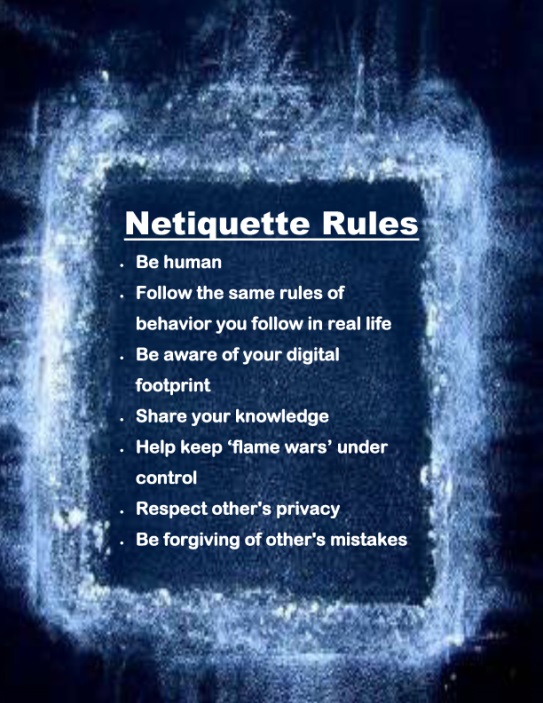
Tech Tip #73–7 tips for Netiquette
 In these 169 tech-centric situations, you get an overview of pedagogy—the tech topics most important to your teaching—as well as practical strategies to address most classroom tech situations, how to scaffold these to learning, and where they provide the subtext to daily tech-infused education.
Today’s tip: 7 Netiquette Tips
Category: Internet
Sub-category: MS Office, Keyboarding
Q: What are the most important netiquette tips for students when using the Internet?
A: Here’s a poster:
Sign up for a new tip each week or buy the entire 169 Real-world Ways to Put Tech into Your Classroom.
#digcit





