
Tag: 169 tech tips

169 Tech Tip #37 — Basics of Internet Safety
 In these 169 tech-centric situations, you get an overview of pedagogy—the tech topics most important to your teaching—as well as practical strategies to address most classroom tech situations, how to scaffold these to learning, and where they provide the subtext to daily tech-infused education.
Today’s tip: Basics of Internet Safety
Category: Internet
Sub-category: Security
Here are two posters to share with students about the basics of Internet safety:
[gallery type="slideshow" ids="61301,61302"]Here’s a lesson plan on Internet Search/Research.
Sign up for a new tip each week or buy the entire 169 Real-world Ways to Put Tech into Your Classroom.
169 Tech Tip #18 How to Activate a Link
In these 169 tech-centric situations, you get an overview of pedagogy—the tech topics most important to your teaching—as well as practical strategies to address most classroom tech situations, how to scaffold these to learning, and where they provide the subtext to daily tech-infused education.
Today’s tip: How to Activate a Link
Category: Internet
Sub-category: MS Office, Keyboarding
Q: I see an underlined blue phrase on my word processing document. That’s a link to a website but how do I make it work?
A: Activating a link is simple, but varies depending upon where you find it:
- MS Word: Hover over the word or phrase and Ctrl+click to activate.
- Google Docs: Click the phrase; a link appears below it; click.
- Internet: Click the phrase.
Sign up for a new tip each week or buy the entire 169 Real-world Ways to Put Tech into Your Classroom.
169 Tech Tip #4 My Webpage Froze
In these 169 tech-centric situations, you get an overview of pedagogy—the tech topics most important to your teaching—as well as practical strategies to address most classroom tech situations, how to scaffold these to learning, and where they provide the subtext to daily tech-infused education.
Today’s tip: My Webpage Froze
Category: Internet
Sub-category: Keyboarding
Q: My webpage is stuck. It won’t update and I can’t move around it to links or even scroll. What do I do?
A: Refresh the page with F5. If that doesn’t work, you might have to “force refresh” with Ctrl+F5. That will send the browser to re-check with the web server for the latest copy of the web page you are viewing. If you are using a Mac, push Apple + R or Cmd + R.
Sign up for a new tip each week or buy the entire 169 Real-world Ways to Put Tech into Your Classroom.
169 Tech Tip #71 How to Move Pics Around in Docs
In these 169 tech-centric situations, you get an overview of pedagogy—the tech topics most important to your teaching—as well as practical strategies to address most classroom tech situations, how to scaffold these to learning, and where they provide the subtext to daily tech-infused education.
Today’s tip: How to Move Pics Around in Docs
Category: Images
Sub-category: MS Office, Google Apps
Q: I added an image to my Word document, but I can’t move it around the page. How do I fix that?
A: Word’s default for inserting a picture on a page is ‘inline’–it treats it as text. Like words on a document, it can’t be easily moved. Here’s how to fix that:
- Click on the picture; select ‘Picture Tools’ at the top center of the screen.
- Select ‘wrap text’ from the ribbon.
- Select ‘tight’ to have words wrap around it.
Now drag and drop it anywhere you’d like.
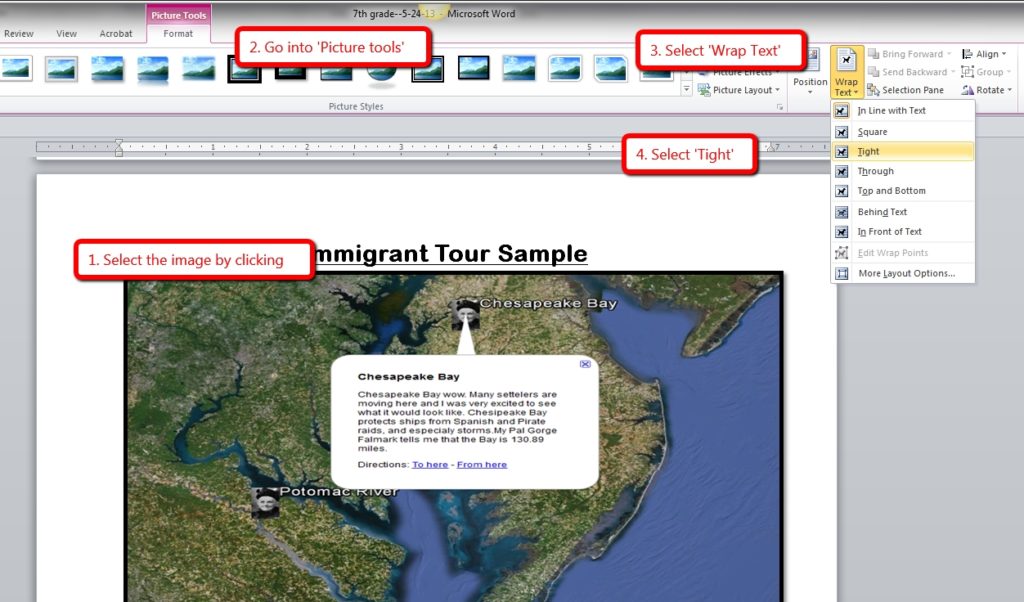
For detail, and how to do this in Google Apps, visit Tech Tip #12.
Sign up for a new tip each week or buy the entire 169 Real-world Ways to Put Tech into Your Classroom.
169 Tech Tip #49 The 15-second Slideshow
In these 169 tech-centric situations, you get an overview of practical strategies to address most classroom tech situations, how to scaffold these to learning, and where they provide the subtext to daily tech-infused education.
Today’s tip: #49–The 15-second Slideshow
Category: Images
Sub-category: PCs, Macs, Chromebooks, iPads
Q: What’s an easy way Kindergartners and first graders can share a slideshow of their work?
A: If you have PCs:
- Go to the Start button; select Computer in the right column.
- Select the folder with the pictures you want displayed as a slideshow.
- Select Slideshow from the toolbar; push play at the bottom.
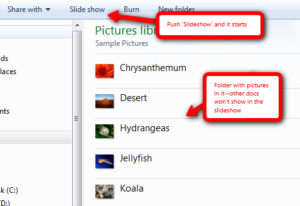
Here’s how you do it in Macs:
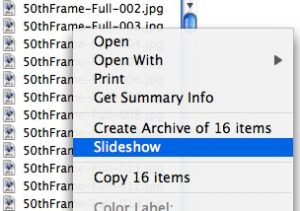
For Chromebooks:
- select Files
- select the folder that includes student images
- select the image
- click Openat the bottom of the screen
- hover over the bottom right toolbar and select the video icon for slideshow
169 Tech Tip #12 Wrap Text Around a Picture
In these 169 tech-centric situations, you get an overview of pedagogy—the tech topics most important to your teaching—as well as practical strategies to address most classroom tech situations, how to scaffold these to learning, and where they provide the subtext to daily tech-infused education.
Today’s tip: #12–Wrap Text around a Picture
Category: Images
Sub-category: MS Office, Google Apps
Q: I want my text to wrap around the picture I inserted, but it goes under/above it. There’s a big white space I can’t type in. What do I do?
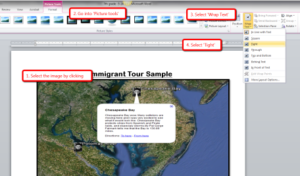
A: I get this from students a lot. Here’s what you do in MS Word:
- select the image
- select the ‘Pictures’ tab at the top of the screen
- select ‘wrap text’ from the ribbon
- select ‘tight’ from drop down menu
Text now flows around the picture
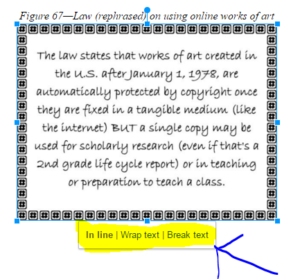
In Google Apps, click the image and select ‘wrap text’ from the three options:
Sign up for a new tip each week or buy the entire 169 Real-world Ways to Put Tech into Your Classroom.
169 Tech Tip #7 Transparent Backgrounds
In these 169 tech-centric situations, you get an overview of pedagogy—the tech topics most important to your teaching—as well as practical strategies to address most classroom tech situations, how to scaffold these to learning, and where they provide the subtext to daily tech-infused education.
Today’s tip: #7–Transparent Backgrounds
Category: Images
Sub-category: Keyboarding
Q: When I insert a picture, the background isn’t transparent, so it covers everything behind it. How do I make it see-through?
A: Two ways to fix that problem:
- Select the picture; use the picture toolbar pen.
- If that doesn’t work, select the picture and then press Ctrl +T.
These don’t work in all cases. It depends upon the image file you’re using. I hope it covers your case.
Sign up for a new tip each week or buy the entire 169 Real-world Ways to Put Tech into Your Classroom.
169 Tech Tip #114: Embed a Google Apps File
In these 169 tech-centric situations, you get an overview of pedagogy—the tech topics most important to your teaching—as well as practical strategies to address most classroom tech situations, how to scaffold these to learning, and where they provide the subtext to daily tech-infused education.
Today’s tip: #114–Embed Google Apps Files
Category: Google Apps
Sub-category: Classroom management
Q: So many colleagues are sharing their Google Apps documents by embedding them, but I don’t know how to do that. Can you help?
A: Here’s how you do it: When your Google Doc, Spreadsheet, or Slideshow is complete:
169 Tech Tip #28: My Sound Doesn’t Work
In these 169 tech-centric situations, you get an overview of pedagogy—the tech topics most important to your teaching—as well as practical strategies to address most classroom tech situations, how to scaffold these to learning, and where they provide the subtext to daily tech-infused education.
Today’s tip: #28: My Sound Doesn’t Work
Category: Hardware
Q: I can’t get any sound out of my computer. Do I need a new sound card?
A: Before you invest that kind of money, try these easy fixes:
169 Tech Tip #13: The Powerful Right Mouse Button
In these 169 tech-centric situations, you get an overview of pedagogy—the tech topics most important to your teaching—as well as practical strategies to address most classroom tech situations, how to scaffold these to learning, and where they provide the subtext to daily tech-infused education.
Today’s tip: #13–The Powerful Right Mouse Button
Category: Hardware
Q: What’s a fast way to access menus?
A: Yes, and you’ll love it. If your mouse has both a left and a right button, the left one is for normal stuff, but the right one is for the most common activities performed from wherever you are–on the desktop, in a program, whatever.
If your PC two-button mouse won’t work (for whatever reason), there may be a right mouse click key on the keyboard (on the right side, by the Ctrl key) or you can push Shift+F10.





