
Tag: 169 tech tips

169 Tech Tip #51 Find Public Domain Images
 In these 169 tech-centric situations, you get an overview of pedagogy—the tech topics most important to your teaching—as well as practical strategies to address most classroom tech situations, how to scaffold these to learning, and where they provide the subtext to daily tech-infused education.
Today’s tip: Find Public Domain Images
Category: Images
Sub-category: Internet, Security, Search/Research, MS Office, Google Apps
Q: I know ‘fair use’ allows students to use most online images for educational purposes, but I want them to know how to find public domain pictures for everyday, non-school use. What’s the easiest way to do that?
A: Google Docs makes it easy by attaching the citation to any picture added through the program. Photos for Class does this also (see Tech Tip #52).
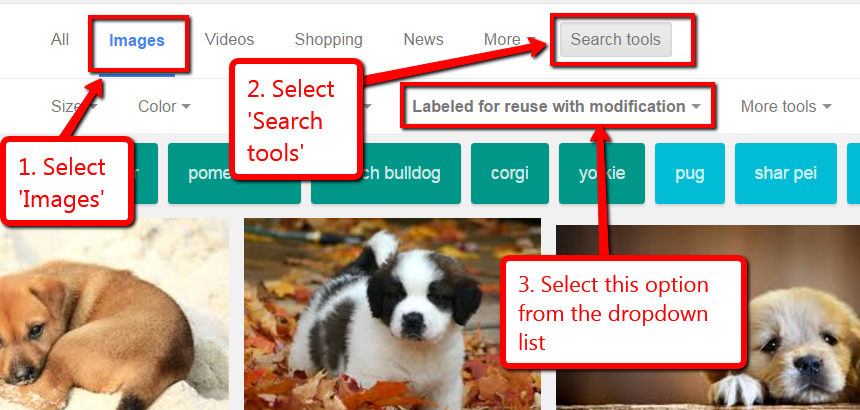
But that only works if the student is working through those two programs. To find only legal images available for free for all types of projects, you have to edit the Google search settings to reflect only images that can be used and re-edited:
- search for image through Images.Google.com (for example: puppies)
- when the thumbnails come up, go to Search tools
- using the radial button, select Labeled for reuse
Sign up for a new tip each week or buy the entire 169 Real-world Ways to Put Tech into Your Classroom.
169 Tech Tip #164 Parts of a Website
In these 169 tech-centric situations, you get an overview of pedagogy—the tech topics most important to your teaching—as well as practical strategies to address most classroom tech situations, how to scaffold these to learning, and where they provide the subtext to daily tech-infused education.
Today’s tip: Parts of a Website
Category: Internet
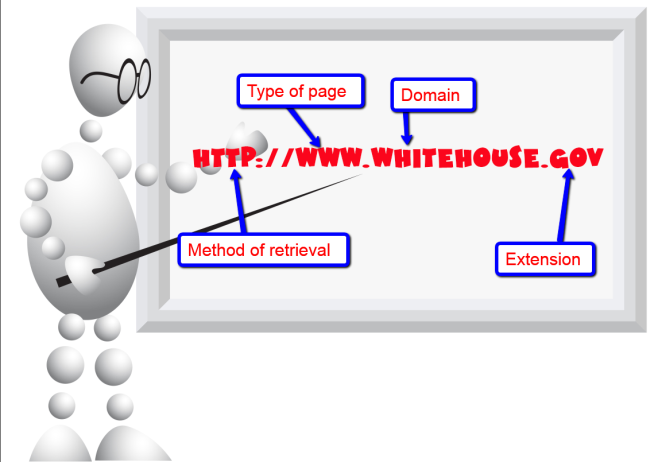
Share with students the four most important parts of a website (see inset):
Sign up for a new tip each week or buy the entire 169 Real-world Ways to Put Tech into Your Classroom.
169 Tech Tip #73 7 tips for Netiquette
In these 169 tech-centric situations, you get an overview of pedagogy—the tech topics most important to your teaching—as well as practical strategies to address most classroom tech situations, how to scaffold these to learning, and where they provide the subtext to daily tech-infused education.
Today’s tip: 7 Netiquette Tips
Category: Internet
Sub-category: MS Office, Keyboarding
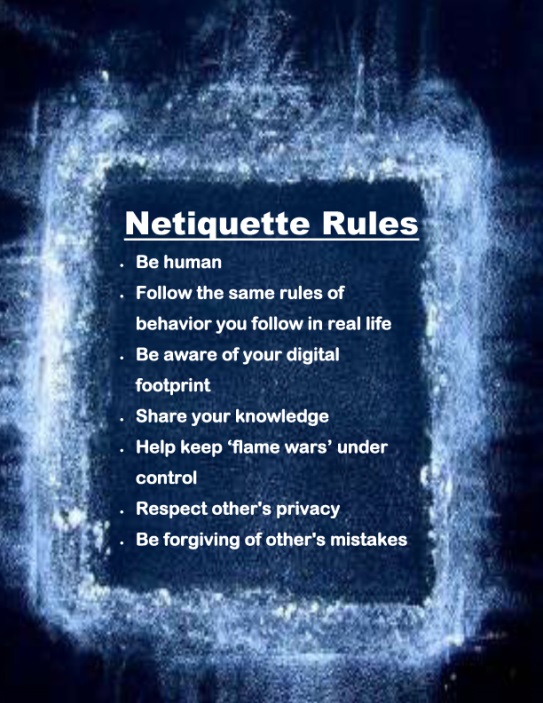
Q: What are the most important netiquette tips for students when using the Internet?
A: Here’s a poster:
Sign up for a new tip each week or buy the entire 169 Real-world Ways to Put Tech into Your Classroom.
#digcit
169 Tech Tip #36: The Internet Toolbar Disappeared
In these 169 tech-centric situations, you get an overview of pedagogy—the tech topics most important to your teaching—as well as practical strategies to address most classroom tech situations, how to scaffold these to learning, and where they provide the subtext to daily tech-infused education.
Today’s tip: The Internet Toolbar Disappeared
Category: Internet
Sub-category: Problem-solving
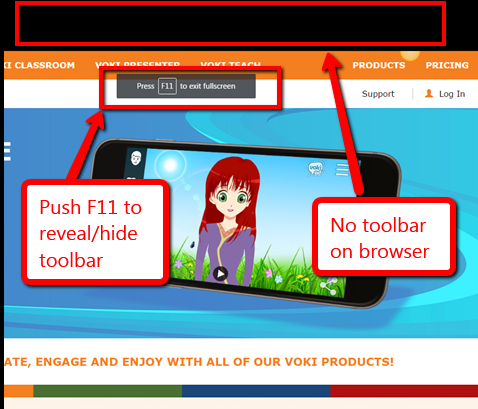
Q: My internet toolbar disappeared. All I see at the top of the internet screen is more of the page I’m on. I can’t find any of the tools. What do I do?
A: Push F11. You can hide or unhide the internet toolbar with F11. This is great if you’re working closely with the site and don’t want the distraction of toolbars.
Sign up for a new tip each week or buy the entire 169 Real-world Ways to Put Tech into Your Classroom.
169 Tech Tip #70 Visit Foreign Language Google Search
In these 169 tech-centric situations, you get an overview of pedagogy—the tech topics most important to your teaching—as well as practical strategies to address most classroom tech situations, how to scaffold these to learning, and where they provide the subtext to daily tech-infused education.
Today’s tip: Visit Foreign Language Google Search
Category: Internet
Sub-category: Language, Search/Research
Q: English isn’t my first language. How do I access Google in other languages?
A: To visit the foreign language Google search engines, type:
Then add the country extension you would like to visit. For example:
…for Japan.
Sign up for a new tip each week or buy the entire 169 Real-world Ways to Put Tech into Your Classroom.

169 Tech Tip #79 My Internet Stopped Working
In these 169 tech-centric situations, you get an overview of pedagogy—the tech topics most important to your teaching—as well as practical strategies to address most classroom tech situations, how to scaffold these to learning, and where they provide the subtext to daily tech-infused education.
Today’s tip: My Internet Won’t Work
Category: Internet
Sub-category: Problem-solving
Q: My internet stopped for no reason. I’m in the middle of something important. I don’t want to reboot—it takes forever. What can I do?
A: Do what the pros do–unplug your internet connection, wait ten seconds, and plug it in again. Half the time, this is all it takes.
The same applies to a printer that stops for no known reason–turn it off, wait ten seconds and turn it back on. It’s something about tasks being shuffled out of the way and needing to re-establish their order. All I know is it works often enough, it’s my first line of defense to problem-solving this particular problem.
If that doesn’t work, try these:
- use a different browser
- reboot your computer
- check all the cables–is everything plugged in as it should be?
- see if your firewall is blocking it
- check recent system upgrades–did they affect the internet?
- ask a neighbor if theirs is working–maybe it’s out all over
Sign up for a new tip each week or buy the entire 169 Real-world Ways to Put Tech into Your Classroom.
169 Tech Tip #67: Check History in Your Browser
In these 169 tech-centric situations, you get an overview of pedagogy—the tech topics most important to your teaching—as well as practical strategies to address most classroom tech situations, how to scaffold these to learning, and where they provide the subtext to daily tech-infused education.
Today’s tip: Check History in Your Browser
Category: Internet
Q: How do I see where my kids/students have gone online?
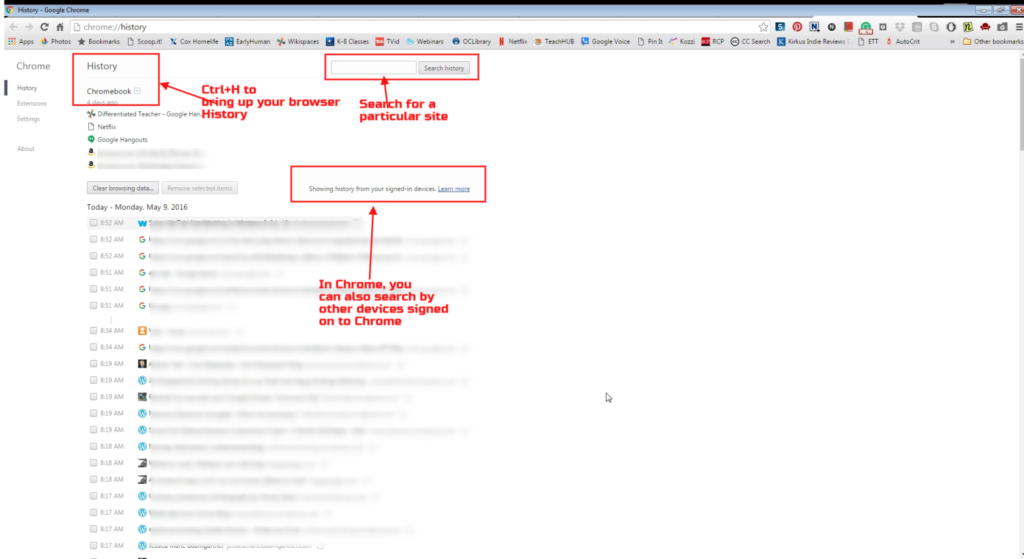
A: Go to what’s called ‘history’–a list of all the websites whoever logged in under a particular user name went. Here’s how you do it:
- In Firefox, Chrome, or IE, hold the Control key (Ctrl) and push H. That brings up a list of the sites visited by that profile.
- Select the time frame you’re interested in
- Chrome also lets you search other devices logged into Chrome.
If you find they went somewhere they shouldn’t, don’t over-react. Sometimes it happens by accident. Ask them about it. Watch their answer. Their body language will tell you as much as their words. You know your students. You’ll know if they are telling the truth.
Sign up for a new tip each week or buy the entire 169 Real-world Ways to Put Tech into Your Classroom.
169 Tech Tip #81 My Pic’s a BMP and I need a JPG
In these 169 tech-centric situations, you get an overview of pedagogy—the tech topics most important to your teaching—as well as practical strategies to address most classroom tech situations, how to scaffold these to learning, and where they provide the subtext to daily tech-infused education.
Today’s tip: My Pic’s a BMP and I need a JPG
Category: Images
Sub-category: Edit/Format
Q: My picture file is a .bmp and I need a .jpg. What do I do?
A: If you have an image you want to use, but it’s in the wrong format, open it in MS Paint (which comes FREE with Windows) or Photoshop and save-as a .jpg.
Another method: Take a screenshot and save that as a .jpg. See Tip #116 for how to take screenshots.
Sign up for a new tip each week or buy the entire 169 Real-world Ways to Put Tech into Your Classroom.
169 Tech Tip #100 Top Ten Internet Shortkeys
In these 169 tech-centric situations, you get an overview of pedagogy—the tech topics most important to your teaching—as well as practical strategies to address most classroom tech situations, how to scaffold these to learning, and where they provide the subtext to daily tech-infused education.
Today’s tip: Top Ten Internet Shortkeys
Category: Internet
Sub-category: Keyboarding
Here’s a poster with ten favorite shortkeys students will love when using the internet:

Sign up for a new tip each week or buy the entire 169 Real-world Ways to Put Tech into Your Classroom.
169 Tech Tip #65 Zoom In/Out of Websites
In these 169 tech-centric situations, you get an overview of pedagogy—the tech topics most important to your teaching—as well as practical strategies to address most classroom tech situations, how to scaffold these to learning, and where they provide the subtext to daily tech-infused education.
Today’s tip: Zoom In/Out of Websites
Category: Internet
Sub-category: Problem-solving
Q: I can’t read the internet page. How do I zoom in?
A: There are a few ways, but here’s the simplest: Hold down “Ctrl” key and move your “mouse scroll wheel”. One direction zooms in; the other zooms out.
There are two other ways:
- Ctrl+ (the plus sign next to backspace) will zoom in; Ctrl- will zoom out.
- Go to the menu bar. Select ‘View’, ‘Zoom’ and either ‘Zoom in’ or ‘Zoom out’.
To return to the original setting, hold down Ctrl and hit the number zero.
Take a moment while I get a cup of coffee and try it… OK–how’d it go?
Sign up for a new tip each week or buy the entire 169 Real-world Ways to Put Tech into Your Classroom.





