
Category: Images

Image Copyright Do’s and Don’ts
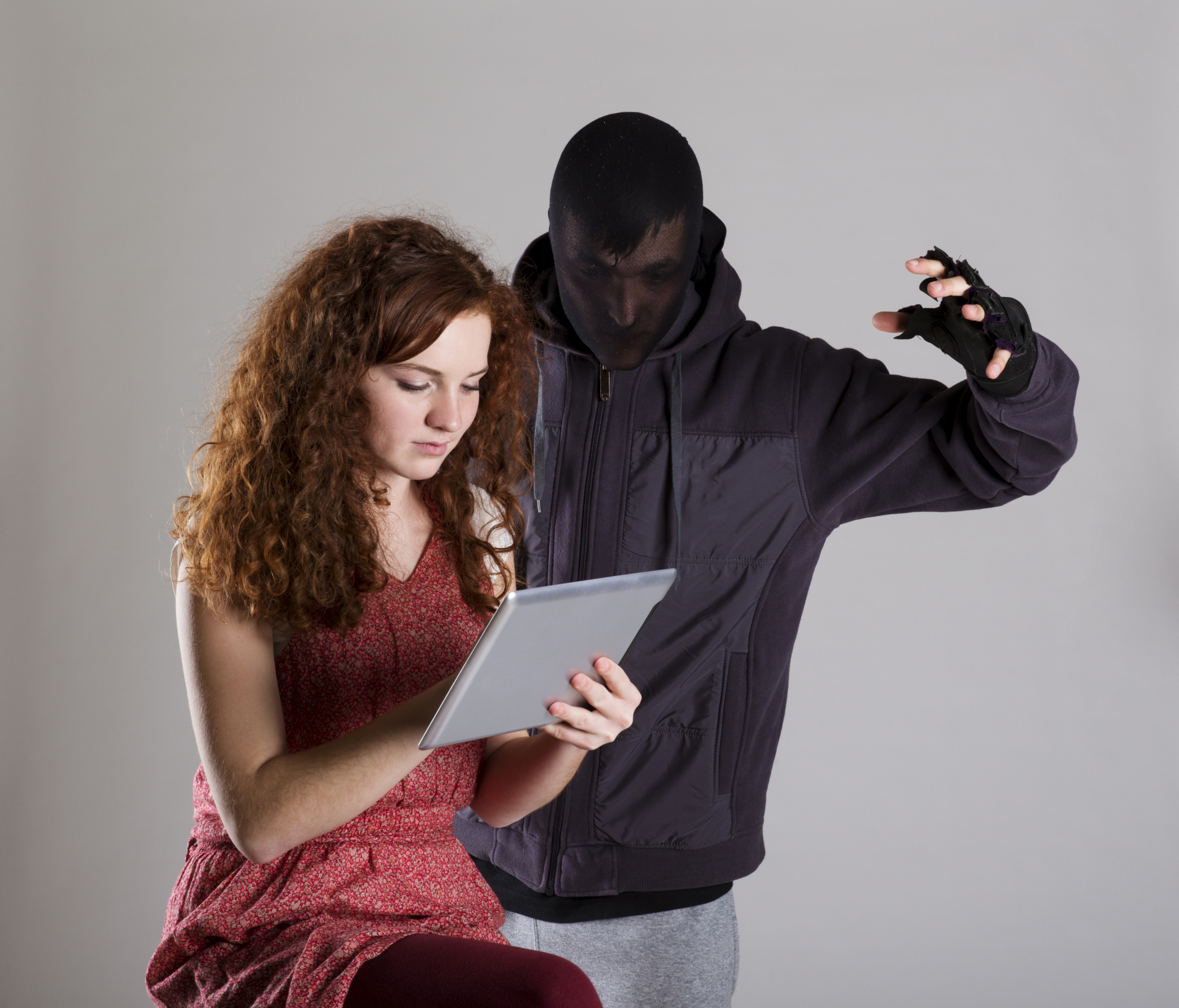 When I teach professional development classes, by far the topic that surprises teachers the most is the legal use of online images. And they’re not alone. On my blog, in educator forums, and in the virtual meetings I moderate, there’s lots of confusion about what can be grabbed for free from online sites and what must be cited with a linkback, credit, author’s name, public domain reference, or even as little as an email from the creator giving you permission. When I receive guest posts that include pictures, many contributors tell me the photo can be used because they include the linkback.
Not always true. In fact, the answer to the question…
“What online images can I use?”
typically starts with…
It depends…
Luckily, teaching it to K-8 students is simpler because most of them haven’t yet established the bad habits or misinformation we as adults operate under. But, to try to teach this topic in a thirty-minute set-aside dug out of the daily class inquiry is a prescription for failure. The only way to communicate the proper use of online images is exactly the way you teach kids not to take items from a store shelves just because they think they can get away with it: Say it often, in different ways, with the buy-in of stakeholders, and with logical consequence. Discuss online images with students every time it comes up in their online activities.
There are five topics to be reviewed when exploring the use of online images:
- digital privacy
- copyrights
- digital law and plagiarism
- hoaxes
- writing with graphics
Here are suggestions on how to teach these to your students.

Photos For Class–Robust, Student-safe with built in citations
A question I get a lot from readers is where to go for free, classroom-safe images. Photo sites are either too sparse or poorly vetted. And–while we’re on the subject of online images–it needs to be easier to add citations because otherwise, students will just skip that step.
Photos for Class, brought to you by the folks at Storyboard That (a premier digital storytelling site that quickly and easily enables students to mix avatars, backgrounds, and talk bubbles to tell a story) does all of these. It uses proprietary filters to search millions of Creative Commons-licensed photos from the Library of Congress, the British Royal Archives, and Flikr’s safe-search setting to curate a classroom-safe collection of topical photos in seconds. There is no log-in, no registration, no fee or premium plan, and a zero learning curve. All students need to know is how to use a search bar and a download button.
Here’s how it works: Go to the Photos for Class website (no registration or log-in required), search your topic:
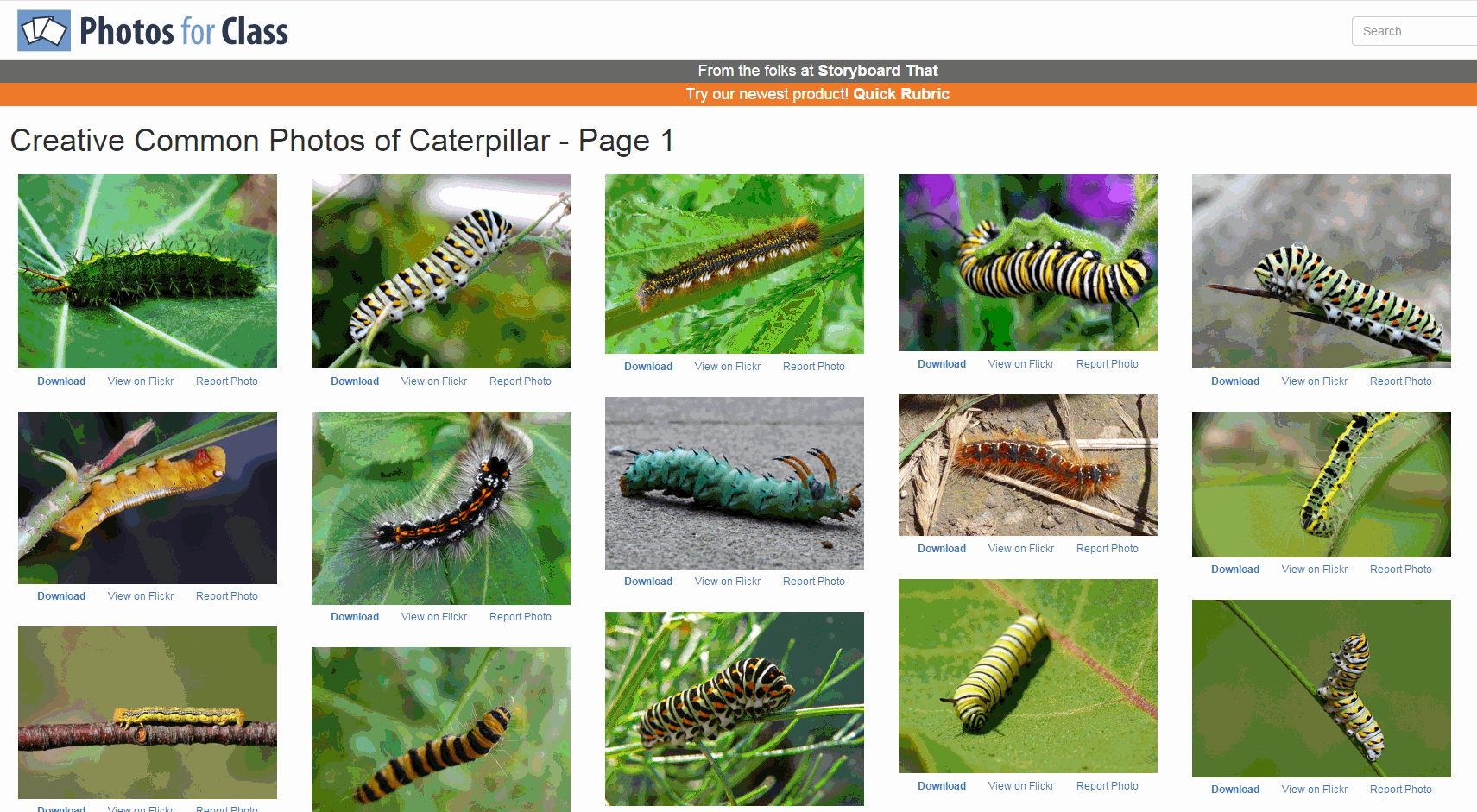
…and then download the selected photo. Each downloaded photo includes an attribution and license detail.

There is no charge, no delay, and lots of choices.
In addition to photos, the site offers suggestions on citing and filtering photos, and a list of the top 250 searches.

3 Favorite Classroom Apps
Here’s an excellent collection of great apps for your classroom — to cover writing, research, and assessment. You can even use all three on one project:
 Storyboard That
Free; fee for education accounts
Storyboard That is a leader among online digital storytelling tools thanks to its comic-based themes, clean layout, vast collection of story pieces, varied strip layouts, and intuitive drag-and-drop interface. Students map out ideas using a huge library of backgrounds, characters, text boxes, shapes, and images (with over 325 characters, 225 scenes, and 45,000 images). With an education account, teachers also get teacher guides and lesson plans.
Here’s how it works: Log into your account and Storyboard That automatically adapts to your device (whether it’s a desktop, Chromebook, or iPad). Select the layout you’d like, then add a background, characters, one or more props, and speech bubbles from Storyboard That’s collections. Each element can be resized, rotated, and repositioned to exactly suit your needs. Characters can also be adjusted for appearance, emotion, and action. You can even upload images and record a voice overlay (premium only) to narrate the story. Once finished, storyboards can be saved as PDFs, PowerPoints, and/or emailed out.

Tech Tip #123: Quick Search for Plagiarized Images
As a working technology teacher, I get hundreds of questions from parents about their home computers, how to do stuff, how to solve problems. Each Tuesday, I’ll share one of those with you. They’re always brief and always focused. Enjoy!
Q: I’m teaching a class on internet forensics–to drive home the point that the internet is a scary place for the uninformed. I know people who use facial recognition tools to search FB, Instagram and those sorts of picture curatators. Most of the programs I’ve found are expensive and complicated. Is there an easy one to share with my students:
There sure is–Google’s Image Search. Go to:
Upload an image you want to search for (or drag-drop it into the field), like this one:
Google will find all the places it appears:

4 Collaborative Projects Students Will Love
Collaboration is the new rigor in the classroom. Who hasn’t been mesmerized by children gathered at a table engaged in a high-level discussion, making shared decisions, and demonstrating deep, scaffolded learning? When students share organic ideas and peer review projects, they build authentic knowledge that everyone takes ownership in, but the saying is easier than the doing. You can’t just break students into groups and expect a collaborative workflow. It takes practice. The rudimentary teamwork availed by Google Docs and online tools like Subtext is a great start, but what’s better is projects that inspire, motivate, and teach students skills for speaking and listening.
Here are three activities I use in my classroom to achieve this goal:
 Three Then Me
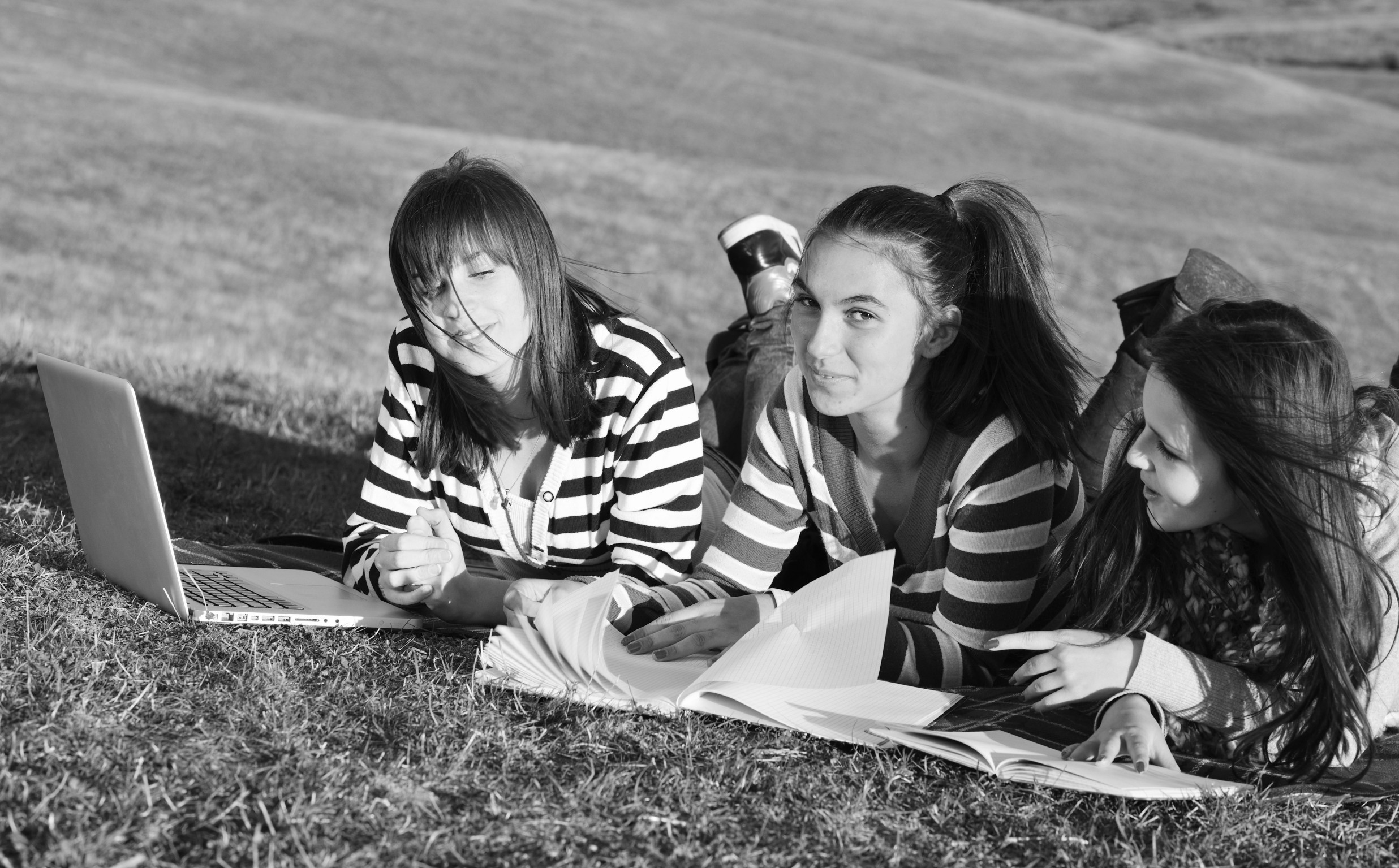
Every activity in your classroom includes how-to questions. Before answering, have students ask three classmates before asking you. For example, if they can’t find the tech tool they want, check with three neighbors before putting their hand. Kids love helping each other and spotlighting their talent. Not only does ‘Three then me’ get the student’s question answered faster, it engenders a sense of cooperation and collaboration in the class, that students are resources to each other.
A note of caution: This works best with self-correcting facts, like how to do something, but if it’s a definition or the spelling of a word, students could get the wrong answer and not know it. As you’re training students in ‘three then me’, remind them to evaluate answers, critically think about them before implementing, and trust their own judgment. Does it sound right? Does it fit what else they know about the question? If it does, go for it!
Educational Activities
5 Image Apps for your Classroom
Any child knows that a picture communicates differently than text. It’s not just quicker, it shares more detail more effectively. In seconds, our brain grasps a wide selection of data from the picture’s color, layout, design and draws conclusions. To do that with text requires lots of words, re-reading, extreme concentration, and scratching the head.
It’s no surprise research indicates the majority of students learn better if they see information. This includes graphic organizers, diagrams, mind maps, outlines–even pictures and art work.
Here are five image apps. One (or more) of these will be perfect for your classroom:
Canva
Free
1.8 million users have created over 15 million designs using Canva’s one million+ design templates (including font schemes, stock photographs, backgrounds, and illustrations–some free/some fee) to create cards, fliers, posters, newsletters, infographics, and more. Drag and drop project parts to personalize the design (see my Canva-created poster below). Edit photos using preset filters or advanced photo editing tools like brightness, contrast, saturation, tint, and blur. Save as a high-quality image or a printable PDF. Canva provides lots of graphic design video tutorials for even the most basic skill level. These are great for mature elementary age, Middle School, and High School students, as well as teachers.
Canva for education features 17+ lesson plans from some of the leaders in tech-in-ed. You can even sign in through Google Apps for Education. Canva not only works on iPads, but desktops and laptops.

Tech Tip #82: My Picture’s a TIFF and the Program Needs a JPG
As a working technology teacher, I get hundreds of questions from parents about their home computers, how to do stuff, how to solve problems. Each week, I’ll share one of those with you. They’re always brief and always focused. Enjoy!
Q: My picture file is a .bmp and I need a .jpg. What do I do?
A: Blogs and wikis and lots of online sites won’t accept .bmp image files. I no longer even save pictures in that format because so much of what I do is collaborative, which means online.
If you have an image you want to use, but it’s in this .bmp format, here’s what you do:
- Open it in MS Paint (which comes with Windows) or Photoshop
- save-as a .jpg.

Book Review: Photoshop Elements 12
 Photoshop Elements 12: The Missing Manual

My rating: 5 of 5 stars
I love Photoshop CS, but my school will no longer support the cost of a license. At first, I refused to teach image editing, feeling like any program I used would be inferior to what I should be teaching. I continued with the decade-old CS (not the up-to-date CS 5). No problem with that. Students loved it, found it easy, extended learning to home–and that’s when the problem arose. They–of course–had to buy the upgrade and wondered why I was using such an old program.
Tech Tip #72: How to Move Pics Around in Documents
As a working technology teacher, I get hundreds of questions from parents about their home computers, how to do stuff, how to solve problems. Each week, I’ll share one of those with you. They’re always brief and always focused. Enjoy!
Q: I put a picture in my document, but it won’t move. How do I fix that?
A: Word’s default for putting a picture on a page is ‘inline’–it treats it as text. Like words on a document, it can’t be easily moved.
Here’s how to fix that:

Dear Otto: What Online Images are Free?

Dear Otto is an occasional column where I answer questions I get from readers about teaching tech. If you have a question, please complete the form below and I’ll answer it here. For your privacy, I use only first names.
Here’s a great question I got:
I am having my kids create websites that will not be shared publicly. They are “Googling” images and I just want to know what are the copyright rules for such images? Should I limit their images only from certain “free” graphic sites? Just confused by all the rules like creative commons, public domain, copyright etc.. They asked if they can use pictures from Microsoft and I honestly don’t know what the rules are or how to explain them in 4th grade terms.The kids are not trying to sell anything, just creating a site as a way to share their research. They know how to site online resources that contain facts but not sure what to do with images. Is just providing the URL from the website that the image was on acceptable?
Maybe, if those images are copyright-free. If they aren’t, you just can’t use them.
A rule of thumb is Google Images is fine if the images themselves don’t show copyright notices. Some do and those must be avoided. Others have easily-identifiable sources like NASA or Hubble. Many are copies of copies with no origination trail.
I use images as an introduction to copyright and privacy instruction. I explain what those are, demonstrate how to use best practices to avoid infringing. Here’s a good list of copyright-free image/clip art websites, but I DON’T limit students to these sites:





