
Category: Digital portfolio

18 Digital Tool Musts in the Classroom — a Video

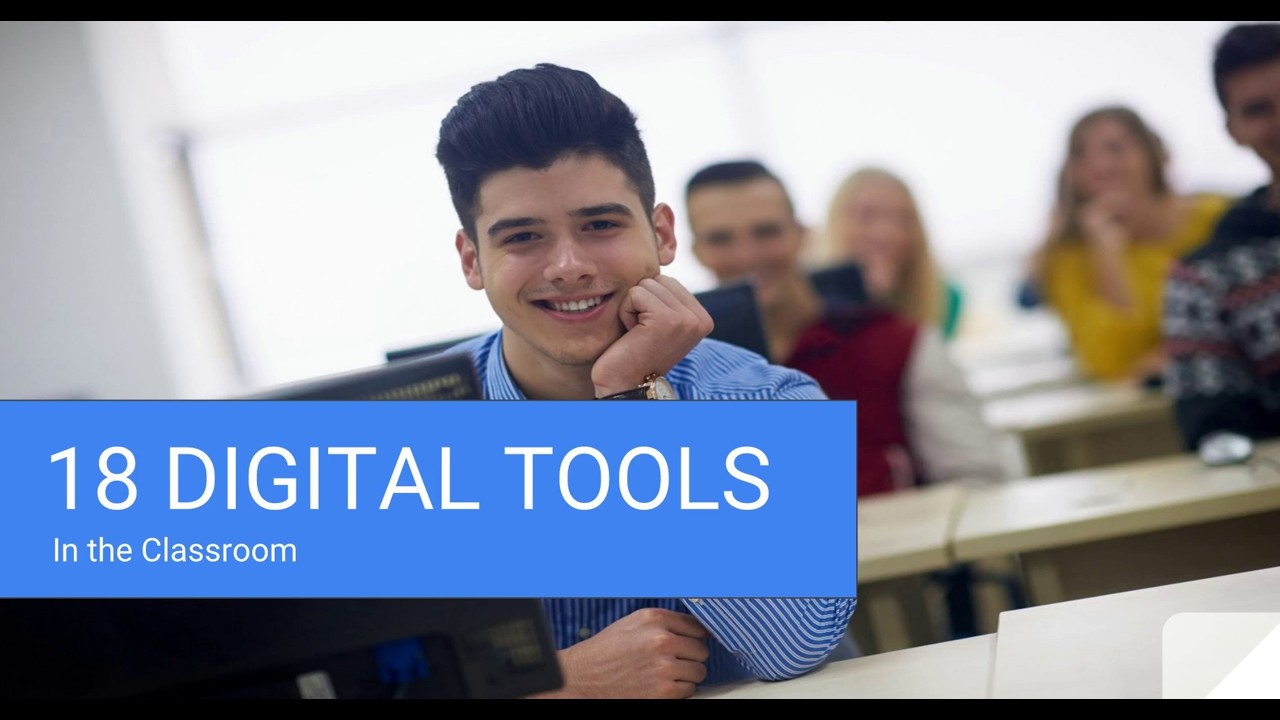
18 Digital Tool Musts in the Classroom
This video is from a series I taught for school districts. It is now available for free, here on Ask a Tech Teacher:
Summary
18 essential digital tools for classrooms, emphasizing their impact on modern education.
Highlights
- ✏️ Annotation Tools: Essential for digital note-taking.
- 👤 Avatars: Promote digital citizenship and privacy.
- 💬 Backchannel Devices: Enhance classroom communication.
- 🗓️ Class Calendars: Keep students organized and informed.
- 🌐 Class Websites: Centralize classroom resources and communication.
- 📚 Digital Portfolios: Collect and showcase student work.
- 📊 Online Quizzes: Provide fun and quick assessments.
Key Insights
- 📝 Annotation tools like Notability and Adobe Acrobat empower students to engage with digital texts actively, fostering comprehension and retention.
- 🎨 Using avatars instead of personal images encourages student privacy and encourages creativity in digital representation, reinforcing digital citizenship principles.
- 🌍 Backchannel communication tools like Padlet and Twitter create a collaborative classroom environment where students can ask questions and share ideas in real time.
- 📅 Integrating class calendars keeps students accountable and involved in managing their schedules, enhancing organizational skills from an early age.
- 🖥️ Class websites serve as a hub for resources, helping parents and students stay connected and informed about class activities and expectations.
- 📂 Digital portfolios allow students to curate their work, promoting self-reflection and ownership of their learning journey while simplifying the grading process for teachers.
- 🎉 Online quizzes not only engage students but also provide instant feedback, enabling educators to identify learning gaps and adjust instruction accordingly.
–summarized by NoteGPT

This video is from a series I taught for school districts. It is now available for free to Ask a Tech Teacher subscribers. Videos include (in alphabetic order):
- 15 Webtools in 15 Weeks
- 18 Digital Tools in the Classroom
- A focus on strategies
- Alternative tools
- Assessment isn’t static
- Author doers
- BYOD
- Class warm-ups
- Collaboration
- Curriuculum Maps
- Differentiation–How to teach the hard-to-teach class
- Digital Citizenship: What to Teach When
- Flipping the classroom
- Gamification of education
- How to Teach a Tech Lesson
- Presentation Boards
- Tech-infused classroom
- Tech tools
- The 20% rule
- Using backchannel devices
- Warm-ups

Here’s the sign-up link if the image above doesn’t work:
https://forms.aweber.com/form/07/1910174607.htm
“The content presented in this blog are the result of creative imagination and not intended for use, reproduction, or incorporation into any artificial intelligence training or machine learning systems without prior written consent from the author.”
Jacqui Murray has been teaching K-18 technology for 30 years. She is the editor/author of over a hundred tech ed resources including a K-12 technology curriculum, K-8 keyboard curriculum, K-8 Digital Citizenship curriculum. She is an adjunct professor in tech ed, Master Teacher, webmaster for four blogs, freelance journalist on tech ed topics, contributor to NEA Today, and author of the tech thrillers, To Hunt a Sub and Twenty-four Days. You can find her resources at Structured Learning.

Wikispaces has closed. What are your alternatives?
 Wikispaces, one of education’s standout collaborative websites, closed at the end of June 2018. Thousands of teachers have used the free Wikispaces platform to share materials with students and colleagues, to run online classrooms, or as the virtual arm of a blended course. Its robustness and versatility allowed teachers to engage in discussion boards, forums, share all sorts of media, and create a personalized environment that could be tweaked to adapt to individual needs.
Its end has left teachers scrambling for alternatives that accomplish the same goals within a tight education budget.
Let’s back up a moment: What is a wiki?
A wiki is a collaborative website that collects and organizes content created and revised by users.
The most well-known example of a wiki is Wikipedia but others include Wikimedia Commons and WikiHow.
If you’re one of the over 10 million teachers and students forced to find an alternative to Wikispaces, start here:
Wikispaces Replacement 101
1. Build a wiki from scratch
If you want to simply recreate your current Wikispaces environment, here are two wiki platforms that will allow you to do that:

5 Best Practices for Digital Portfolios
Digital portfolios have become a critical part of today’s classroom. Why collate student work into clunky 3-ring binders that can only be one place at a time, are subject to damage and page loss, and are difficult to update when there are so many easy-to-use, intuitive digital versions:
- Blogs–Kidblogs, WordPress, Edublogs
- Digication

- Dropr
- Edusight–pictures of student work for a digital portfolio; free, app; online comprehensive picture
- Flipboard–a magazine format (iOS only)
- Google Drive
- Live Binders
- Three Ring--mini digital portfolio. Easy to use, quick, syncs with app–not as robust as others
- Wikispaces–or another wiki concept (PBWorks)
- WordPress–use blogs for e-porfolios
Each offers a unique collection of tools, differentiating for the diverse needs of today’s learners. How do you decide which is best for you? Start with the list of Best Practices for selecting and using digital portfolios. Consider the following:

How to Embed Student Work into Digital Portfolios
With the education spotlight on sharing and publishing, students need to be able to take a project they’ve created and place it in their blogs, websites, or another location that shares their work with others. Often, this starts with an embed code.
Here’s a video I created for my Summer PD students on how to embed a project:

Why use a Digital Portfolio–and 9 ways to do it
 At a certain point in a student’s education journey, they start having a lot of school work that needs to be:
- saved for future use
- accessed from home and school
- shared with multiple students for collaborations
- submitted to teacher for grading
- returned from teacher digitally with comments and grade
- collected and displayed in all types of file formats–Word, Google, Photoshop, pdf
- organized to find data easily
- linked to other pieces of work or online sites
For example, a student can create a project at school, access it at home and link key words to websites found by a classmate that supports the project discussion.

6 Ways to Say Bye Bye Binders
 3-ring binders–the mainstay of education for decades–now seem clunky, heavy, unwieldy even.. You never have a hole punch when you need one so you end up forcing holes into the margin. The rings break or bend and then the pages don’t turn properly, and still you persevere, using them even as your younger colleagues abandon them. There are digital alternatives, but you aren’t one of those teachers who jumps at the latest technology. You wait, see what colleagues like, and stick with the outmoded binders like comfort food.
What is it about binders that seems so irreplaceable? The fact that everything is in one place–you can grab it and have pretty much all the material you need for a particular class or event? Is it the nice tabbed set-up where you can quickly flip to the topic you need? Or maybe it’s the pockets–stuff papers in there that don’t seem to have a home among the tabs as they await filing.
Here are six free tools that are going to liberate you. They not only do everything a good binder does, but they’ll reorganize and share your notes, email colleagues, help you collaborate on projects, grow with you (no more buying a bigger binder), and magically appear wherever you are–no more forgetting to bring the binder. These ebinders are always there, in the cloud, ready, accessible by dozens of people at once from pretty much any digital device–computers, netbooks, iPads, smart phones.
Live Binders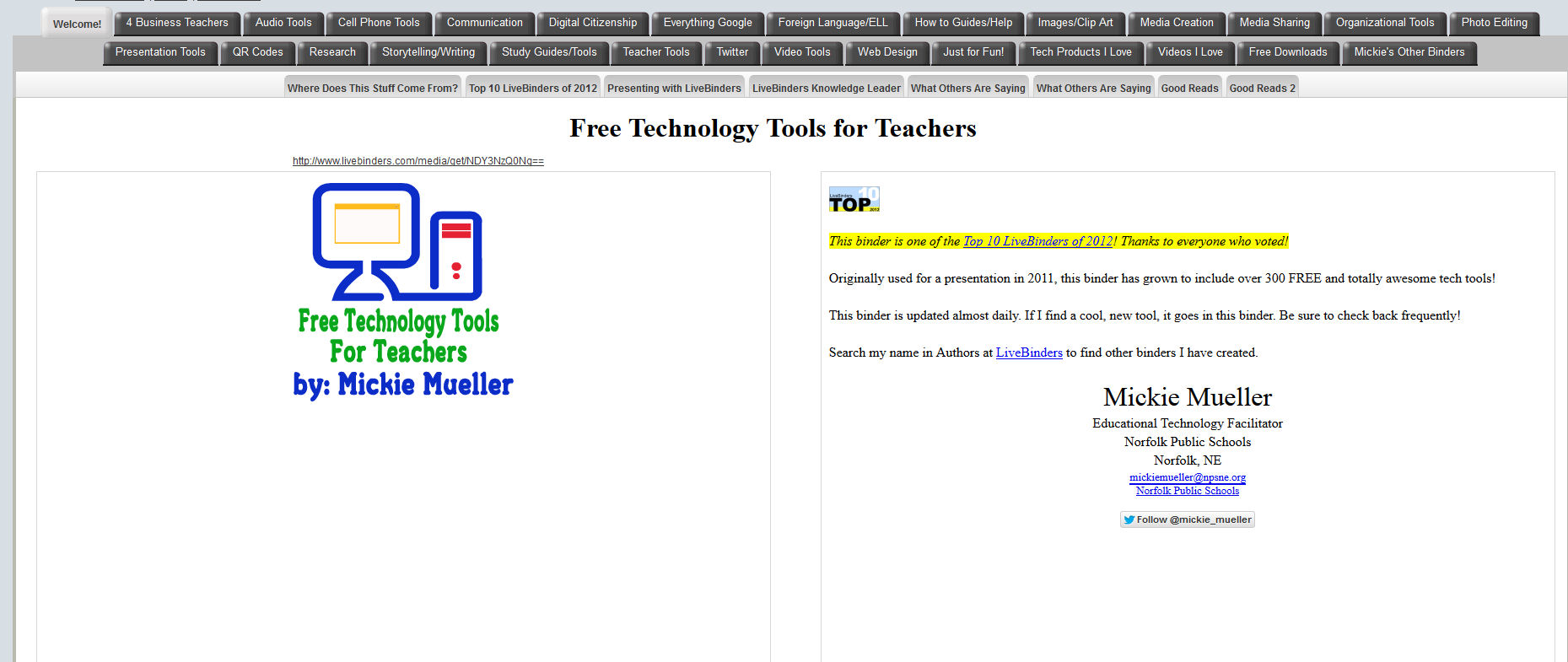
Live Binders is the closest the internet gets to a three ring binder. It’s a free online service that allows you to collect webpages, images, and documents in a tabbed, book-like format. Students can collect not only the information they collect from websites, but what they’ve prepared in software programs like Word, PowerPoint, pdfs, and more. Live Binders are simple to set up. Just create an account, add tabs for primary topics (say, math), and then add collections to each tab of sub-topics (say, Common Core). When visitors see your LiveBinder, they see the main tabs, select the topic they want, and then see related materials. Very clean, organized, and appeals to the clerk in all of us.

Dear Otto: What are Options on Digital Portfolios
 Dear Otto is an occasional column where I answer questions I get from readers about teaching tech. If you have a question, please complete the form below and I’ll answer it here. For your privacy, I use only first names.
I received this question from Mary.
I teach Media Production, where my year 9 students get creative with Adobe Photoshop, Audition, Premier Pro and Stop Motion Pro. They have a wonderful time, but I would love to be able to provide them with a way of keeping a digital portfolio of their work. Our school runs Blackboard, but the digital portfolio add-in is very expensive, too much for our small school.
Are there any free web-based options I should know about, or less expensive ones?
Thanks!
Hi Mary
Have you considered getting students signed up for wikispaces? You can create a free wiki, add each student as a member and let them create their own page, then they can embed each project right onto their wiki page. I did this with 5th graders last year and got some beautiful results (albeit mixed because of the age. Some got it; some glazed over).





