
Tag: Google

Tech Tip #156: How to Turn on Google and Duck Duck Go SafeSearch

In these 169 tech-centric situations, you get an overview of pedagogy—the tech topics most important to your teaching—as well as practical strategies to address most classroom tech situations, how to scaffold these to learning, and where they provide the subtext to daily tech-infused education.
Today’s tip:
Category: Parents
Here’s how to turn on SafeSearch on Google:
- Open https://www.google.com/ in a web browser.
- Click Settings at the bottom of the page.
- Check the box for Turn on SafeSearch.
- Click Save.

For those who use Duck Duck Go, here’s how to turn on safe search:
Use safe.duckduckgo.com: Searches always have safe search set to “strict”.
Three ways:
-
Using the Search Results Page:
-
After performing a search on DuckDuckGo, look below the search bar for settings options.
-
There should be a dropdown menu labeled “Safe Search.”
-
Select either “Moderate” or “Strict” from the dropdown menu to activate Safe Search. “Moderate” will filter out explicit content, while “Strict” will provide a higher level of content filtering.
-
-
Using the DuckDuckGo Settings Page:
-
Navigate to the DuckDuckGo website.
-
Click on the three horizontal lines in the top right corner of the page to open the menu.
-
Select “Settings” from the menu.
-
Under the “General” tab, find the “Safe Search” section.
-
Choose either “Moderate” or “Strict” from the dropdown menu to enable Safe Search.
-
-
DuckDuckGo Browser:
-
If you are using the DuckDuckGo browser app on mobile or desktop, go into the settings by clicking on the three horizontal lines or the gear icon.
-
Look for “More Search Settings” or a similar option.
-
Here you will find the “Safe Search” settings where you can choose “Moderate” or “Strict.”
-

Sign up for a new tip each week or buy the entire 169 Real-world Ways to Put Tech into Your Classroom.
What’s your favorite tech tip in your classroom? Share it in the comments below.
Tech Tip #150: Google as a Dictionary
In these 169 tech-centric situations, you get an overview of pedagogy—the tech topics most important to your teaching—as well as practical strategies to address most classroom tech situations, how to scaffold these to learning, and where they provide the subtext to daily tech-infused education.
Today’s tip: Google extras
Category: Parents
Google search can be used as lots more than a resource search tool. For example, use it to define words by typing the word you want defined and pushing enter:
- Define monarchy
- Define landform
Other tools:
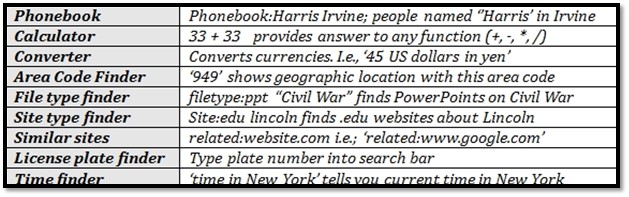
Sign up for a new tip each week or buy the entire 169 Real-world Ways to Put Tech into Your Classroom.
What’s your favorite tech tip in your classroom? Share it in the comments below.

Tech Tip #108–Tech Problem? Google it!
 In these 169 tech-centric situations, you get an overview of pedagogy—the tech topics most important to your teaching—as well as practical strategies to address most classroom tech situations, how to scaffold these to learning, and where they provide the subtext to daily tech-infused education.
Today’s tip: Search the Internet for most tech problem solutions
Category: Problem-solving
Q: Sometimes, I can’t remember how to accomplish a task. What do I do?
A: One of the best gifts I have for students and colleagues alike is how to solve this sort of problem. Before you call your IT guy or the tech teacher, here’s what you do:
Google it.
Type the question into Google and push send. 80% of the problems I am asked can be answered that way. Once you get used to this, you’ll become annoyed when others don’t use it. You have lots of company in that sentiment.
Sign up for a new tip each week or buy the entire 169 Real-world Ways to Put Tech into Your Classroom.
What’s your favorite tech tip in your classroom? Share it in the comments below.

169 Tech Tip #130: 7 Google Tricks Teachers Should Know
In these 169 tech-centric situations, you get an overview of pedagogy—the tech topics most important to your teaching—as well as practical strategies to address most classroom tech situations, how to scaffold these to learning, and where they provide the subtext to daily tech-infused education.
Today’s tip: #130: 7 Google Tricks Teachers Should Know
Category: Google Apps
Sub-category: Search/Research, Classroom Management
- Revision History—this is a running list of all changes made to a document over time. It tracks collaboration and allows students to roll back a document to a previous version in case something unexpected happened.
- Share/Collaborate–multiple students can create and use the same document and automatically save it to their Google Drive. This is great for note-taking, projects, collaborative research, and plan/revise/edit/rewrite requirements.
- Research–search topics from within the document by quotations, images, or a variety of other options and insert the result into a document complete with footnoted citations.
- Auto-save—documents are automatically saved to the cloud without any action on the part of students.
- Download As—download any Google Apps file in another format—Office, Open Office, PDF, or RTF (rich text format).
- Embed document in another webtool—any Google Appsdocument can be embedded into a student blog, class website, a wiki, or any number of online locations. Called ‘publishing’, this is simple.
- Easily insert comments–to a collaborative document so stakeholders can see ideas from other members using the ‘Comments’ button.
Sign up for a new tip each week or buy the entire 169 Real-world Ways to Put Tech into Your Classroom.

Tech Tip #108: Got a Tech Problem? Google It!
As a working technology teacher, I get hundreds of questions from parents about their home computers, how to do stuff, how to solve problems. Each Tuesday, I’ll share one of those with you. They’re always brief and always focused. Enjoy!
Q: Sometimes, I just can’t remember how to accomplish a task. Often, I know it’s simple. Maybe I’ve done it before–or even learned it before–and it’s lost in my brain. What do I do?
A: One of the best gifts I have for students and colleagues alike is how to solve this sort of problem. Before you call your IT guy, or the tech teacher, or dig through those emails where someone sent you the directions, here’s what you do:
Google it.

Weekend Website #109: Google World of Wonders
Every Friday, I share a website (or app) that I’ve heard about, checked into, been excited to use. This one is a math app. Since ‘math’ is by far the most popular search term of readers who seek out my blog, I know you’re going to enjoy this review.
[caption id="attachment_8541" align="aligncenter" width="614"] Explore the world as a virtual tourist[/caption]
(more…)

Google Apps Support Bloom’s Taxonomy–Take a Look
Kathy Shrock has done a wonderful piece linking the multitude of Google Apps to the levels of Blooms Taxonomy. This is an invaluable resource for all teachers.
BTW, she’s updated the page since I posted this 18 months ago so the picture looks a bit different. Click the image; scroll down to the section on “Google Apps to Support Bloom’s”
Take a look:
[caption id="attachment_5485" align="aligncenter" width="614"] Google Apps Meets Blooms Taxonomy[/caption]





