
Tag: 169 tech tips

Tech Tip #60: How to Add Shortcuts to the Desktop
As a working technology teacher, I get hundreds of questions from parents about their home computers, how to do stuff, how to solve problems. Each Tuesday, I’ll share one of those with you. They’re always brief and always focused. Enjoy!
Q: How do I create a shortcut on my desktop so I can find my programs easier?
A: There are two ways to do that:
- click on the icon on the start button and drag and drop it to the desktop, or
- right click on the icon on ‘all programs’ (click start button, then select ‘all programs’ at the bottom) and select ‘send to’, then select ‘desktop (create shortcut)’
That’s it.
Tech Tip #59: Shortkey for the Copyright Symbol
As a working technology teacher, I get hundreds of questions from parents about their home computers, how to do stuff, how to solve problems. Each Tuesday, I’ll share one of those with you. They’re always brief and always focused. Enjoy!
Q:How do you create the copyright symbol in Word?
A: It’s easier than you’d think. Hold down the Alt key and press 0169. Use the keypad with the num lock on–don’t use the number row. I could not get this to work until someone pointed out that you must use the keypad. Duh.
This not only works in Office, but lots of other places, ©–like Wordpress. Cool, huh?
Tech Tip #56: Force a New Page
As a working technology teacher, I get hundreds of questions from parents about their home computers, how to do stuff, how to solve problems. Each Tuesday, I’ll share one of those with you. They’re always brief and always focused. Enjoy!
Q: I’m teaching my students to create a book report with a cover page. what’s the easiest way to get the cover on the first page and the report on the second?
A: Students as young as 2nd grade can learn to force a new page with Ctrl+enter. I have them create the cover page during one class and add the Ctrl+enter for the new page. That way, students can type the book report without my help–even on classroom computers.
To get the complete list of Tech Tips, click here.
To ask a question, fill out this form:
Tech Tip #55: Find a Lost Shortcut
As a working technology teacher, I get hundreds of questions from parents about their home computers, how to do stuff, how to solve problems. Each Tuesday, I’ll share one of those with you. They’re always brief and always focused. Enjoy!
Q: I can’t find the shortcut for a program I want to open. It’s not on the desktop, on the start menu or in ‘all programs’. How do I open the program?
A: Try ‘Start button’, then type in the name of the program where it says ‘start search’. The shortcut shows up.
Tech Tip #54: How to Auto Forward a PowerPoint Slideshow
As a working technology teacher, I get hundreds of questions from parents about their home computers, how to do stuff, how to solve problems. Each Tuesday, I’ll share one of those with you. They’re always brief and always focused. Enjoy!
Q: My students are learning to use Powerpoint for presentations. They’ll stand in front of the class and the slideshow will play behind them. We want it to go automatically without requiring them to click the mouse or push the space bar. How do we do that?
A: Presentations are a great skill to teach students. I applaud you on this. Auto-forward isn’t difficult:
- go to Transition on the menu bar
- go to Timing on the right side
- Leave ‘on mouse click’ selected (in case you as the teacher need to move it forward automatically. I’ve had students mistakenly put five minutes on a slide instead of five seconds and we would sit waiting forever if I didn’t do the mouse click)
- set the timer to serve the needs of the slide. This will require students to practice before presenting so they can put the correct time in. A good default of 5-10 seconds.
Tech Tip #53: How to Pin Any Program to the Start Menu
As a working technology teacher, I get hundreds of questions from parents about their home computers, how to do stuff, how to solve problems. Each Tuesday, I’ll share one of those with you. They’re always brief and always focused. Enjoy!
Q: There’s a program I use all the time, but it’s not on my desktop. I have to click through All-Programs-(etc–wherever it is you must go to find it). Is there a way to add it to my start menu so I can find it more easily?
A: Absolutely.
- Click through All-programs to wherever it is, but don’t open the program.
- Instead, right click on the icon that would normally open the program and select ‘pin to start menu’ from the drop down menu.
This will attach this program to your Start button in the future. Much easier! From this same menu, you could attach to program to your Taskbar if you prefer.
Tech Tip #52: Roll Your Computer Back to a Problem-Free Date
As a working technology teacher, I get hundreds of questions from parents about their home computers, how to do stuff, how to solve problems. Each Tuesday, I’ll share one of those with you. They’re always brief and always focused. Enjoy!
Q: Something happened and now my computer isn’t working right. I downloaded a program/music/video or installed a new program and it hasn’t worked right since. What do I do?
A: These days, that’s not as hard as it used to be. All you have to do is type ‘restore’ in the search box (on the start menu) and follow instructions. What it’ll do is turn your computer back to an earlier date, before you did the download or the install. It won’t affect documents, only the bad stuff. It’s saved me several times.
Tech Tip #49: The Fifteen Second Slideshow
As a working technology teacher, I get hundreds of questions from parents about their home computers, how to do stuff, how to solve problems. Each Tuesday, I’ll share one of those with you. They’re always brief and always focused. Enjoy!
Q: My kindergarten and first grade students are too young to create their own slideshows for Open House (or any parent day) and I’m just too busy. What’s an easy way to display their work digitally for parents that also involves the students in the preparation?
A: I had this problem last year. I simply ran out of time trying to prepare so I offloaded the work onto the students. I was worried it would be too much, but it turned into a wonderful experience for students and parents alike. Here’s all you do:
Tech Tip #48: Quickly Switch Between Windows
As a working technology teacher, I get hundreds of questions from parents about their home computers, how to do stuff, how to solve problems. Each Tuesday, I’ll share one of those with you. They’re always brief and always focused. Enjoy!
Q: I’m copy-pasting between a Word doc and an Excel doc on my computer. I know how to do that, but here’s the problem: I have three Word docs open. I don’t want to close the other two because I’ll need them soon. It takes a lot of time to click down to the taskbar, bring up the Word group and find the correct Word doc. Is there an easier way?
A: Oh yes, Much easier. Use Alt+tab. That takes you to the last window you visited. If you’re toggling between two windows, this is the perfect solution. I use it a lot for grading and report cards.

Tech Tip #47: Tool Tips
As a working technology teacher, I get hundreds of questions from parents about their home computers, how to do stuff, how to solve problems. Each Tuesday, I’ll share one of those with you. They’re always brief and always focused. Enjoy!
This week’s tip: I’m supposed to find a tool on the toolbar, but there are so many and I have no idea what they are for? It’s just as bunch of pictures to me. Is there an easy way to figure this out?
A: To figure out what a tool does on the toolbar or 2007/10”s ribbon, hover your mouse over the tool (place the mouse above it without clicking). A tool tip will appear with a clue as to what it’s for.
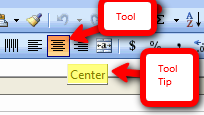
This works in any program with a toolbar or ribbon–MS Office, the internet, Photoshop, and more.





