Category: Teacher resources

Tech Ten Commandments–the Christian Version
I posted this list of tech ten commandments. It’s a great list, a way to generally address how to make friends with your computer and the geeks who take care of it for you.
Here’s another list, focused on Lutheran principles. Just as good with a few changes.
The 10 Lutheran Tech Commandments (in new standard version) (more…)

Tech Tip #44: Clean Your Computer Weekly
 As a working technology teacher, I get hundreds of questions from parents about their home computers, how to do stuff, how to solve problems. Each Tuesday, I’ll share one of those with you. They’re always brief and always focused. Enjoy!
Q: I’m afraid of getting slammed with viruses, malware, all that bad stuff that comes with visiting the internet. What do I do?
A: If you take reasonable precautions, the chances of being hit are minimized. Here’s what I do:
- Don’t download from music or video sites. They have the greatest amount of malware statistically because the Bad Guys know we-all like getting free music and videos.
- Make sure your firewall is working. Windows comes with a built-in one. Maybe Mac does too. Leave it active. It’s under Control Panel-Administrative Tools (more…)

Are you as Tech-Smart as a Fifth Grader?
I’ve been teaching technology to kindergarten through eighth graders for almost fifteen years. Parents and colleagues are constantly amazed that I can get the
[caption id="attachment_5684" align="alignright" width="289"] Are you puzzling how to teach problem solving to students? Read on[/caption]
littlest learners to pay attention, remember, and have fun with the skills that are required to grow into competent, enthusiastic examples of the Web 2.0 generation.
I have a confession to make: It’s not as hard as it looks. Sure, those first few kindergarten months, when they don’t know what the words enter and backspace mean, nor the difference between the keyboard and headphones, and don’t understand why they can’t grab their neighbor’s headphones or bang on their keyboard, I do rethink my chosen field. But that passes. By January, every parent tour that passes through my classroom thinks I’m a magician.
What’s my secret? I teach every child to be a problem solver. If their computer doesn’t work, I have them fix it (what’s wrong with it? What did you do last time? Have you tried…?) If they can’t remember how to do something, I prod them (Think back to the instructions. What did you do last week? See that tool—does that look like it would help?) I insist they learn those geek words that are tech terminology (There’s no such thing as earphones. Do you mean headphones? I don’t understand when you point. Do you mean the cursor?) No matter how many hands are waving in my face, I do not take a student’s mouse in my hand and do for them, nor will I allow parent helpers to do this (that is a bigger challenge than the students. Parents are used to doing-for. They think I’m mean when I won’t—until they’ve spent a class period walking my floorboards.). I guide students to an answer. I am patient even when I don’t feel it inside. My goal is process, not product. (more…)

#40: Wonders of Google Earth
Students create their own tour on Google Earth using locations selected by the classroom teacher. They add the locations to Google Earth, add a fact about it and turn it into a tour.
[gallery columns="2" ids="44486,44485,44487,44484"]

About Me
 Hi all!Thanks for dropping by my blog. I am the technology teacher among our group of WordDream bloggers at a Southern California elementary school. We start with KidPix and keyboarding in kindergarten and finish off with Photoshop and wikis by the end of fifth Grade. Over the years, I’ve taught thousands of students and loved every minute of it. There’s nothing more exhilarating than to be let loose on the savannas of the internet with a toolkit chock full of technology skills. Feel free to visit my teacher blog, my classroom wiki (remember: wikis are created and maintained by the students) and my tech start page. (more…)

Tech Tip #43: Back Up Often
 As a working technology teacher, I get hundreds of questions from parents about their home computers, how to do stuff, how to solve problems. Each Tuesday, I’ll share one of those with you. They’re always brief and always focused. Enjoy!Q: How often should I back up my current project? How about my whole hard drive?
A: I teach my students to save early, save often when they’re working on a project. You decide what you can tolerate losing. Ten minutes or Ten hours. After all, if the computer loses your work, you’re the one who has to start over.
As for the entire computer, once a week is good. Me, I save each project I’m working on and then save-as to a back-up location. I hate losing my work.
BTW, most people skip this. Don’t! It’s easy.
Questions you want answered? Leave a comment here and I’ll answer it within the next thirty days.

Weekend Website #54: 20 Great Research Websites for Kids
Here are quick, safe spots to send your students for research (for updates to this list, click here):
- All-around research site libraryspot.com

- Dictionary www.dictionary.com
- Edutainment site—requires subscription www.brainpop.com/
- General info research www.infoplease.com/yearbyyear.html
- Internet research sites for kids http://ivyjoy.com/rayne/kidssearch.html
- Kids search engine for the internet kids.yahoo.com (more…)

Weekend Website #61: Brainy Widgets from Wolfram Alpha
Every Friday, I’ll send you a wonderful website (or more) that my classes and my parents love. I think you’ll find they’ll be a favorite of your students as they are of mine.
[caption id="attachment_5665" align="aligncenter" width="614"]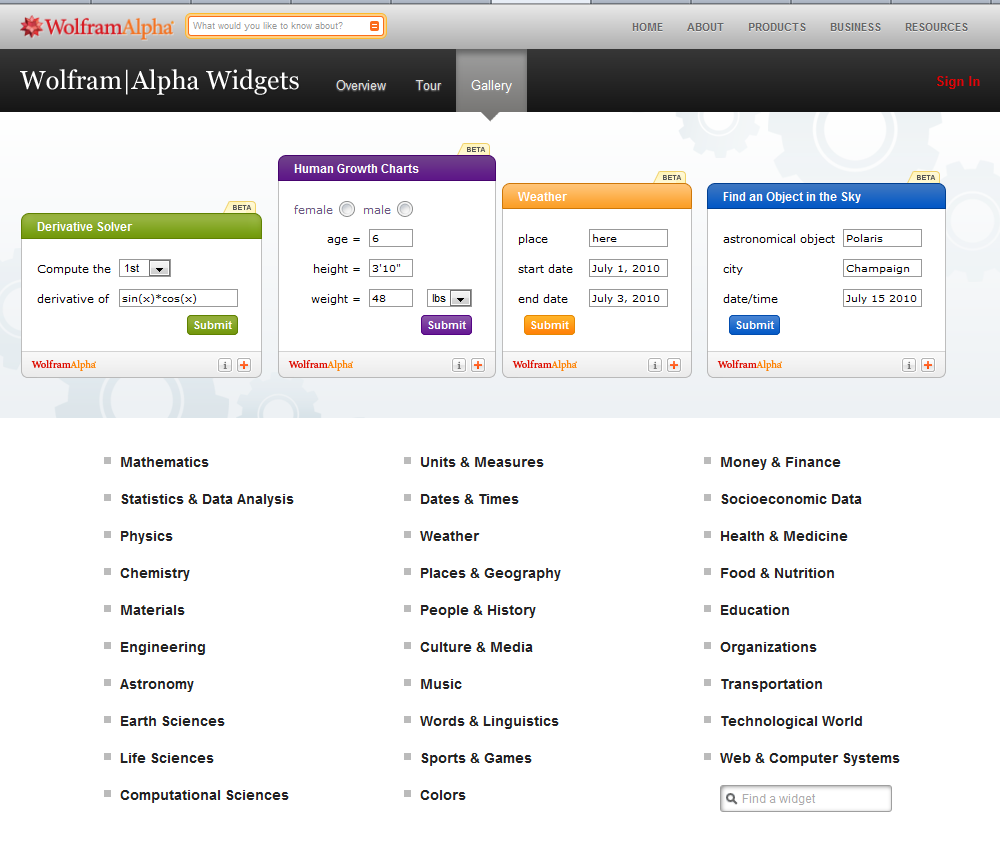 Educational widgets for your blog or website[/caption]
(more…)

Tech Tip #42: How to (Re)Set Your Homepage
As a working technology teacher, I get hundreds of questions from parents about their home computers, how to do stuff, how to solve problems. Each Tuesday, I’ll share one of those with you. They’re always brief and always focused. Enjoy!Q: My homepage got hijacked! I mean, it no longer opens up to what it used to. How do I fix that?
A: Go to the page you want as your homepage. Here’s what you do next:
- If you’re in Firefox, go to Tools–Options
- Click on General
- Click the button that says, Use Current
- Say OK
If you use IE: (more…)

Weekend Website #53: 41 Websites for Teachers to Integrate Tech into Your Classroom
This list has a little bit of everything, and will kick-start your effort to put technology into your lesson plans: