
Year: 2025

Subscriber Special: Discount on Teacher Survival Kits

Every month, subscribers to our newsletter get a free/discounted resource to help their tech teaching. This month:
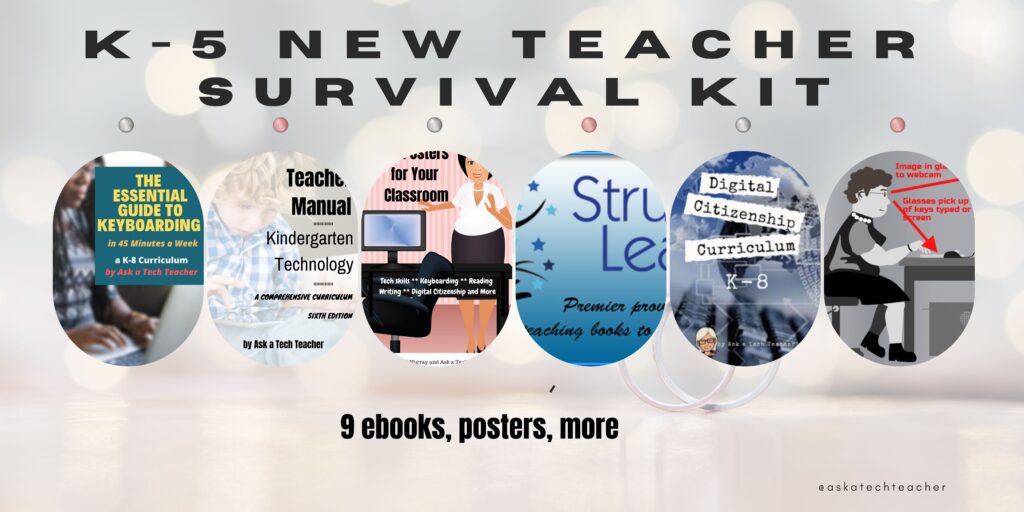
K-5 New Teacher Survival Kit
9 ebooks, 65 digital posters
August 7-August 10, 2024
Save 20% with this code:
3xar9wzu
A new teacher survival kit–for professionals new to teaching tech or expanding their pedagogy. It includes K-5 tech curriculum (problem solving, productivity software, critical thinking, share/publish, mouse skills, image editing, Google Earth, Photoshop, web tools, and more), keyboarding and digital citizenship curricula, classroom posters, tech ed tips and tricks, and posters.
You may be the Technology Specialist, the Coordinator for Instructional Technology, IT Coordinator, Technology Facilitator, Curriculum Specialist, Technology Director or the technology teacher for your school—tasked with finding the right computer project for each classroom unit. You have a limited budget, less software, and the drive to do it right no matter the roadblocks.
It’s your job to make sure your school complies with the requirements of Common Core State Standards, ISTE, your state requirements, and/or the IB guidelines that weave technology consistently into the fabric of all units of inquiry as a method of delivering quality education.
How do you reach your goal? The K-5 New Teacher Survival Kit.

10 Unexpected Truths About Teaching

The best rules for teaching aren’t found in a textbook, a teacher training class, or even the advice of older colleagues. It’s found inside of you, in your gut, your instinct, your intuition. Here are ten rules no one will teach you, but will get you through the darkest times in your teaching career:
- I HODL which is nothing like Yodel. It’s an acronym for Hold On for Dear Life. If I hang a sign around my neck saying, I’m HODLing. Leave me alone, everyone knows to avoid me.
- When coloring between the lines doesn’t work, I try a bigger paintbrush. What I mean is, when those multitudinous rules about genre writing bog my story down, it’s time to try breaking the rules.
- If something that used to work no longer does, change it. My husband used to kill flies by snapping them with his fingers. Then he got old(er), tired of his miss rate, and switched to a dishrag.
- Every once in a while, I sit in a hard chair and reflect. I don’t do this one often.
- I pick carefully who I trust about my teaching. That’s also my attitude toward boneless fish.
- For difficult days, I don my I Am a Teacher t-shirt, take half a baby aspirin, and howl at the detractors.
- Don’t get tricked into measuring what you can’t define. Know the problem. Investigate solutions. Ask for help if necessary.
- Take advantage of the most important of human freedoms: You have the ability to choose your attitude in a given set of circumstances. If others are frustrated, you can be positive, others angry, you can smile.
- Figure out your North star and stick with it. It doesn’t move. Don’t pretend it does.
- Help students see around corners.

What You Might Have Missed in July–What’s up in August

Here are the most-read posts last month
- Need a New Job? Here’s What You Do
- Photoshop Skills–Custom Shapes
- Tech Tip #88: Use Shortkeys with Students
- Tech Ed Resources–K-8 Keyboard Curriculum
- Is Online Schooling a Good Fit for Teens?
- USA Moon Landing July 20 1969
- Photoshop for Fifth Graders–Change Backgrounds

Here’s a preview of what’s coming up (more…)

Photoshop Basics

Here are the basic skills fifth graders can learn in Photoshop if you’ve prepared them with basic computer skills. I’ve provided links but they aren’t live until publication:
- Photoshop artwork–live
- Photoshop actions–live
- Photoshop basics #5 (this lesson)
- Photoshop filter and rendering tools
- Photoshop starters–auto-correct with the auto-correction — quick fixes that make a photo look cleaner #6
- Photoshop crop tool–with the lasso and the magic wand #7
- Photoshop clone tool– within a picture and to another picture #8
- Photoshop–change the background–live
- Photoshop tools–add custom shapes–live
- Photoshop–start with Word –live (a little dated but still useful)
Get started
Open Photoshop. What you see will vary depending upon your Photoshop version. Adapt the lesson to what your school offers.
Notice the tool bars at the top. These will change depending upon the tool you choose from the left side. These are the crux of Photoshop. Cover about ten in fifth grade. The rest will have to wait. The right-hand tools are used independent of the left-hand tools. They are more project oriented.
- Click the File Browser tool. It shows you the folders on your computer. From here, you can select the picture you’d like to edit (or use File-open) (more…)

How Fast Should Kids Type
I posted this four years ago, but turned comments off. What I didn’t connect at that time was that a similar post on my old WordPress blog had dozens of comments on an ongoing basis. People like talking about their typing speed! So, I am reposting this with comments open. Be sure to visit the old post (almost 15 years old) for some amazing comments from keyboard enthusiasts

I get this question a lot from readers and purchasers of my technology curriculum: How fast should kids type? What about Kindergartners? When are their brains mature enough to understand speed and accuracy?
When I reviewed the literature on this subject, it is all over the place. Some say third grade, some leave it until sixth. I say–decide based on your own set of students. Me, I’ve come to conclusions that fit my particular K-8 students. Their demographics include:
- private school
- parents support emphasis on keyboarding
- most have computers at home; actually, most have their own computer at home
- students are willing to practice keyboarding in class and submit homework that is oriented to keyboarding
Based on this set of students, here’s what I require:

Kindergarten
An introduction. We use Type to Learn Jr. We also use Brown Bear Typing as a challenge for students, an activity that moves them into another of their choice. I focus on:
-
- posture
- hand position (hands on the keyboard)
They tolerate TTL Jr. and love Brown Bear. Often, even when they’ve achieved a score that allows them to move on, they continue. When it’s free choice time, they often select this program.
I also use a variety of games to support learning the most common keys on the keyboard–enter, spacebar, backspace, delete, etc.
First Grade
Photoshop for Fifth Graders–Change Backgrounds

Here are the basic skills fifth graders can learn in Photoshop if you’ve prepared them with basic computer skills. I’ve provided links but they aren’t live until publication:
- Photoshop artwork–already live
- Photoshop actions–already live
- Photoshop basics #5
- Photoshop filter and rendering tools
- Photoshop starters–auto-correct with the auto-correction — quick fixes that make a photo look cleaner #6
- Photoshop crop tool–with the lasso and the magic wand #7
- Photoshop clone tool– within a picture and to another picture #8
- Photoshop–change the background (put yourself at the Eiffel Tower or on Hoover Dam)–published here
- Photoshop tools–add custom shapes–already live
- Photoshop–start with Word (a little dated but still useful)
Get Started
This one you already know how to do if you’ve been following along through the book. Because it is a must-have in a school environment, I’m going to step it out for you.
- Have your child or students open a photo of themselves in Photoshop
- Use the cropping tools learned here to crop themselves out of the background
- Go to select-inverse to select the individual rather than the background
- Edit-copy (this will copy the student’s cropped picture)
- Open a picture of the background they’ve chosen
- Edit and then paste the picture they cropped into the background
Imagine, putting your students in the historic events you study together, in the landforms they learn about in science, or the natural math that appears in nature. Now, with this Photoshop lesson, that’s all possible.
PS–If you don’t have Photoshop, try the free download called GIMP.
–from 55 Technology Projects for the Digital Classroom.

Here’s the sign-up link if the image above doesn’t work:
https://forms.aweber.com/form/07/1910174607.htm
“The content presented in this blog are the result of creative imagination and not intended for use, reproduction, or incorporation into any artificial intelligence training or machine learning systems without prior written consent from the author.”
Jacqui Murray has been teaching K-18 technology for 30 years. She is the editor/author of over a hundred tech ed resources including a K-12 technology curriculum, K-8 keyboard curriculum, K-8 Digital Citizenship curriculum. She is an adjunct professor in tech ed, Master Teacher, freelance journalist on tech ed topics, and author of the tech thrillers, To Hunt a Sub and Twenty-four Days. You can find her resources at Structured Learning.

USA Moon Landing July 20 1969

On July 20, 1969, Neil Armstrong was the first man to place foot on the moon. Commemorate that this year with an exciting collection of websites and apps that take your students to the Moon (click for updates to the list):
- Apollo 11: Countdown to Launch via Google Earth
- Apollo 11 VR
- Google Moon–see the Moon in 3D with your Google Earth app
- How we are going to the Moon–video
- If the Moon Were Only One Pixel…
- JFK Challenge — takes kids to the Apollo 11
- NASA’s Musical Playlist–88 million viewers of 188 songs
- Moon Phase Simulation Viewed from Earth and Space (interactive, elementary and middle school)—and associated Lesson Plan
- Observing the Moon in the Sky (interactive, elementary)
- Moonrise to Moonset (media gallery, elementary)

A wonderful tribute to this day–a poem by Denise Finn (reprinted with permission)–if you enjoy this, check out Denise’s blog: (more…)

Tech Tip #27: My Taskbar Disappeared

As a working technology teacher, I get hundreds of questions from parents about their home computers, how to do stuff, how to solve problems. I share those with you. They’re always brief and always focused. Enjoy!
Q: My taskbar disappeared. What do I do?
A: Push the flying windows key (it’s located between Ctrl and Alt on the bottom left of your keyboard). That brings up the start button
Need more?
Windows 11
- Step 1: Check Taskbar Settings to see if the taskbar is set to auto-hide.
Open Settings by pressing “Windows + I” on your keyboard. Navigate to “Personalization” and then click on “Taskbar.” Ensure the “Automatically hide the taskbar” option is turned off.
- Step 2: Restart Windows
Press “Ctrl + Shift + Esc” to open Task Manager. Look for “Windows Explorer” in the list, click on it, and then click “Restart” at the bottom right. This action will refresh the taskbar, bringing it back if it was unresponsive.
Windows 10

Is Online Schooling a Good Fit for Teens?
Even before COVID burst on the scene and drove many schools into online versions of themselves, remote teaching had been gaining popularity. Driven by reasons like flexibility, personal needs, and accessibility, the positives associated with online schooling were convincing many to take a second look. The Ask a Tech Teacher team has done that with this article on–

Is Online Schooling a Good Fit for Teens?
Online education has become more than just an alternative. It’s a mainstream option for students looking for flexibility, independence, and a more personalized learning environment. For teenagers, high school is a critical time of development both academically and socially. As more families explore options like online high school in Washington state, it’s worth considering whether virtual schooling supports or hinders a teenager’s growth. (more…)

Tech Ed Resources–K-8 Keyboard Curriculum
I get a lot of questions from readers about what tech ed resources I use in my classroom so I’m going to take a few days this summer to review them with you. Some are edited and/or written by members of the Ask a Tech Teacher crew. Others, by tech teachers who work with the same publisher I do. All of them, I’ve found well-suited to the task of scaling and differentiating tech skills for age groups, scaffolding learning year-to-year, taking into account the perspectives and norms of all stakeholders, with appropriate metrics to know learning is organic and granular.
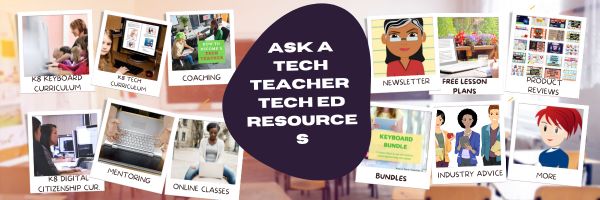
Today: K-8 Keyboard Curriculum
Overview
K-8 Keyboard Curriculum (four options)–teacher handbook, student workbooks, and help for homeschoolers
2-Volume Ultimate Guide to Keyboarding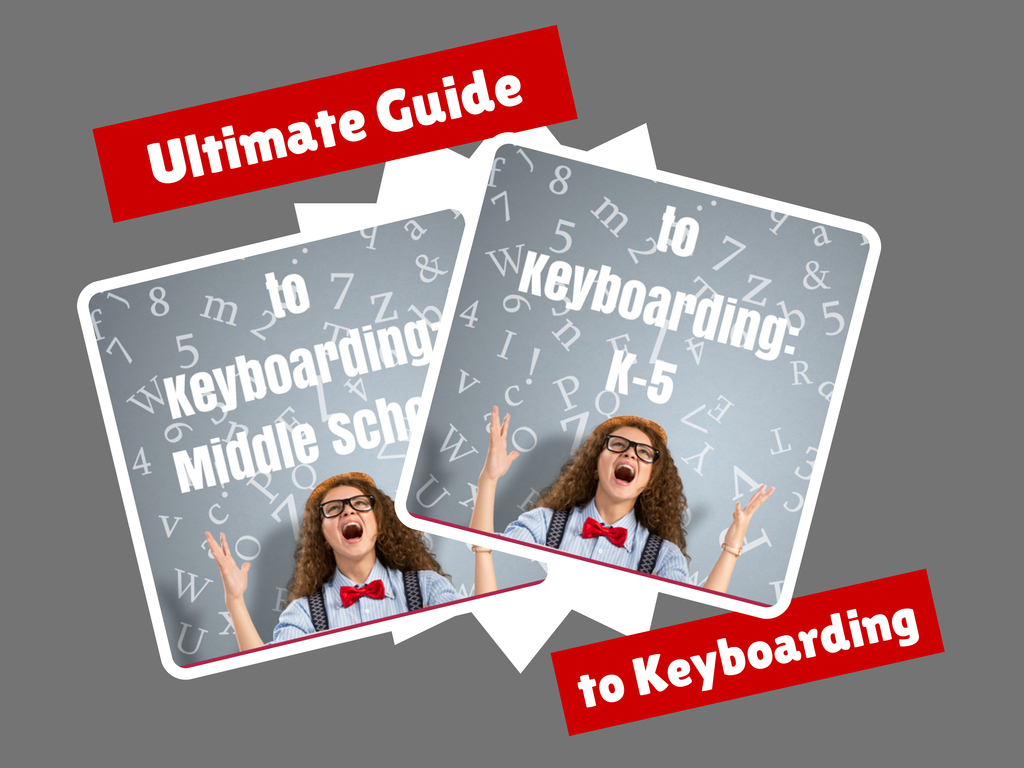
K-5 (237 pages) and Middle School (80 pages), 100 images, 7 assessments
K-5–print/digital; Middle School–digital delivery only
Aligned with Student workbooks
Delivered print or digital
Student workbooks sold separately
__________________________________________________________________________
1-Volume Essential Guide to K-8 Keyboarding
120 pages, dozens of images, 6 assessments
Delivered print or digital
Doesn’t include: Student workbooks





